Features
Everything around a pull request, one window.
BorgDock does the parts of pull request and agent work that usually cost you a browser tab: checks, reviews, work items, notes and the agents on them.
Pull requests
Watch every pull request
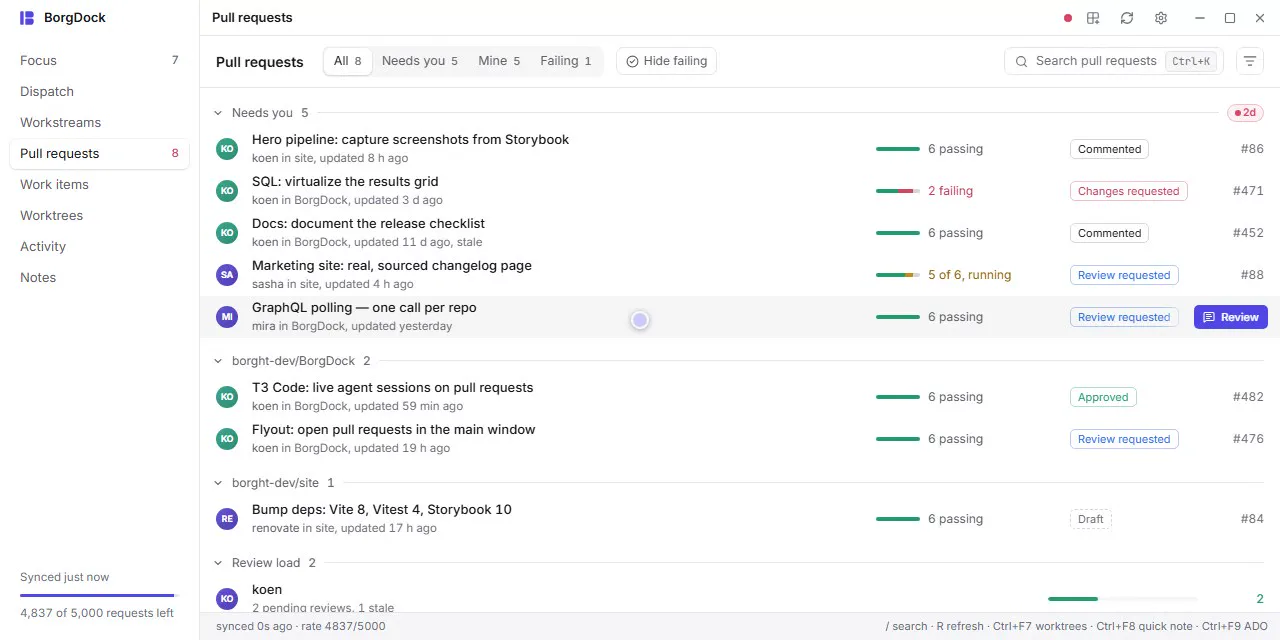
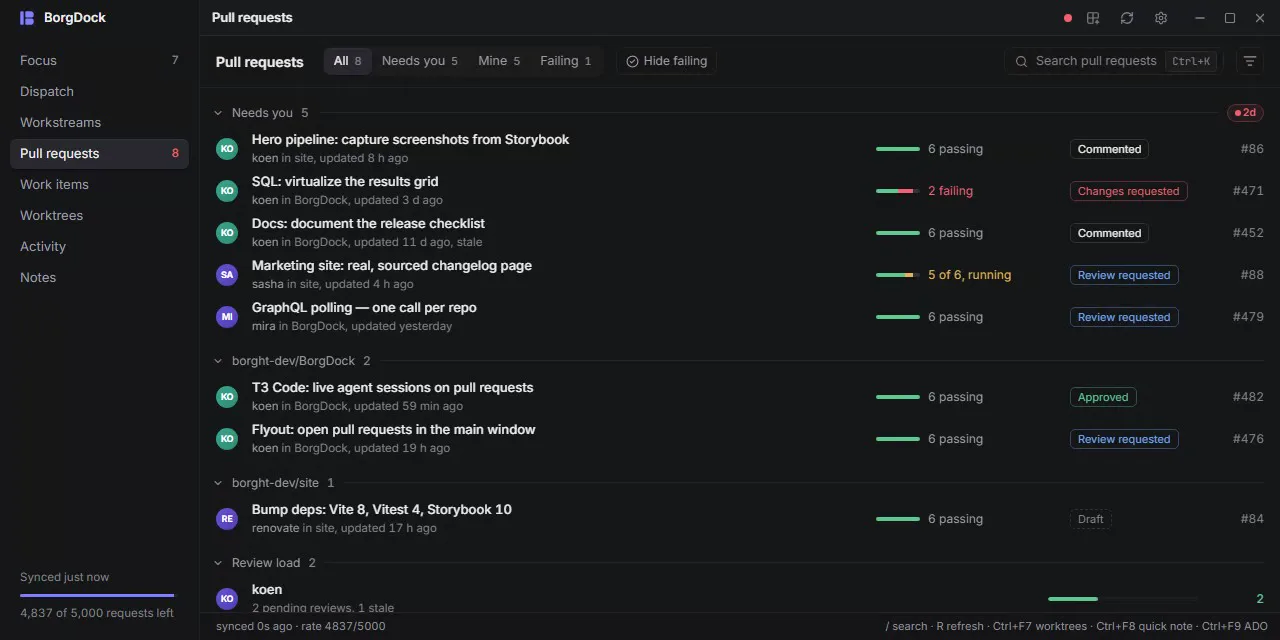
The Pull requests section lists every open pull request across your repositories, with one row each and the checks drawn as a single bar.
Filter to Needs you, Mine or Failing, or group by repository or author, and the rows slide to their new place. Hide failing leaves out every pull request with a failing check, so what is left is green or still running.
Click a row and the pull request opens full screen in the same window, with its whole description and screenshots. Back or Esc takes you straight back to where you were.
Shared failures
Fix a broken test once, not on every pull request
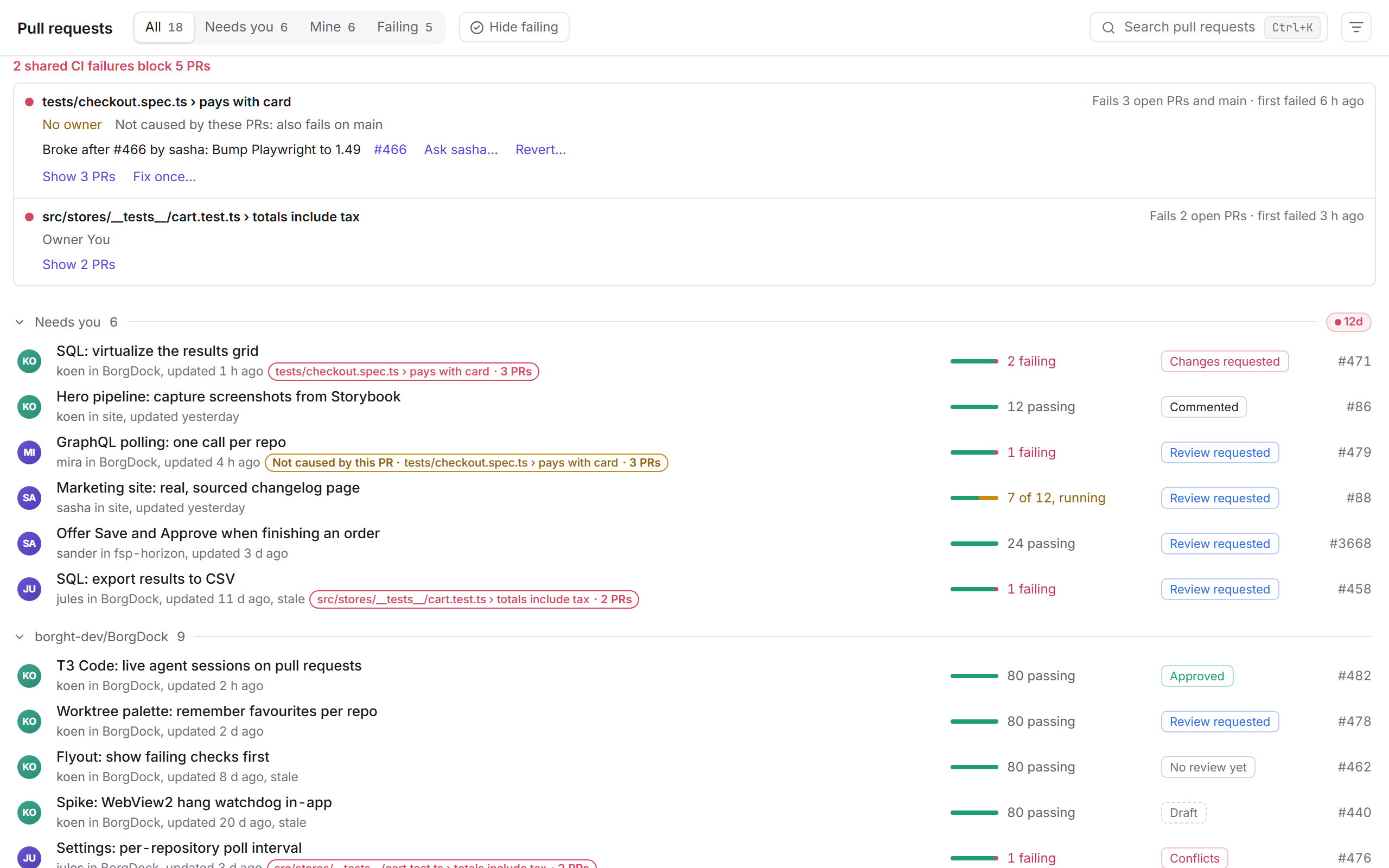
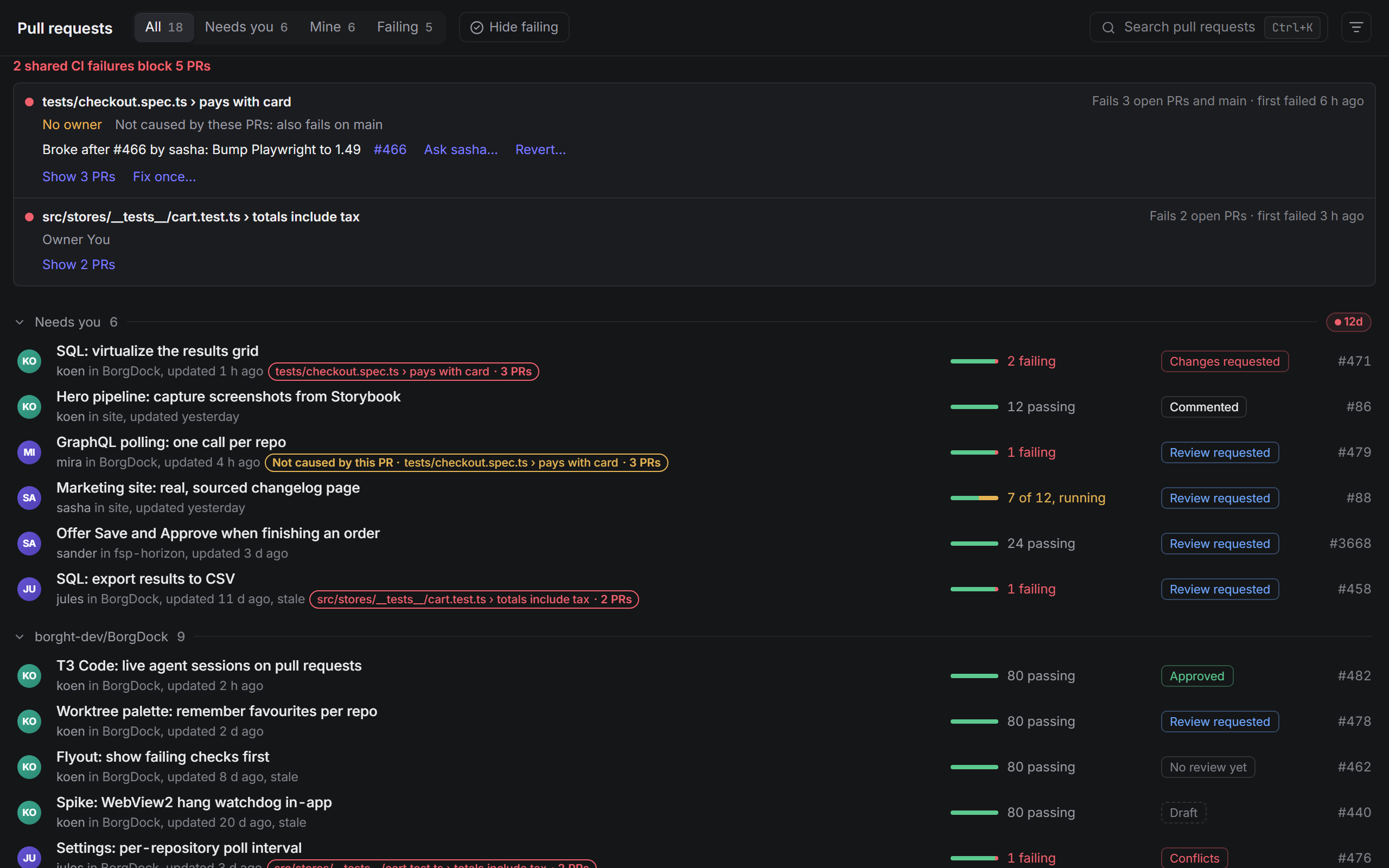
When the same CI failure breaks several pull requests, it gets one row above the list: the failing test, how many pull requests it blocks and who is on it. A pull request that is red only because of master, a flaky test or the runners says Not caused by this PR.
Failing on master too? BorgDock compares the last passing run with the first failing one and names the pull request merged in between, so you can ask its author or open a revert.
Investigate hands one agent the evidence from every affected pull request. Once the fix is on master, Update affected merges master into each of them, so their checks run again.
Focus
Decide what needs you
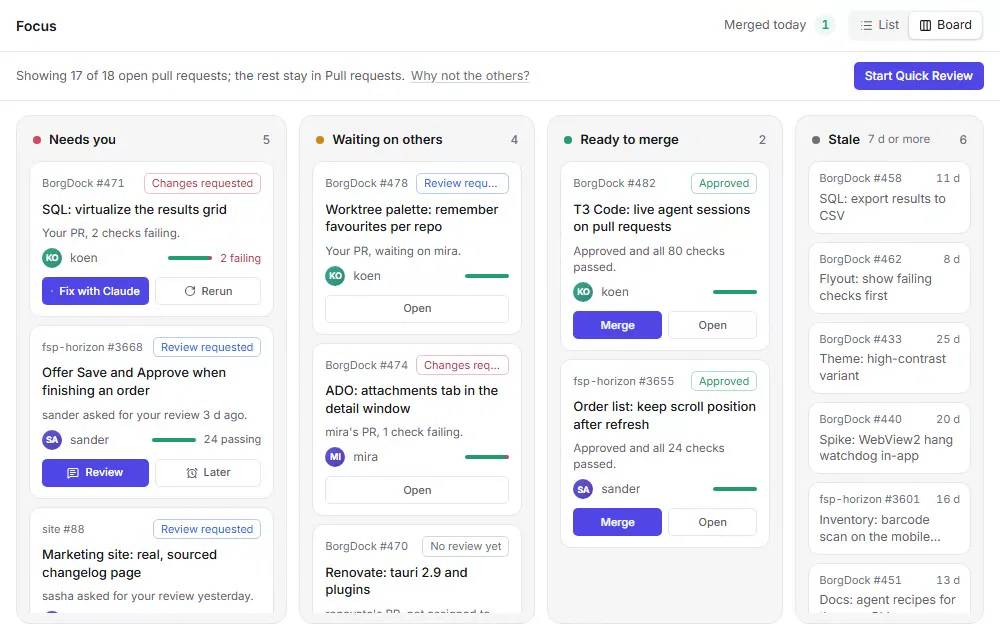
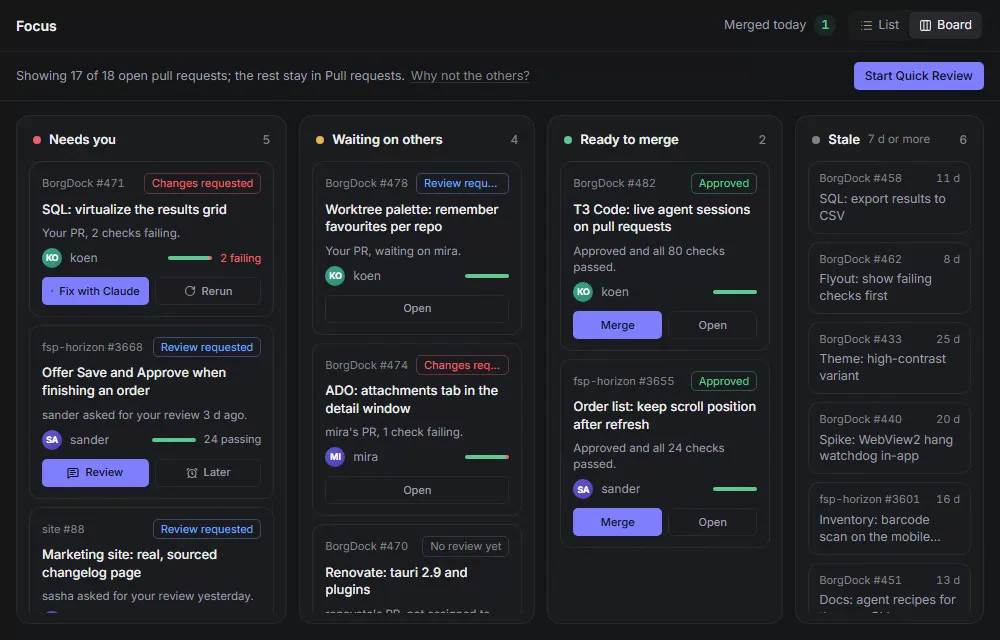
Focus shows only the pull requests that need something from you, and says why: a review request, a failing check, a conflict.
An agent with a question, a plan to approve or a failure sits at the top, with the obvious action on it, so you never leave one waiting.
Switch to the board to see Needs you, Waiting on others, Ready to merge and Stale side by side, and merge a green pull request right from it.
Activity
Catch up on what changed while you were away
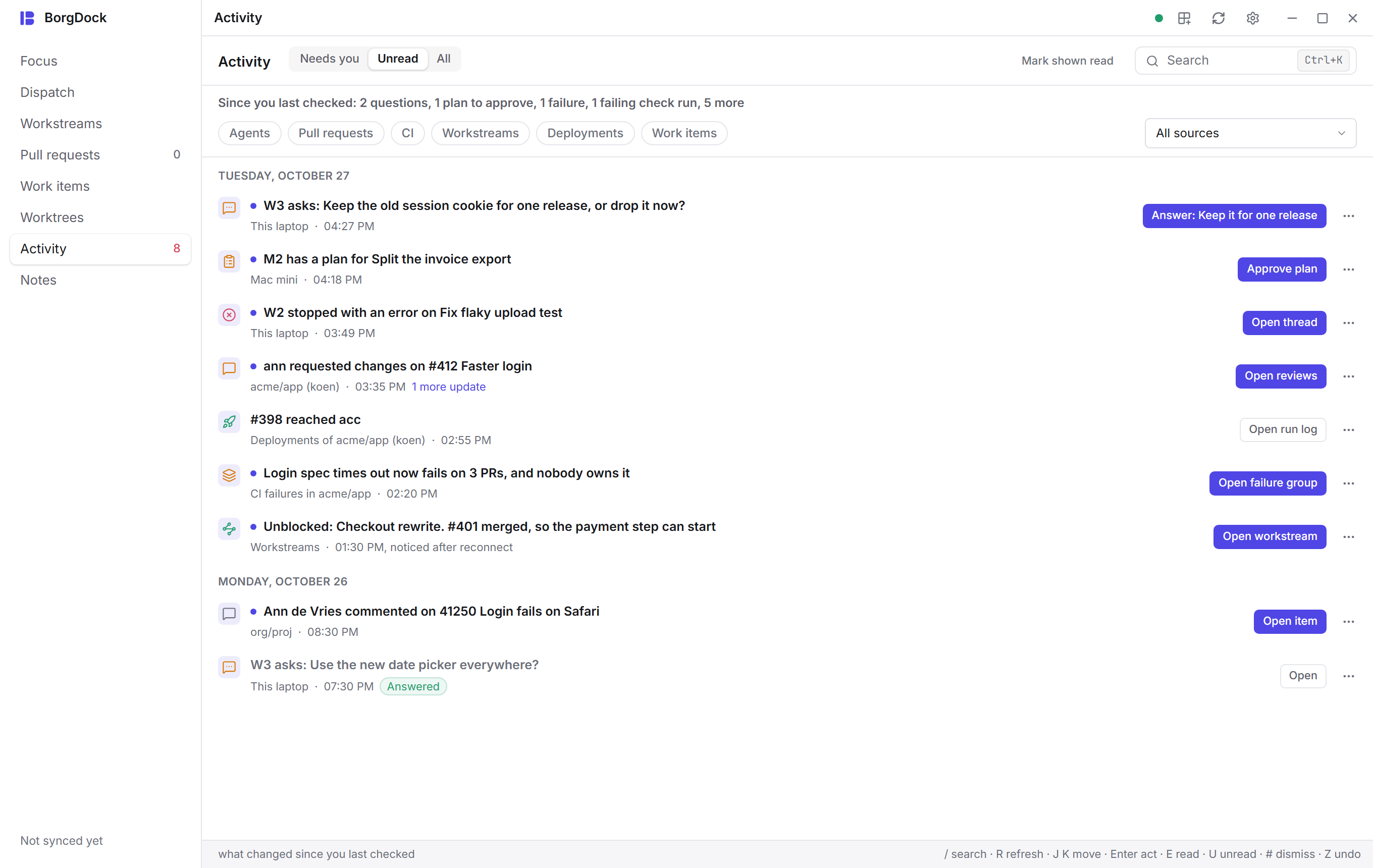
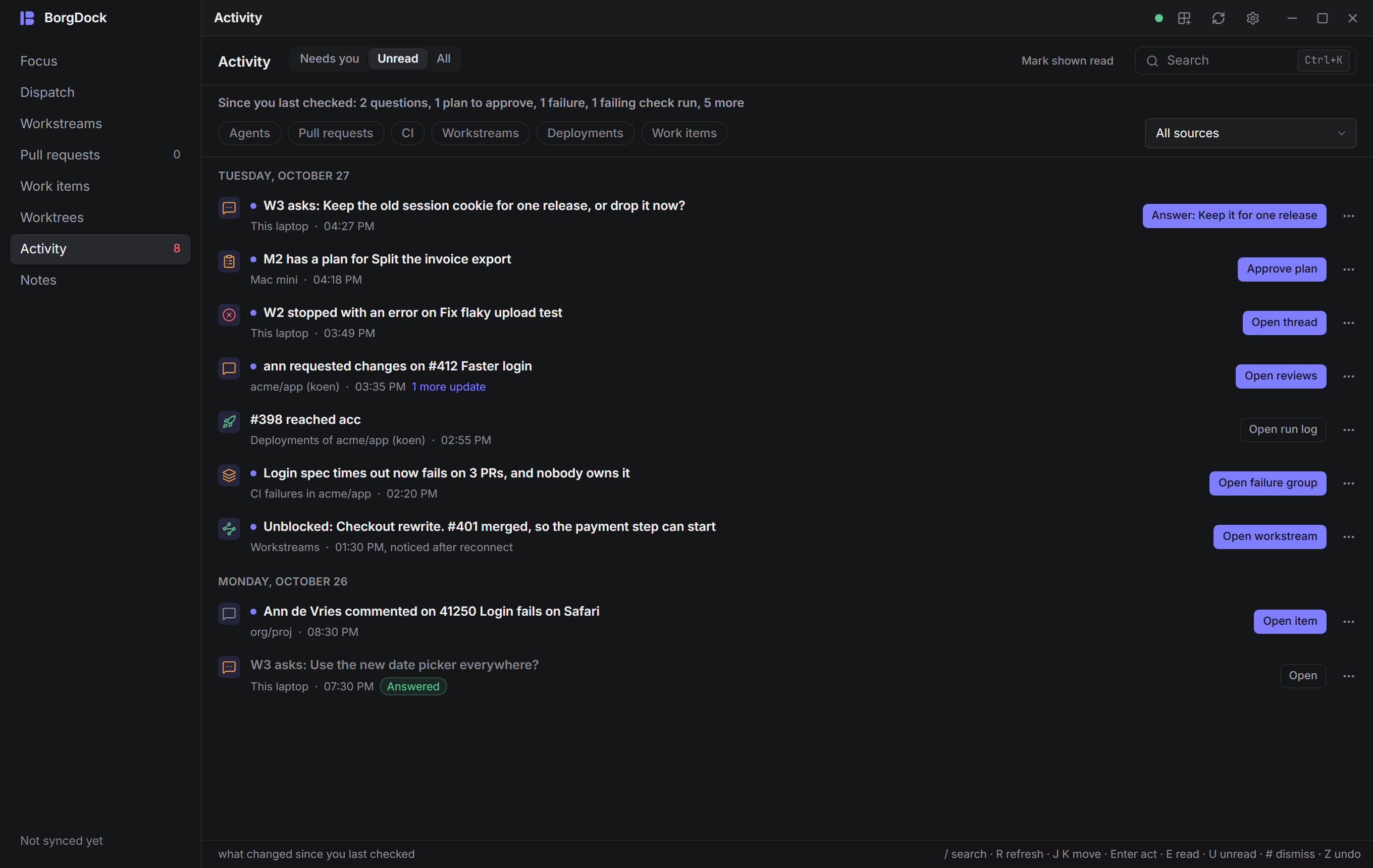
Activity lists what happened since you last looked: questions from your agents, plans waiting for your approval, failed checks, new reviews and your merged work reaching an environment.
What needs you comes first, and every row has the action that fits. Focus opens with a Since you last checked card, and the tray icon shows how much is waiting.
Quick review
Review file by file, decide on the last one
Press Start Quick Review in Focus and every pull request that waits for your review lines up. The pull request stays above the diff, with its labels, CI and work item, and its proof sits in a panel beside the code.
Press V to mark a file reviewed and open the next. On the last file the footer becomes your decision, and the next pull request opens as soon as you make it. Approvals wait five seconds, so you can still undo one.
Back at a pull request you reviewed before? You see only the files that changed since.
![The file walk: V marks a file and opens the next, D opens the whole description in place, 2 shows the checks and ] folds the panel into a rail](/recordings/quick-review-walk-light.webp)
![The file walk: V marks a file and opens the next, D opens the whole description in place, 2 shows the checks and ] folds the panel into a rail](/recordings/quick-review-walk-dark.webp)
Dispatch
Walk your work every morning
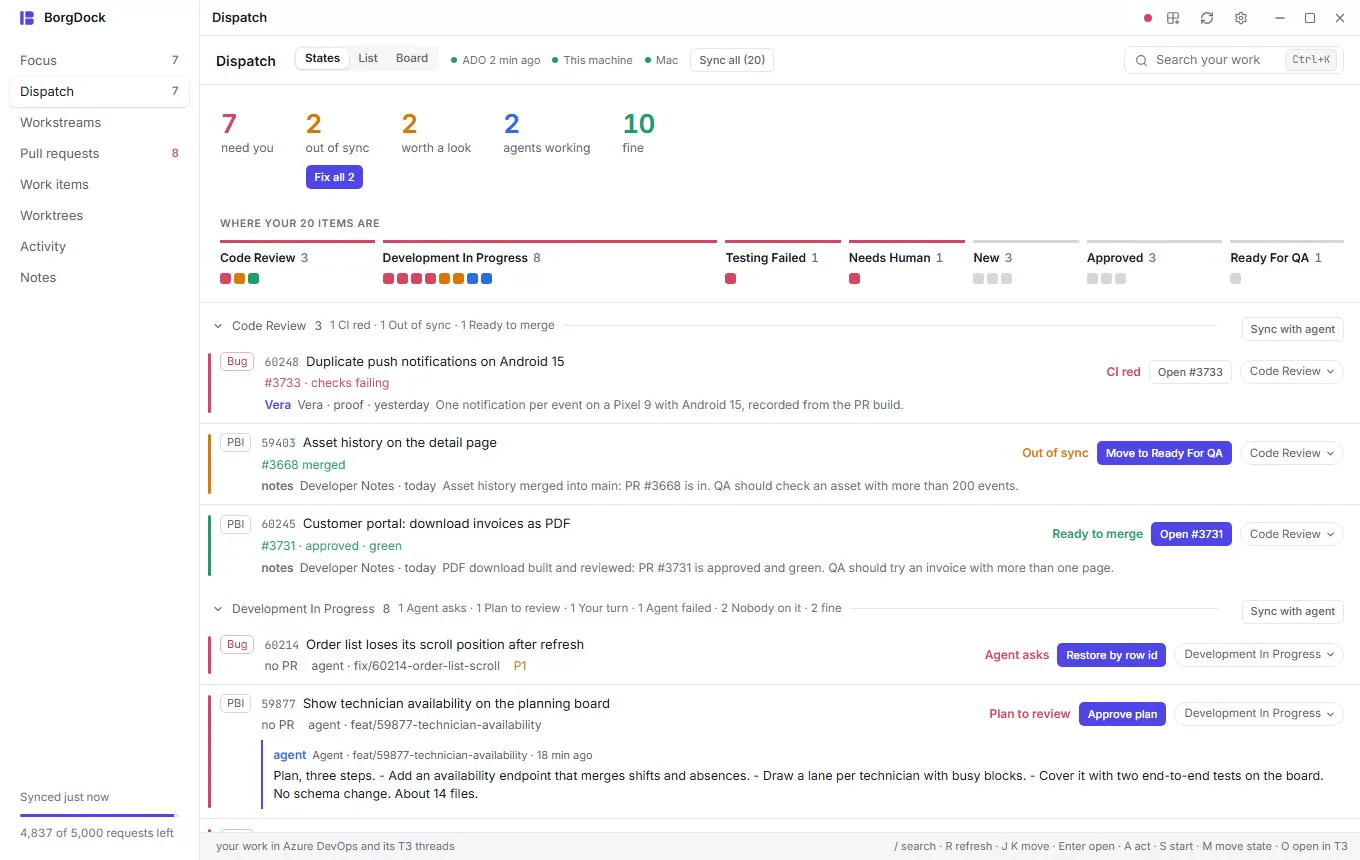
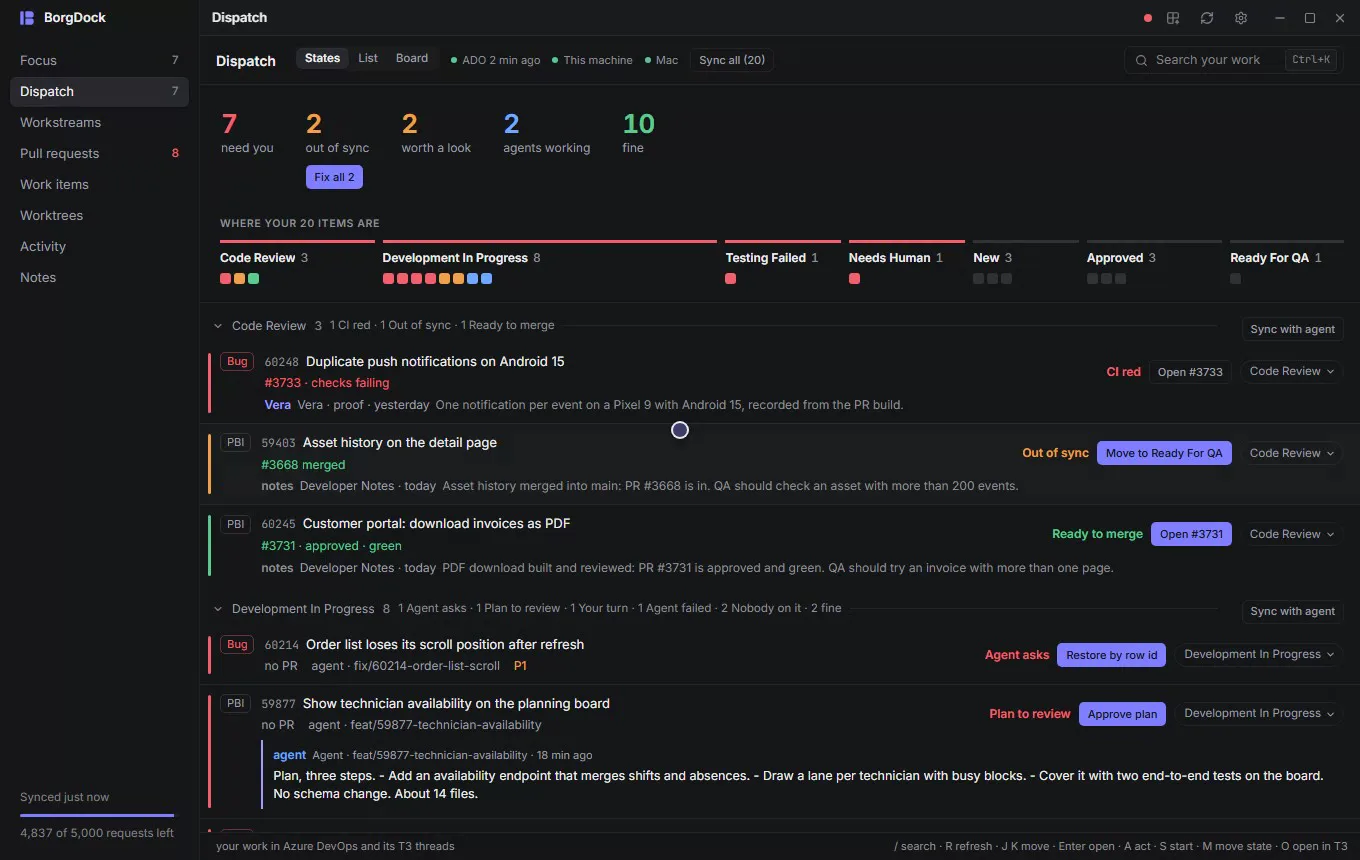
Dispatch puts every Azure DevOps item assigned to you next to the T3 Code threads and the pull request that belong to it. It opens on a briefing: how many items need you, are out of sync, are worth a look, have an agent working or are fine.
Click a number to see only those items. Below it, every state gets a section in the order you check them, and each item says what it needs and why.
A pull request merged while the item still says Code Review? Dispatch marks it Out of sync, and Fix out of sync hands them all to one agent that makes the moves the way your repository's skills ask.
Dispatch
Start and answer your agents
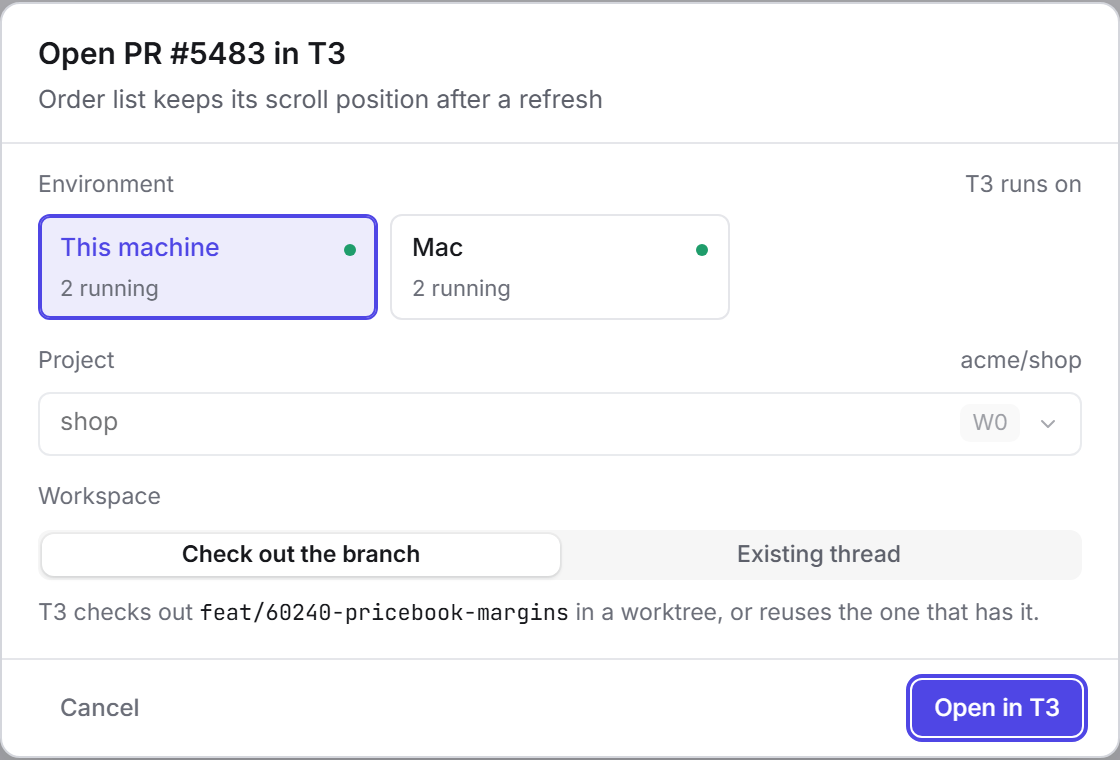
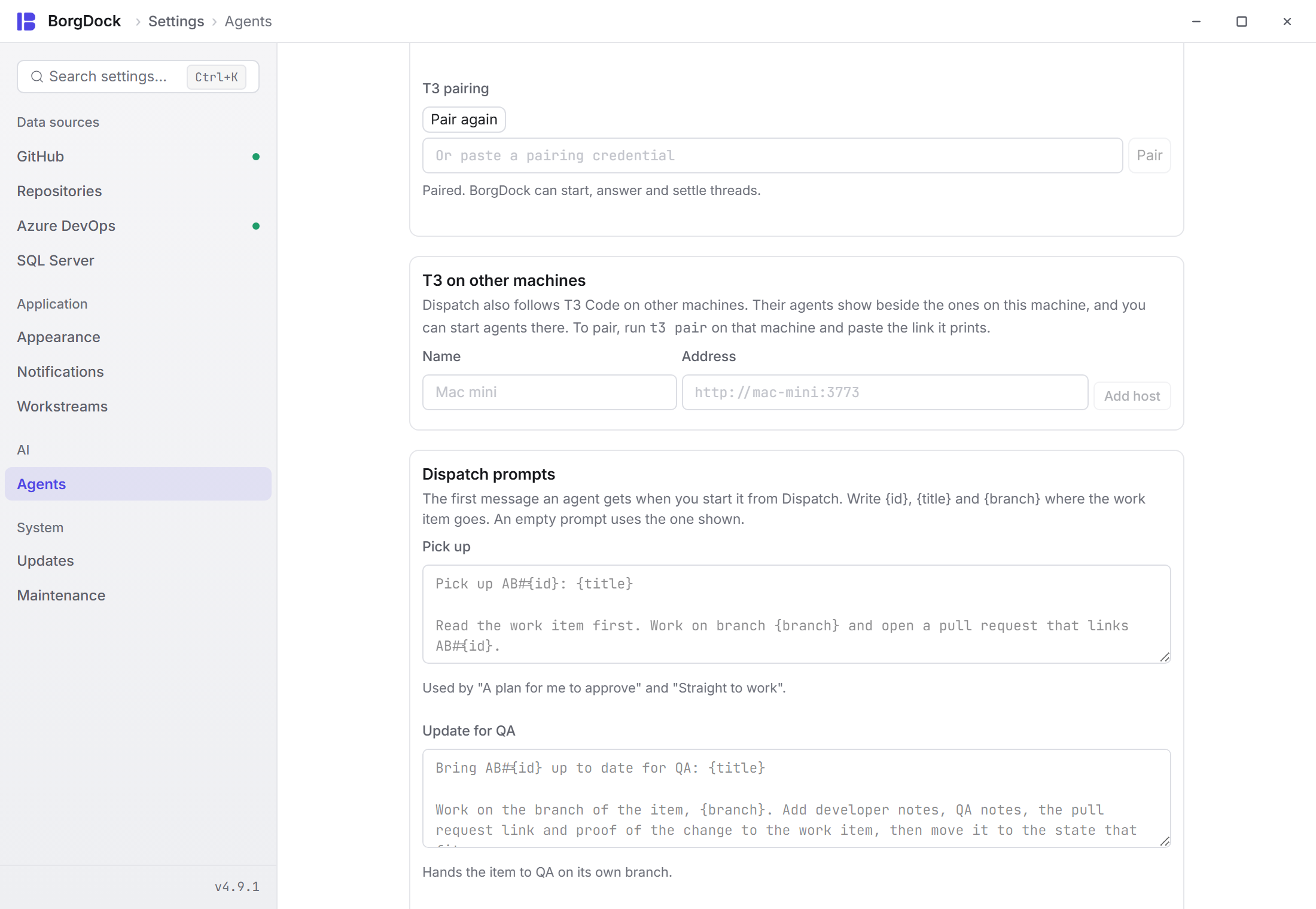
Start in T3 asks where the agent works: the machine T3 runs on, the repository and the branch to start from. T3 makes a fresh worktree for the thread, so there is nothing to keep free.
Or pick Existing thread to continue one that already worked on the item. Handing an item to QA goes back to the agent that knows what it changed.
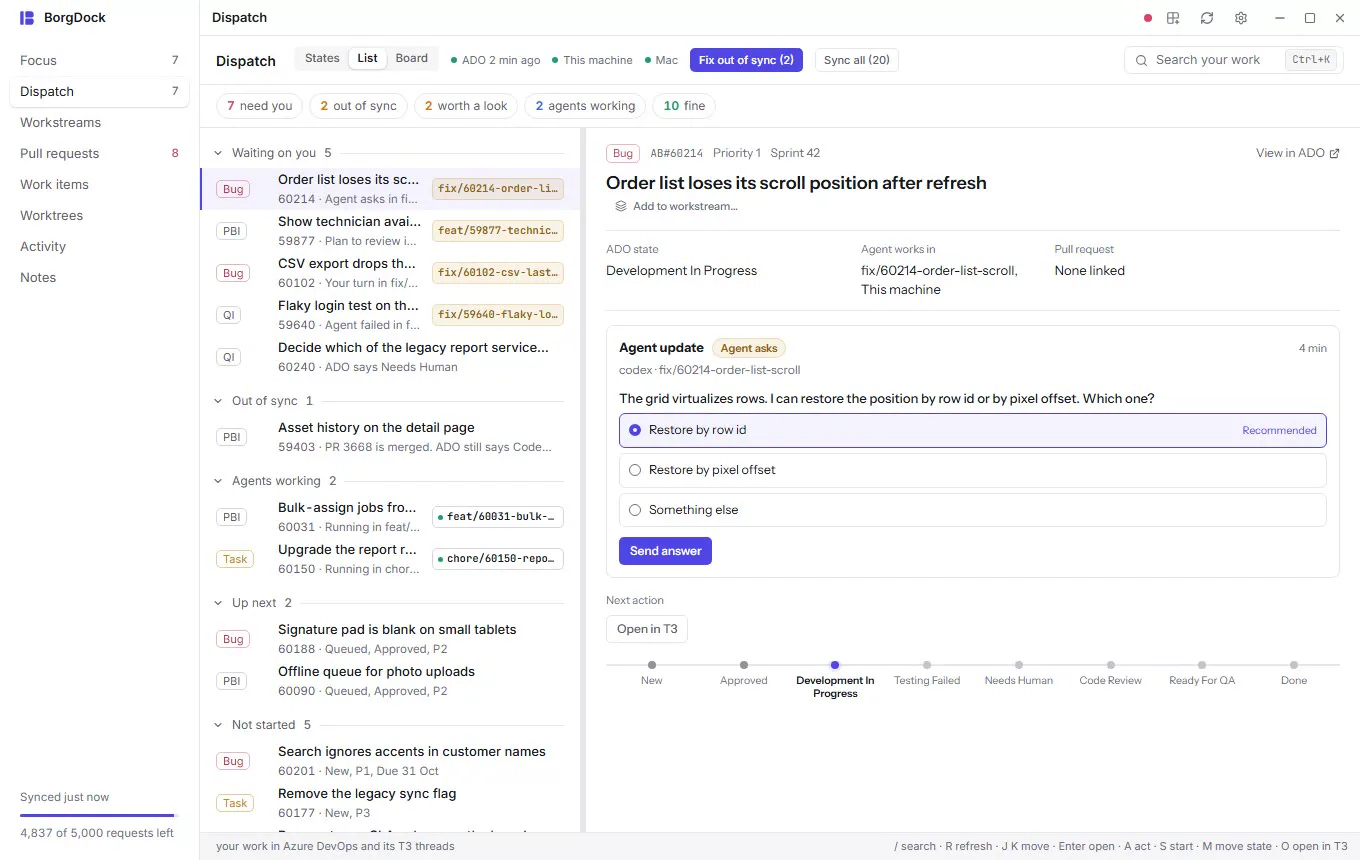
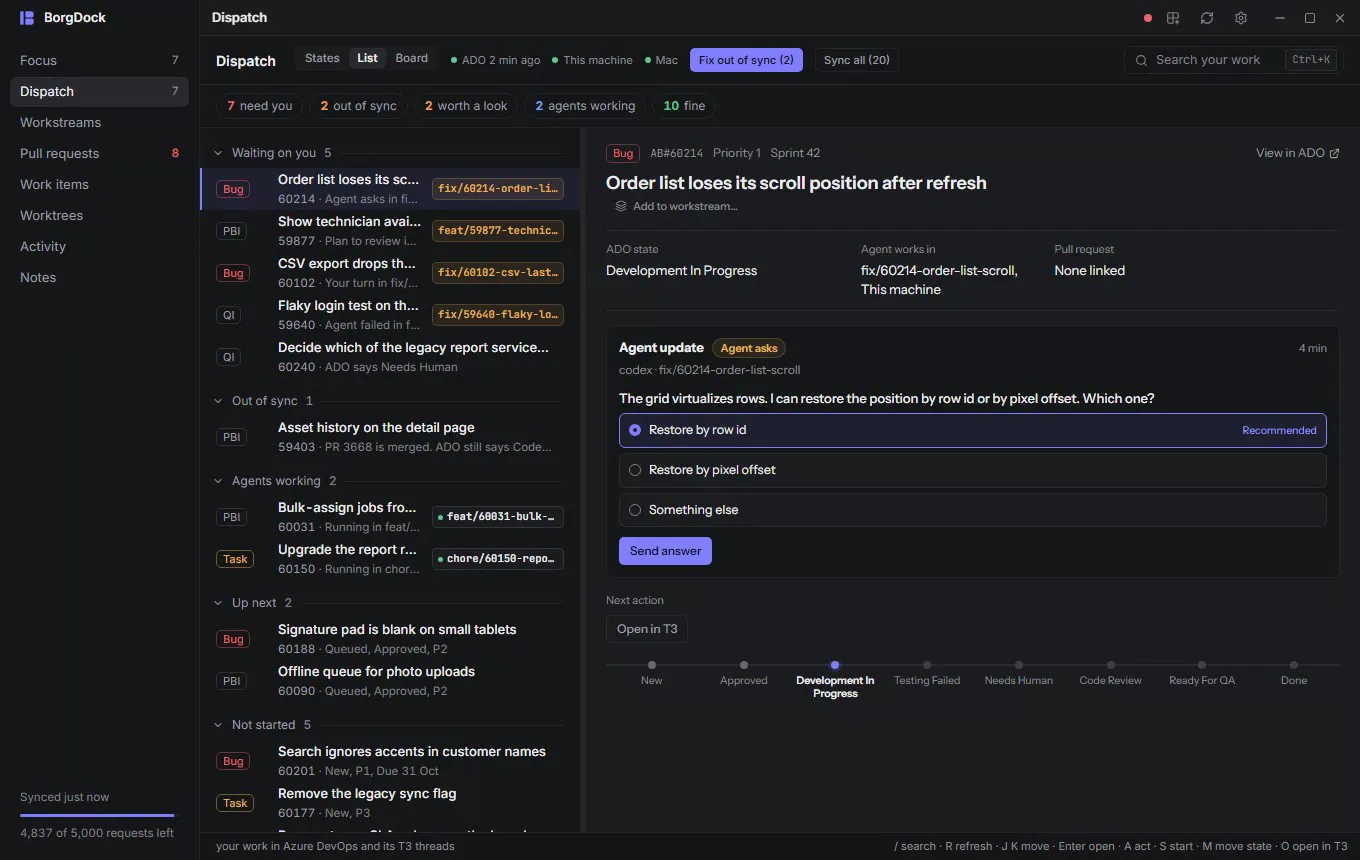
When an agent asks a question you see its options next to the item. A plan gets Approve plan, and Open in T3 is one key away when you want the whole conversation.
Workstreams
Keep a goal together across items, threads and pull requests
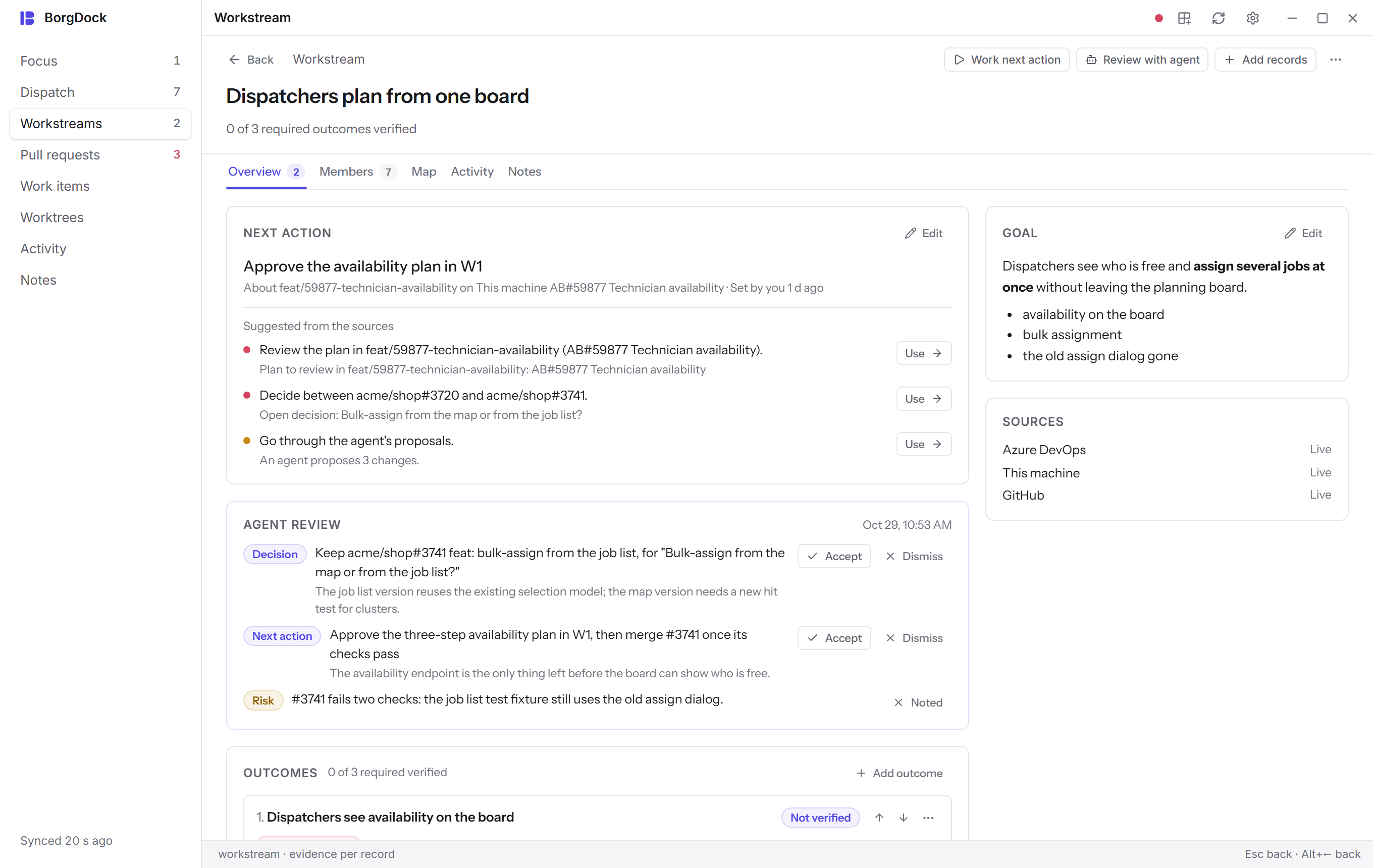
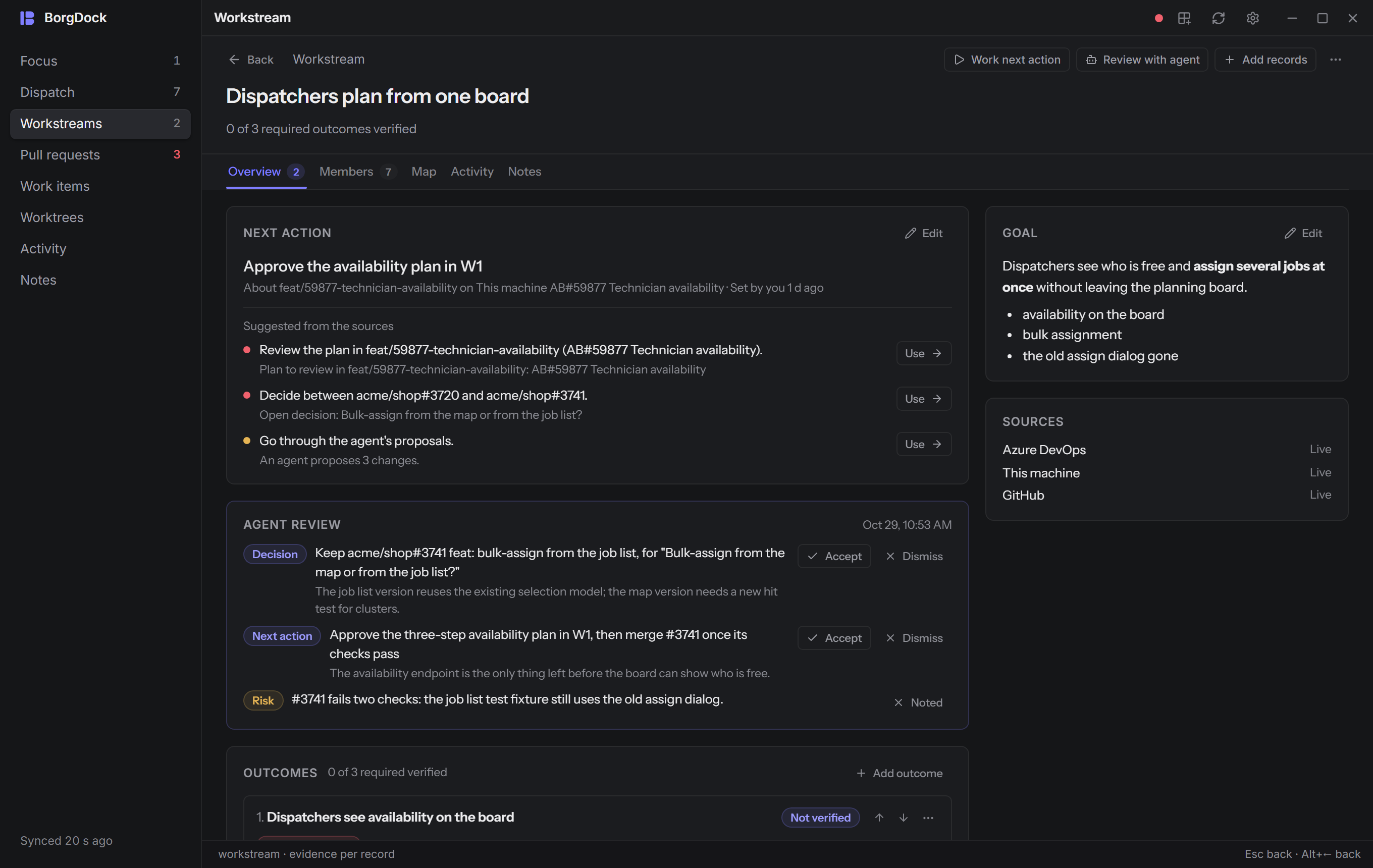
Some goals take several work items, a couple of agent threads and a handful of pull requests. A workstream keeps them under one goal, with the outcomes it needs and a next action you set.
BorgDock checks each outcome against the real records. When the pull request merges or the item reaches Done, the outcome turns green, and you hear about it if the item is reopened.
Review with agent sends everything to a T3 thread, which comes back with proposals you accept or reject. Point Settings → Workstreams at a synced folder and your other machine sees the same workstreams.
Notes
Write it down where your work is
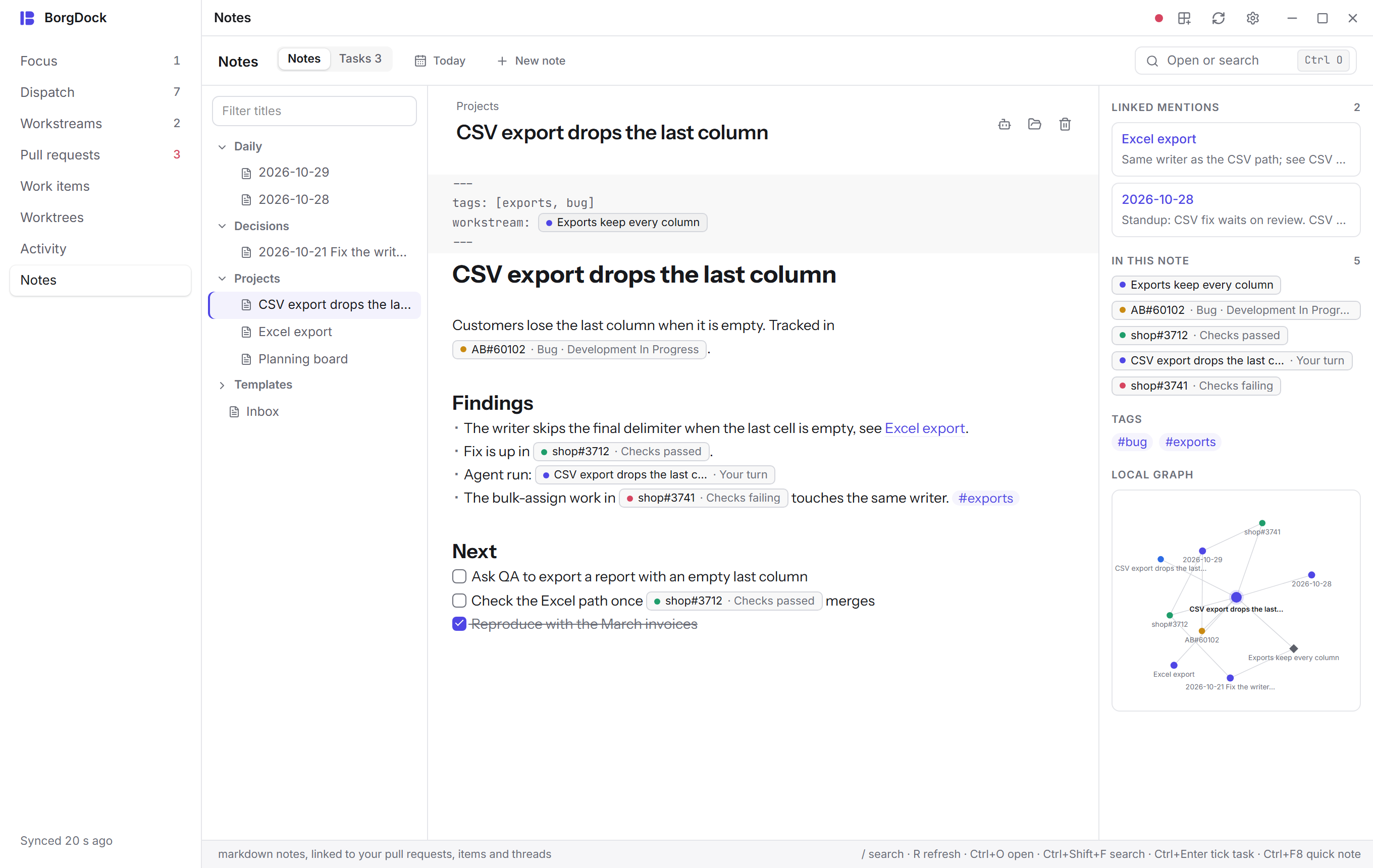
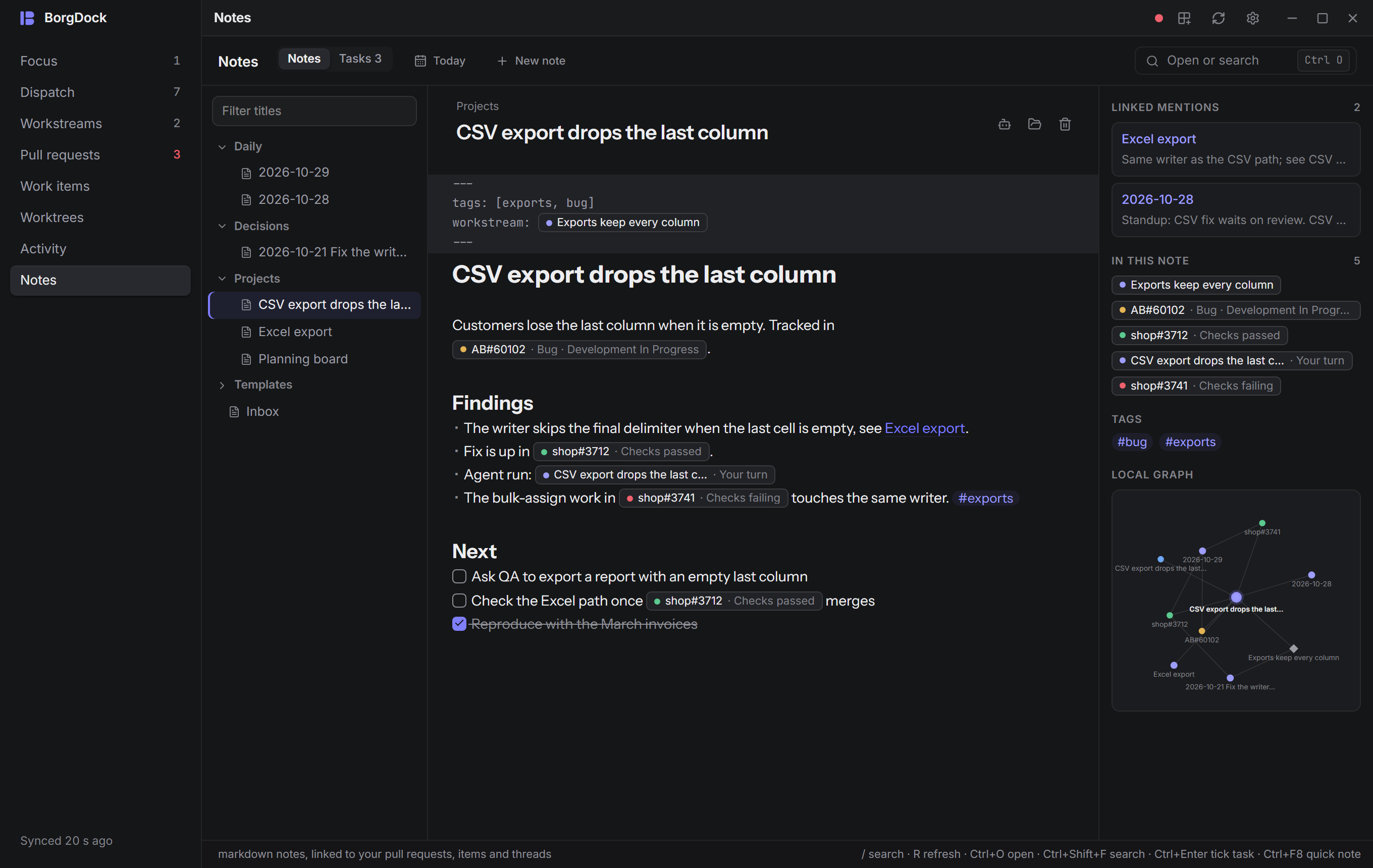
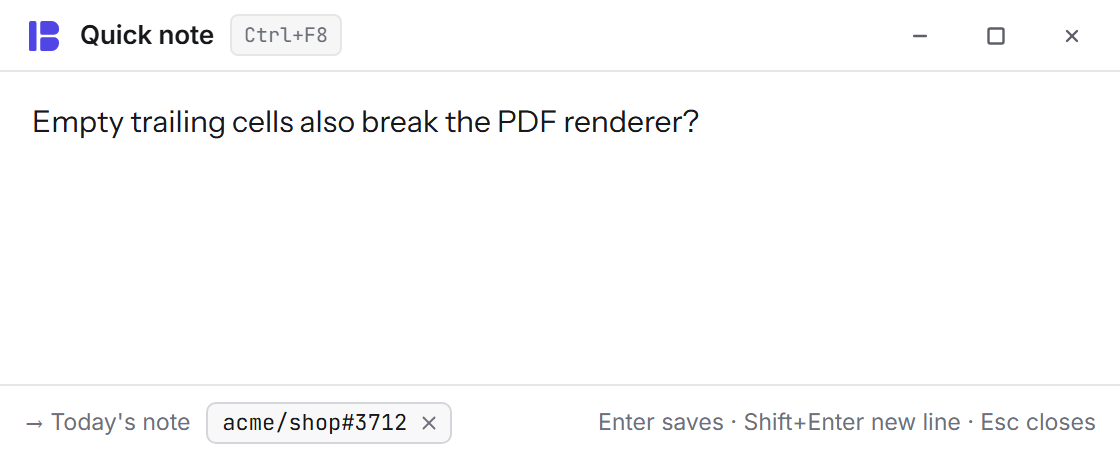
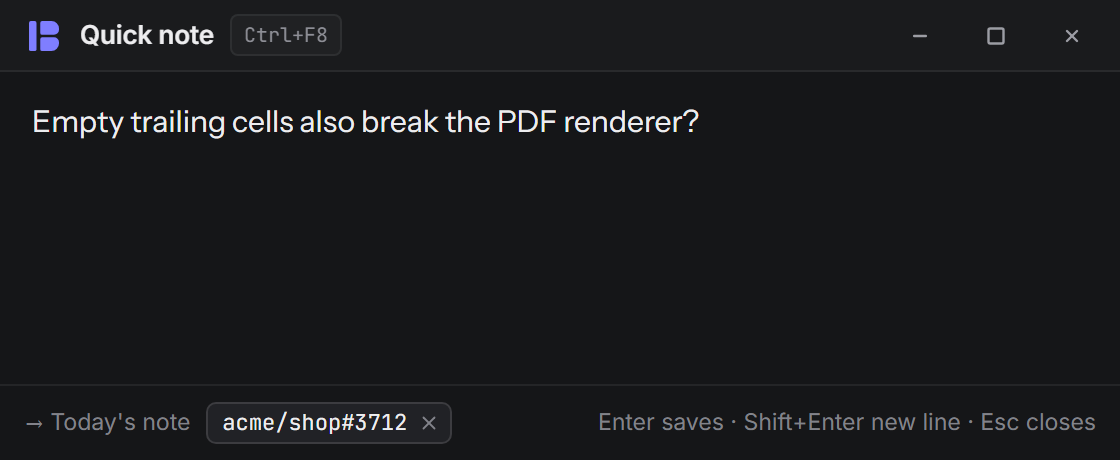
Notes are Markdown files in a folder that Obsidian and VS Code open as they are. Link them with [[Title]] and see every note that links back.
Type AB#60102 or shop#3712 and it becomes a chip with the item's state or the pull request's checks. Pull requests, work items and workstreams get a Notes tab with every note that mentions them.
Today starts the day's note with what happened since yesterday. Start a T3 thread from a note and the agent's answer lands in it when it stops.
Fix with Claude
Hand a failure to an agent
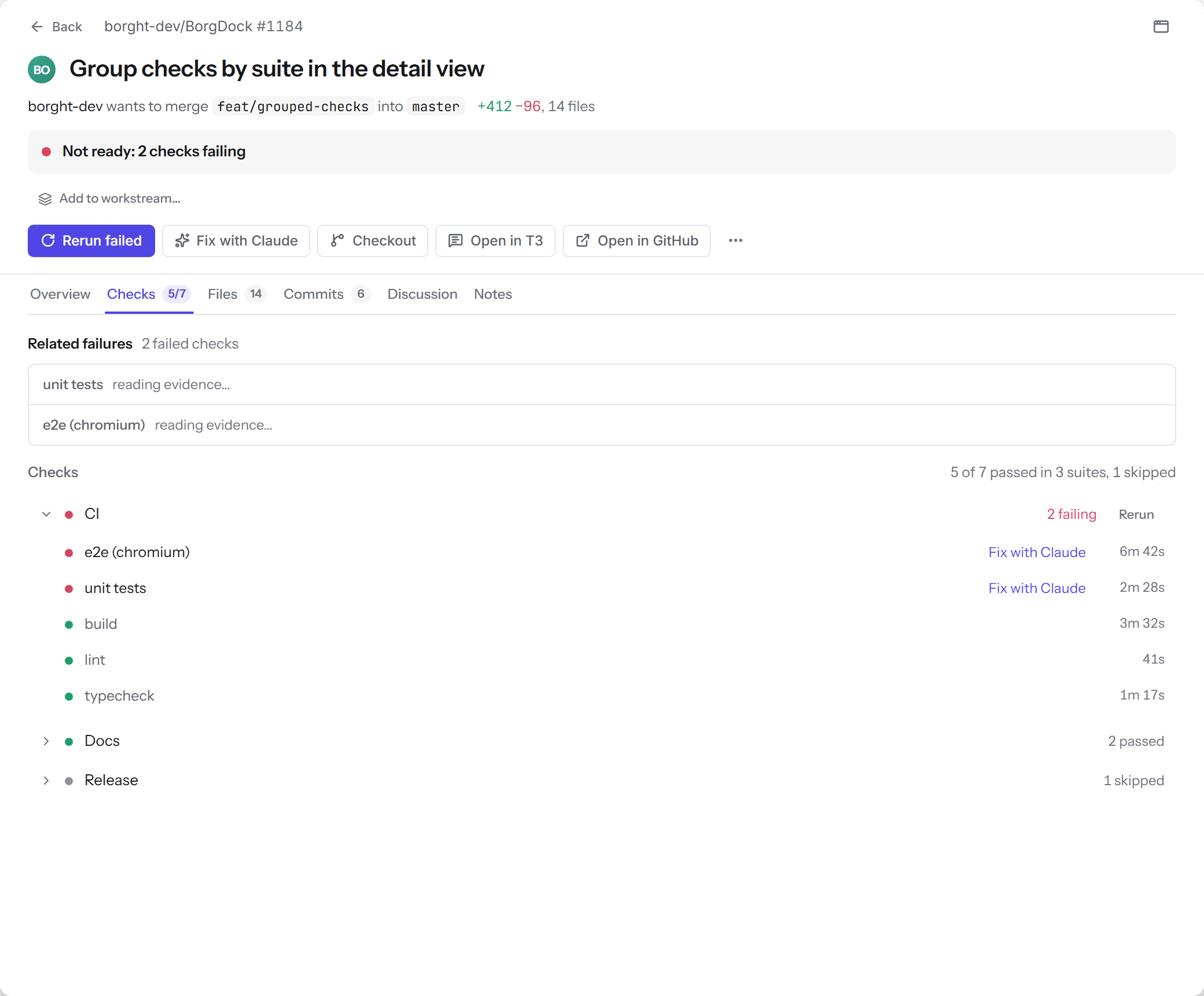
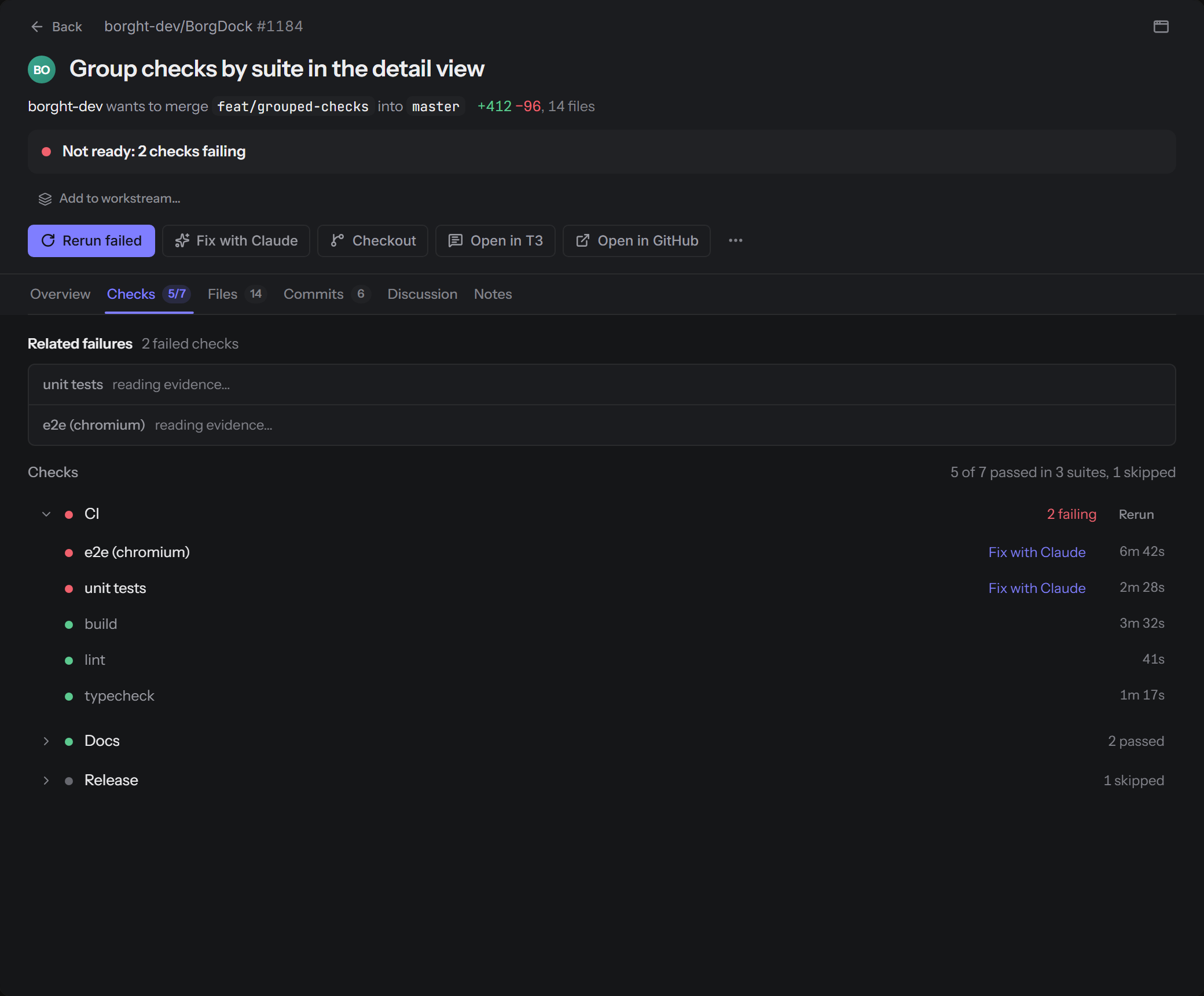
When a check fails, the pull request shows the first error from its log, so you see what broke without scrolling.
Fix with Claude starts Claude Code on that branch with the error as its prompt, in its own worktree, so your checkout stays as it is. If someone already owns that failure, BorgDock offers their thread first.
Prefer T3 Code? Open in T3 starts a thread linked to the pull request, on whichever machine you pick.
Worktrees and Work items
Keep the rest of your work close
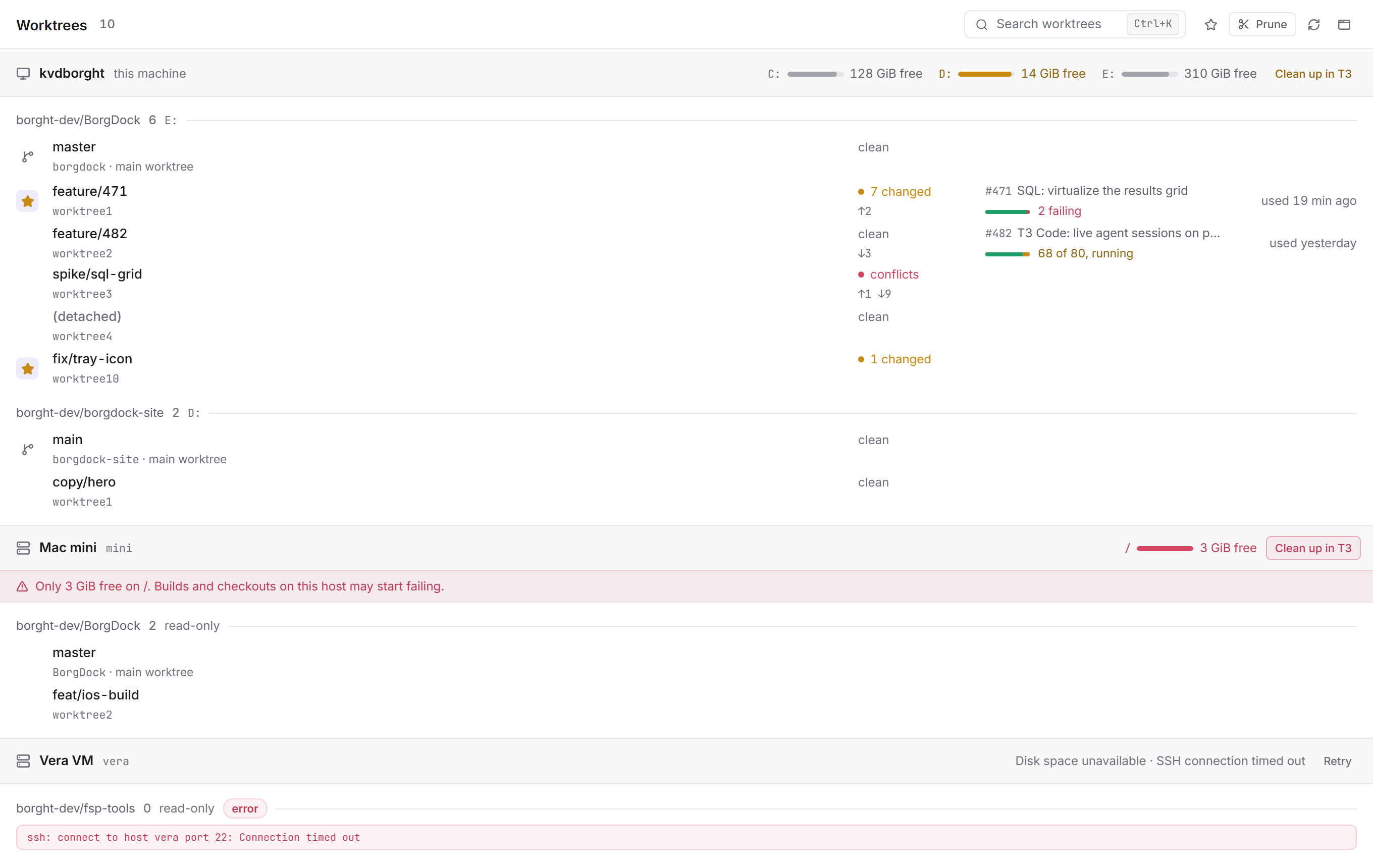
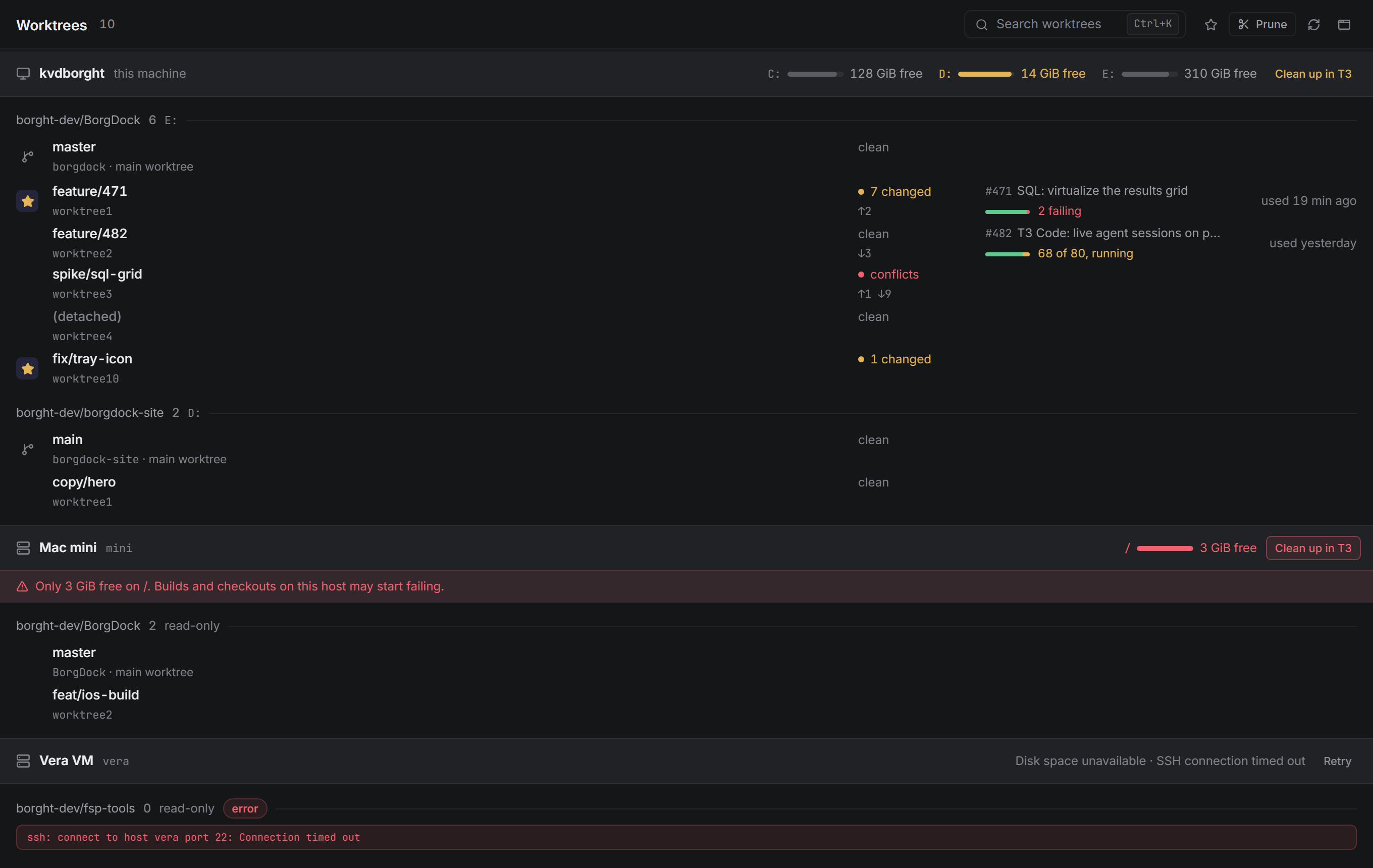
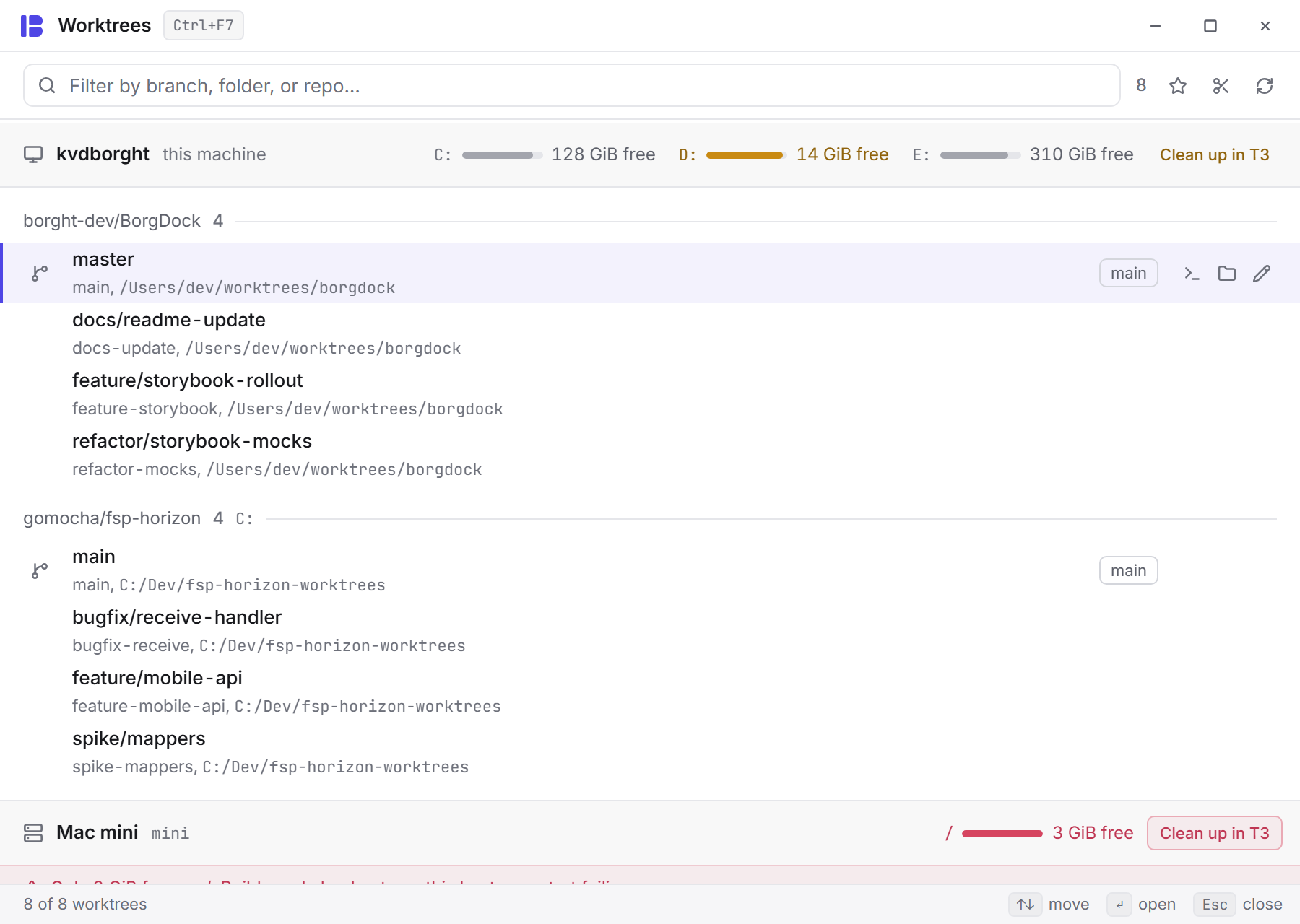
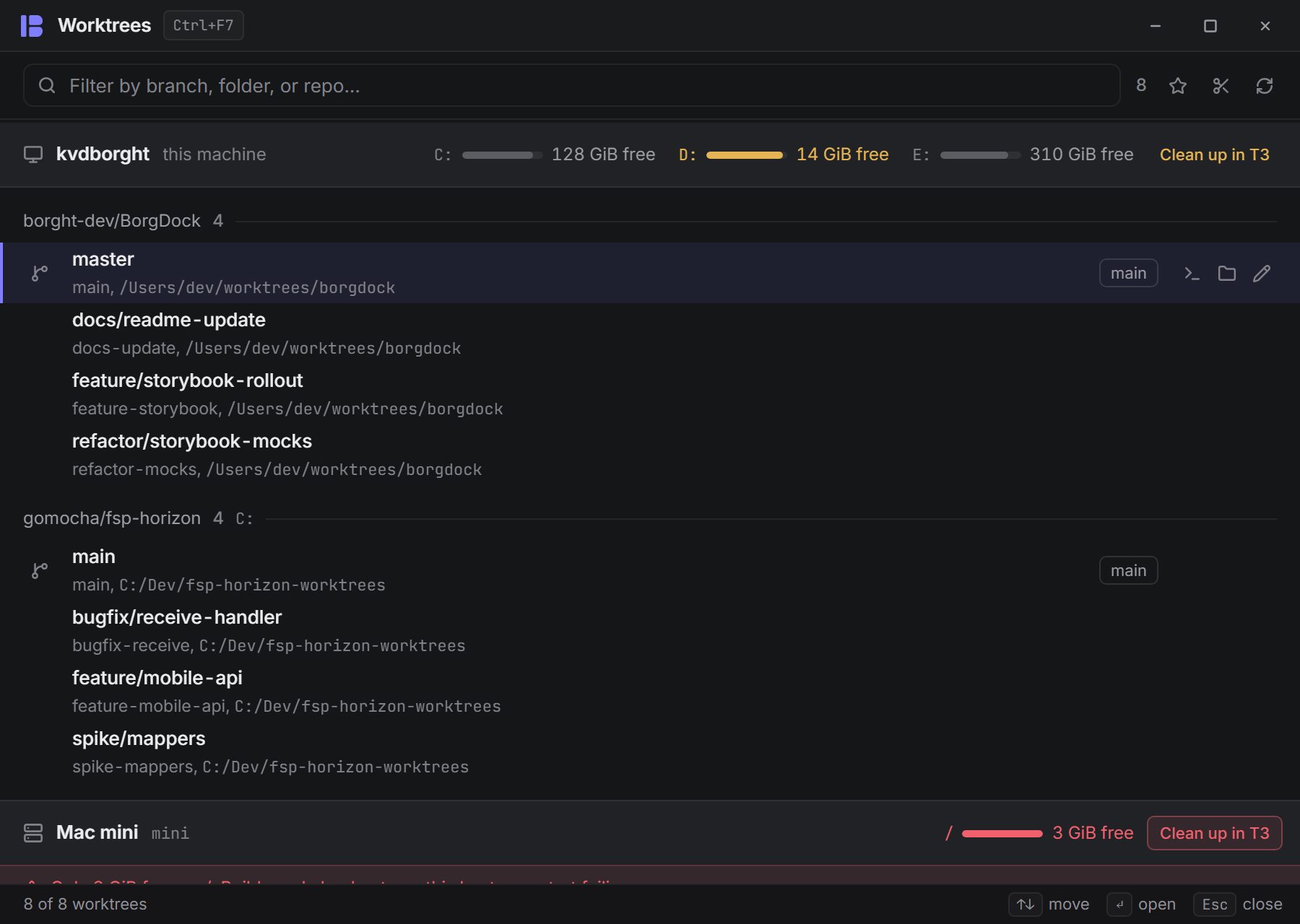
Worktrees groups your worktrees by the machine they live on, under that machine's free disk space. A disk that runs low stands out, with Clean up in T3 right beside it.
Every row shows its branch, its changes and the pull request on it. Press O for a terminal, T to open it in T3 or F to make it a favourite.
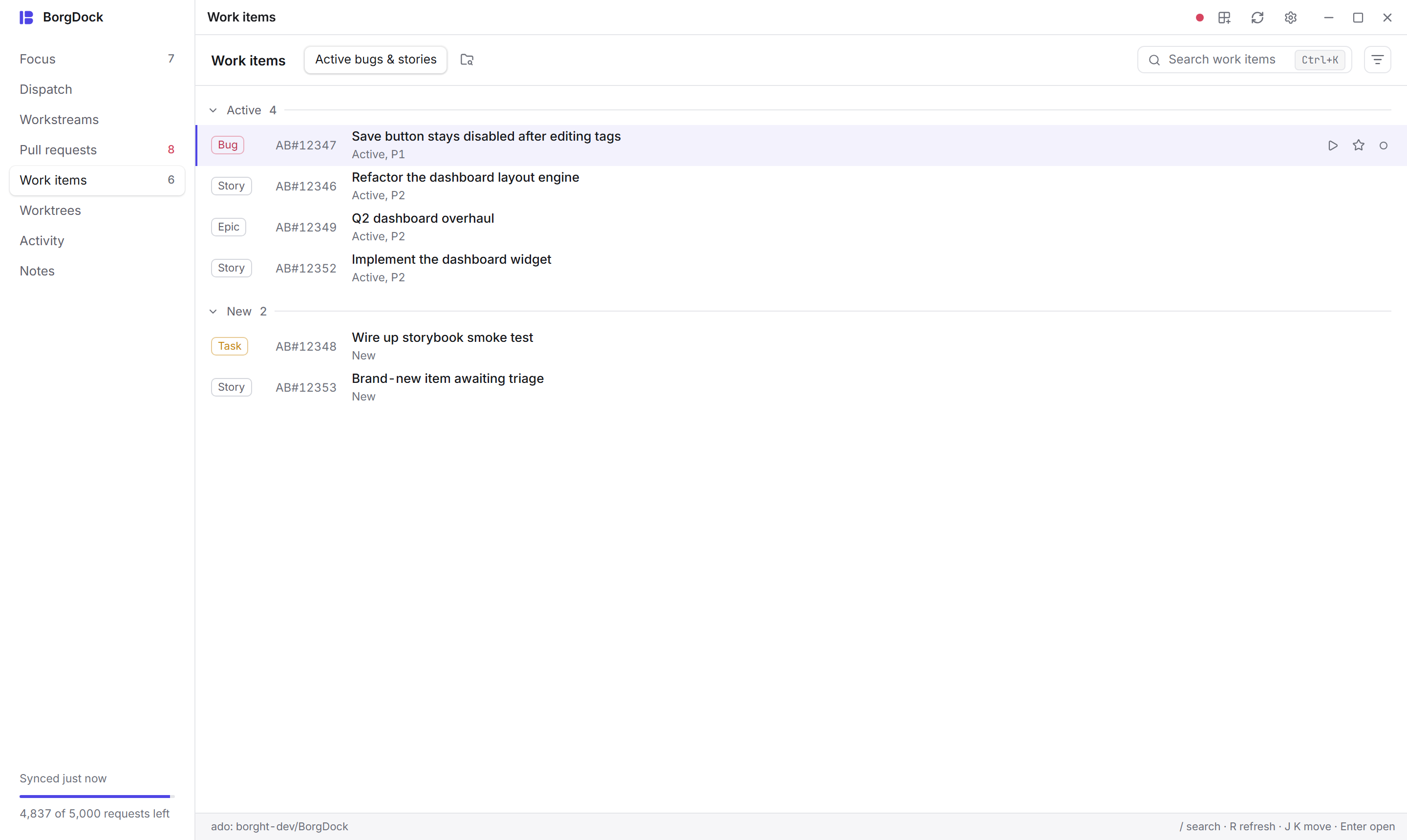
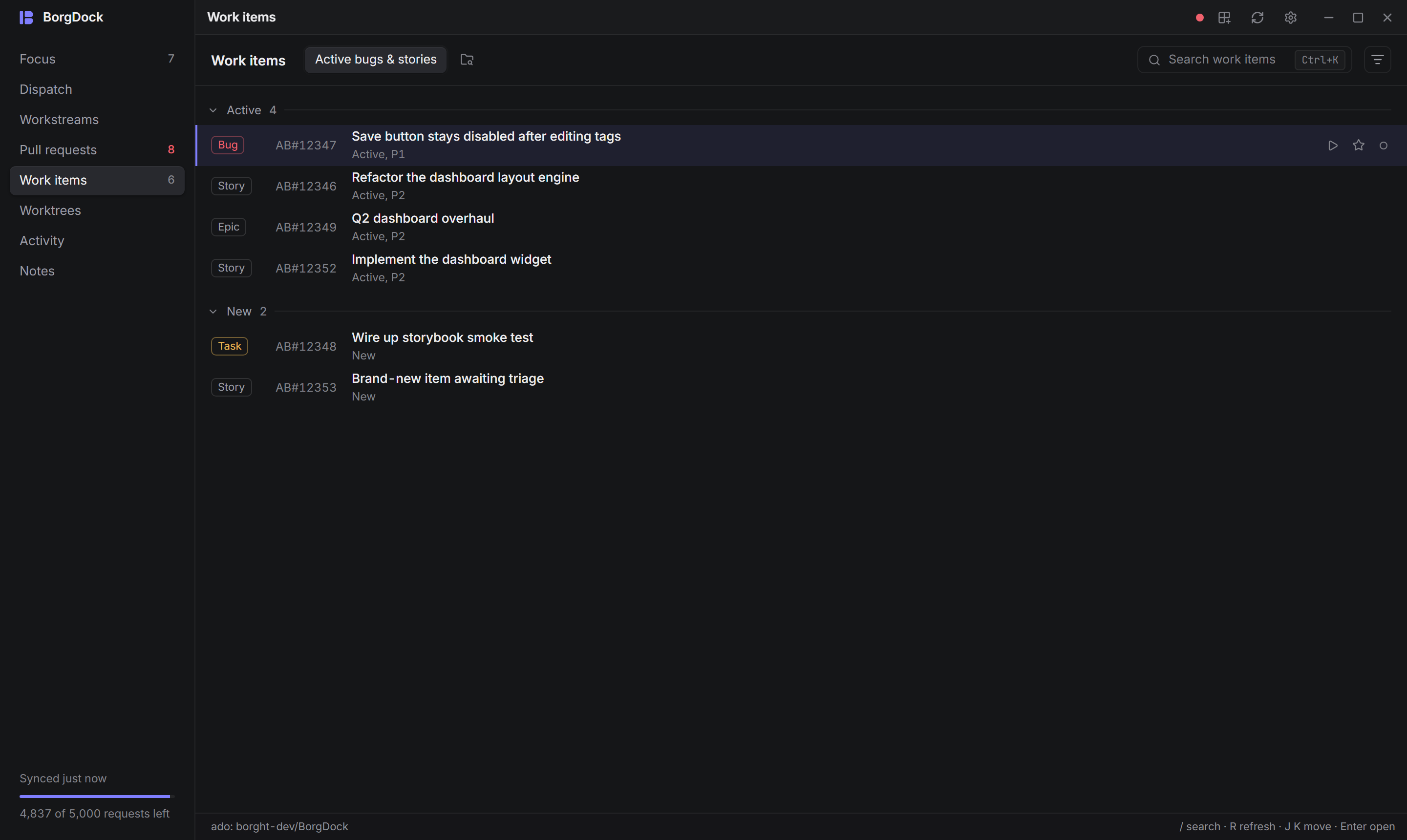
Work items brings your Azure DevOps queries into the same window, so you can open an item and change it without a browser.
Tools
Keep it one hotkey away.
Version 4.9.4, released October 29, 2026. Install it once and it keeps itself up to date.