New in 4.9: start agents in a fresh worktree on any machine

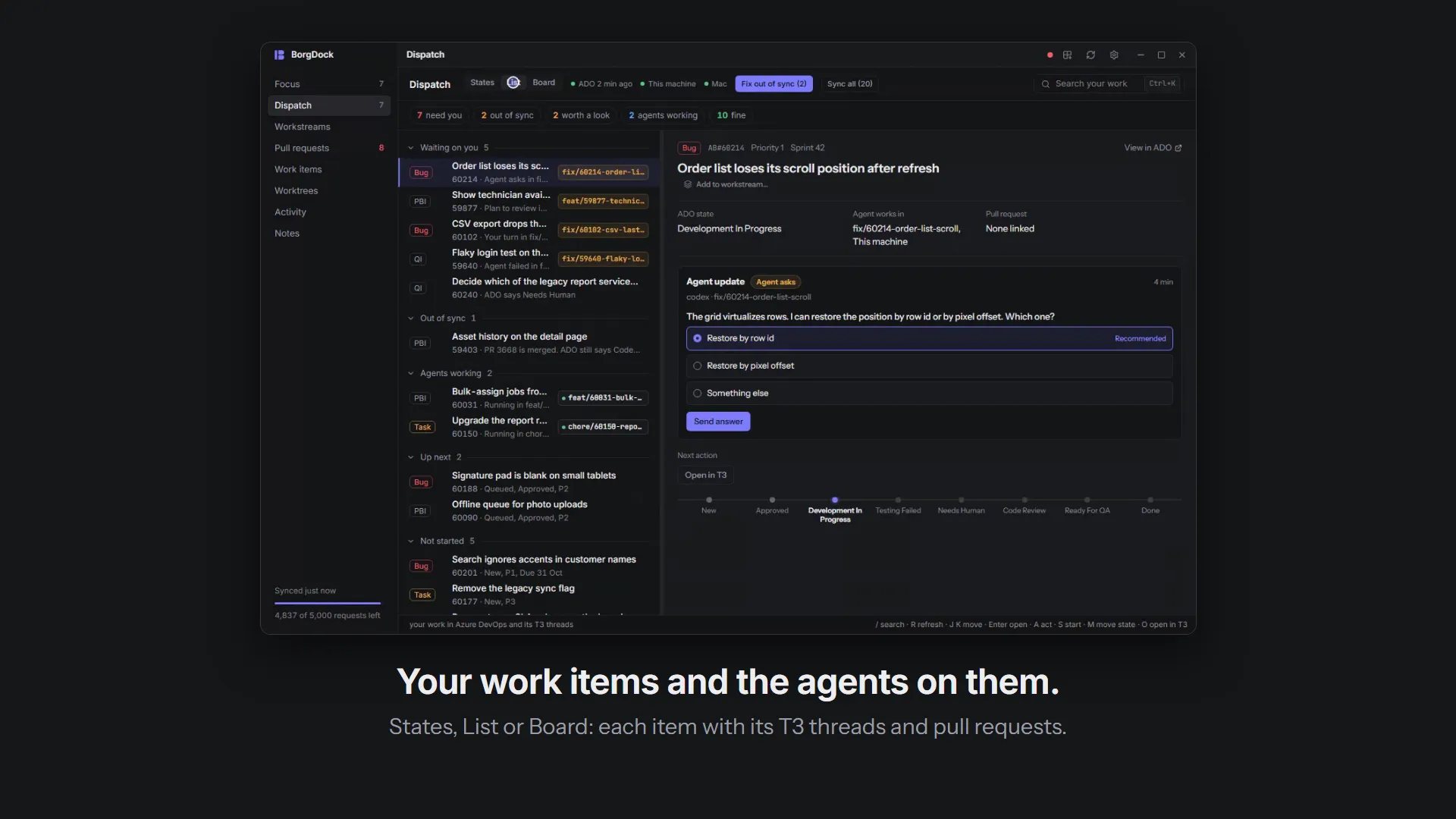
Your work items and the agents on them.

Dispatch puts every Azure DevOps item assigned to you next to the T3 Code threads and pull requests that belong to it, tells you what each one needs, and hands the busywork to agents.
Download for Windows 39.5 MB Take the tour
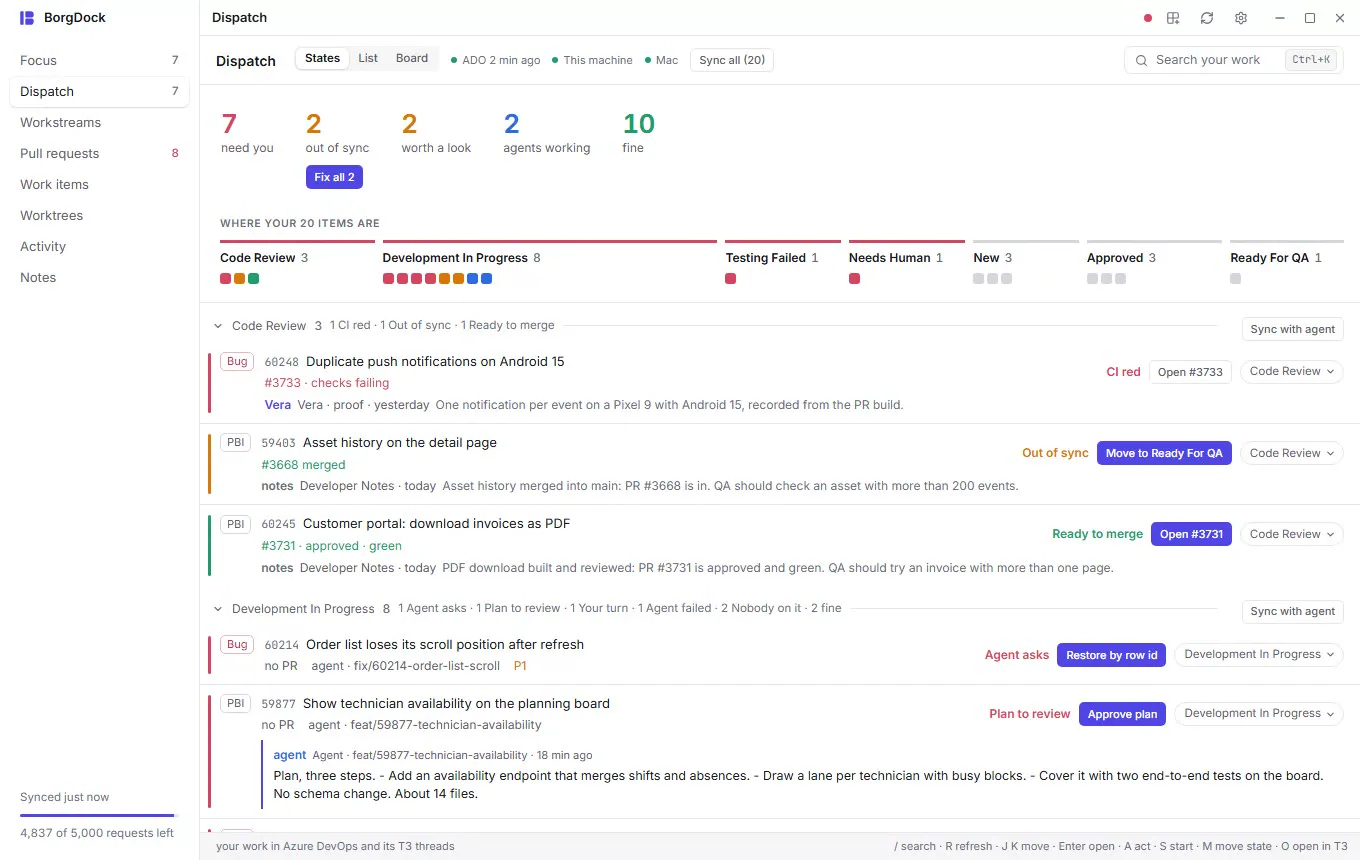
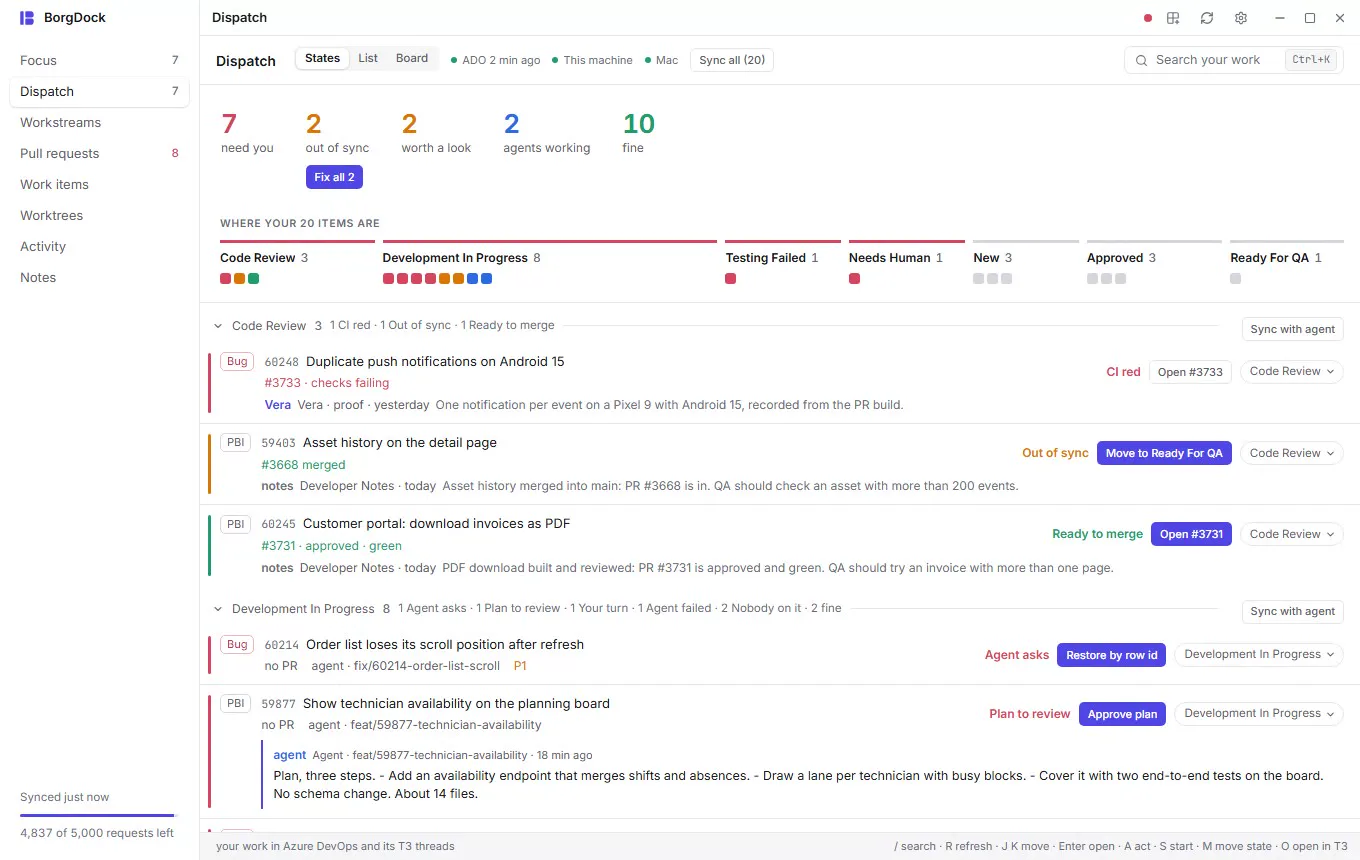
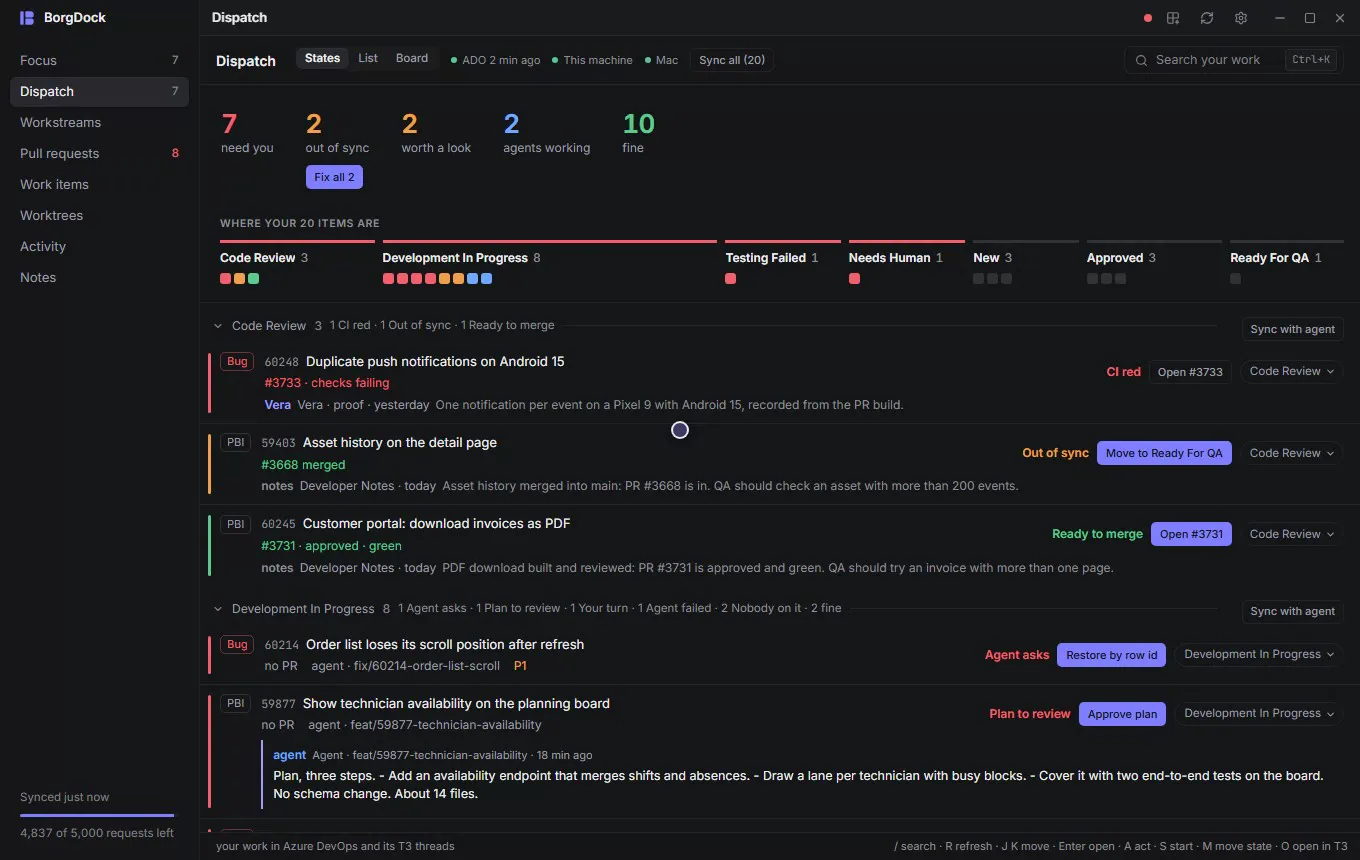
Dispatch in a minute: switch between States, List and Board, filter the briefing, move an item with an agent, fix everything out of sync at once, start an agent in a fresh worktree and open a card

The briefing

Know where your morning starts

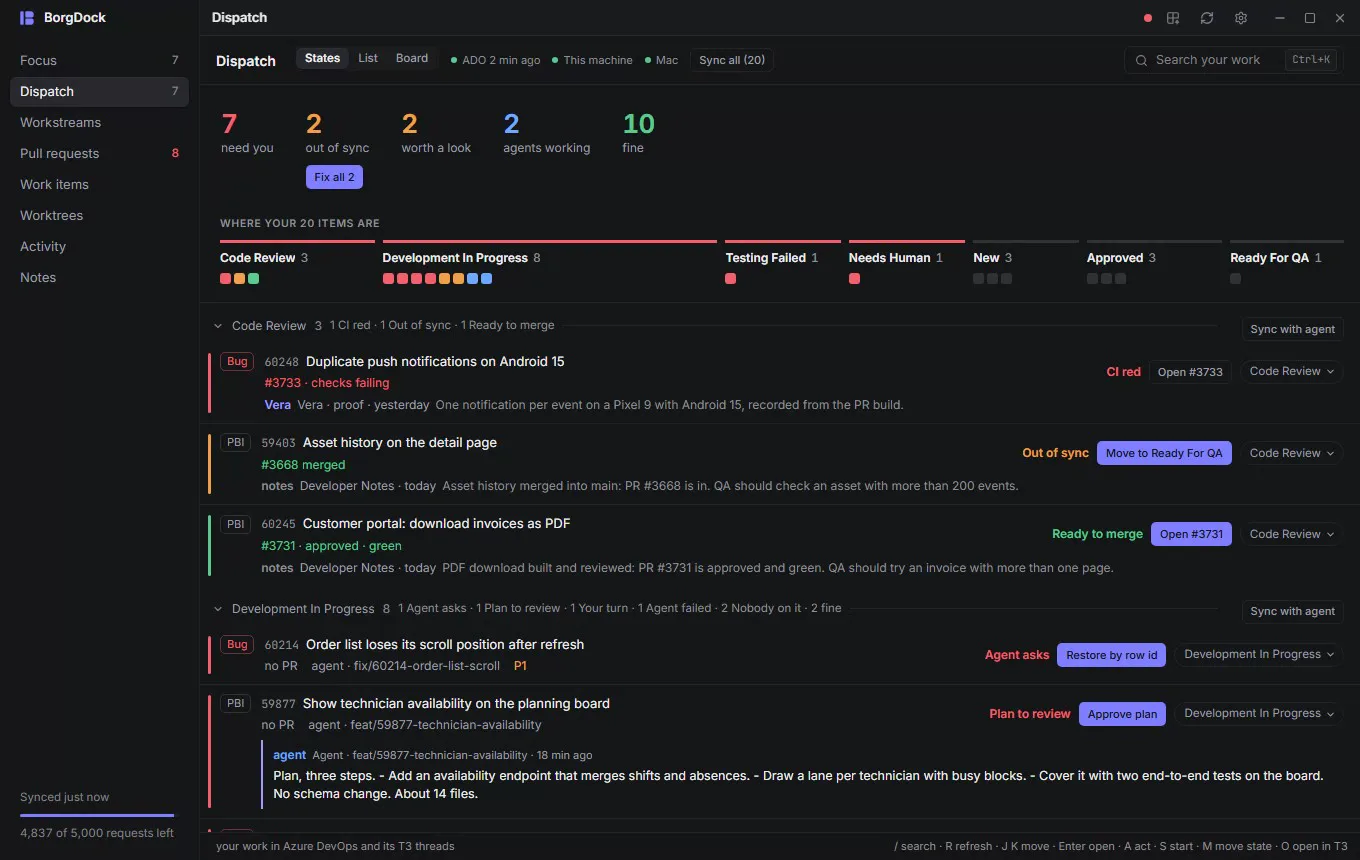
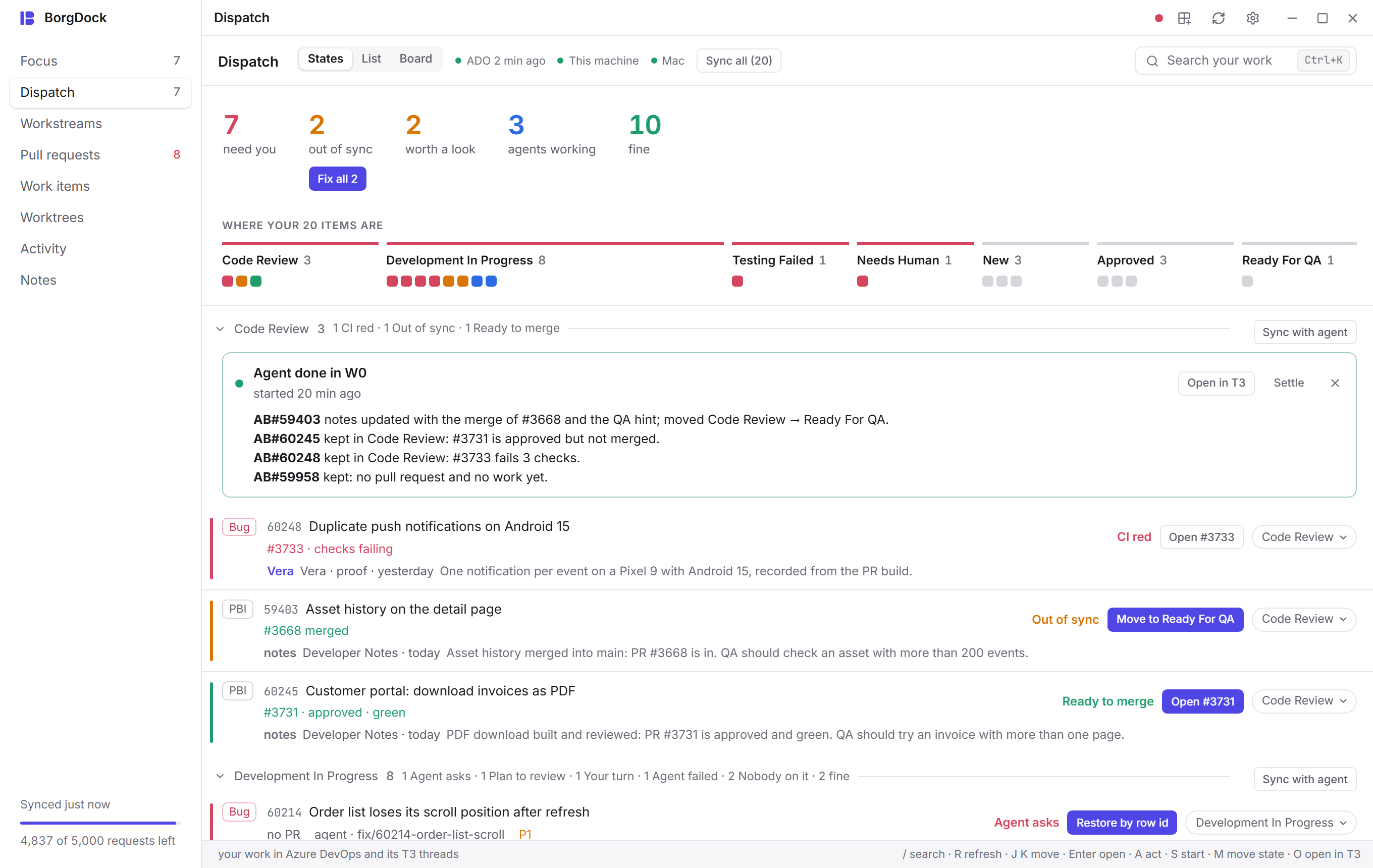
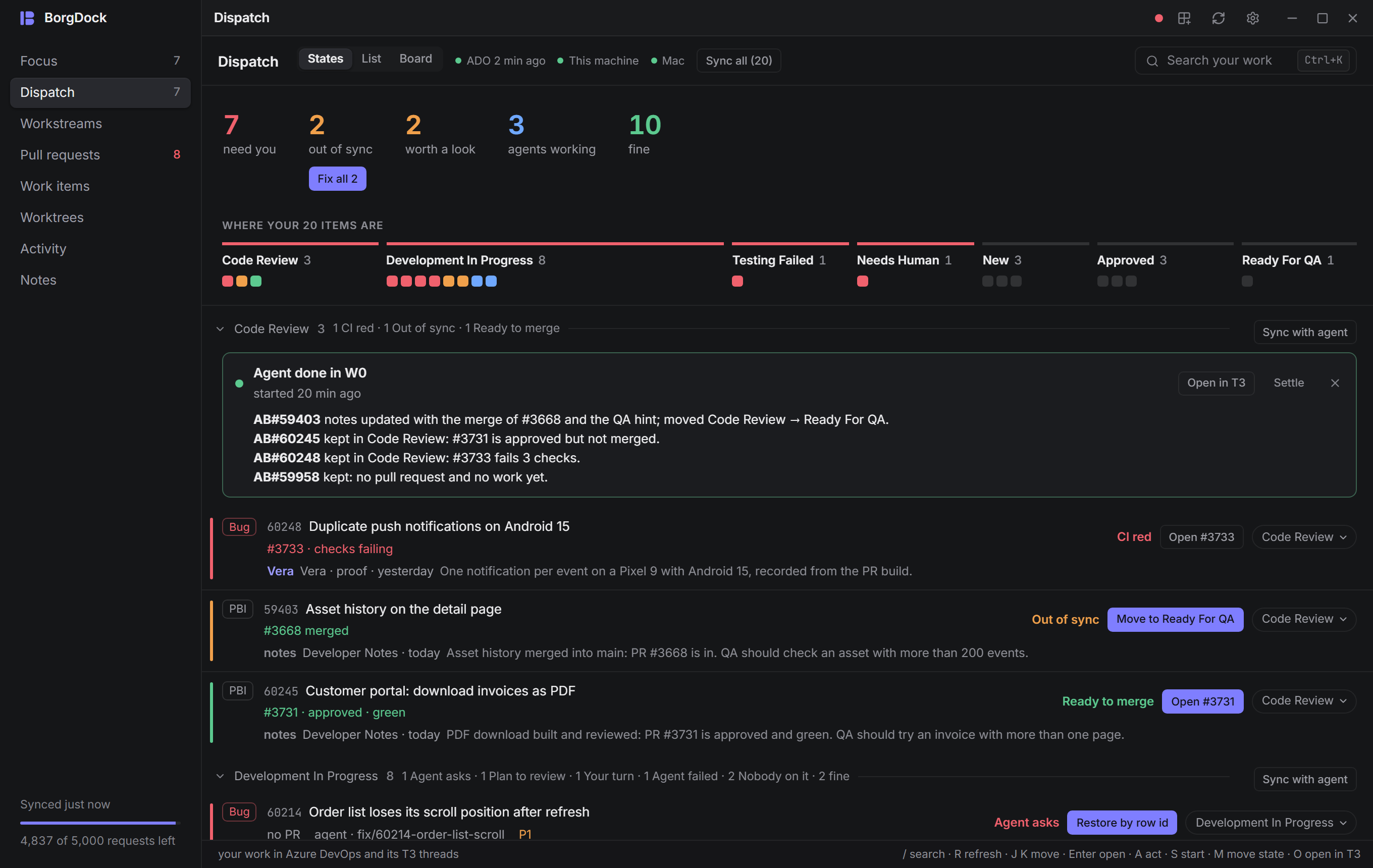
Dispatch opens with five numbers: how many items need you, how many are out of sync, which are worth a look, how many agents are working and how many are fine.

Click a number to see only those items, with "1 of 3" next to each state. Click it again, choose Clear or press Esc to see everything.

Below the numbers, every state gets a strip with one square per item in the colour of its verdict. Click a square to open that item.
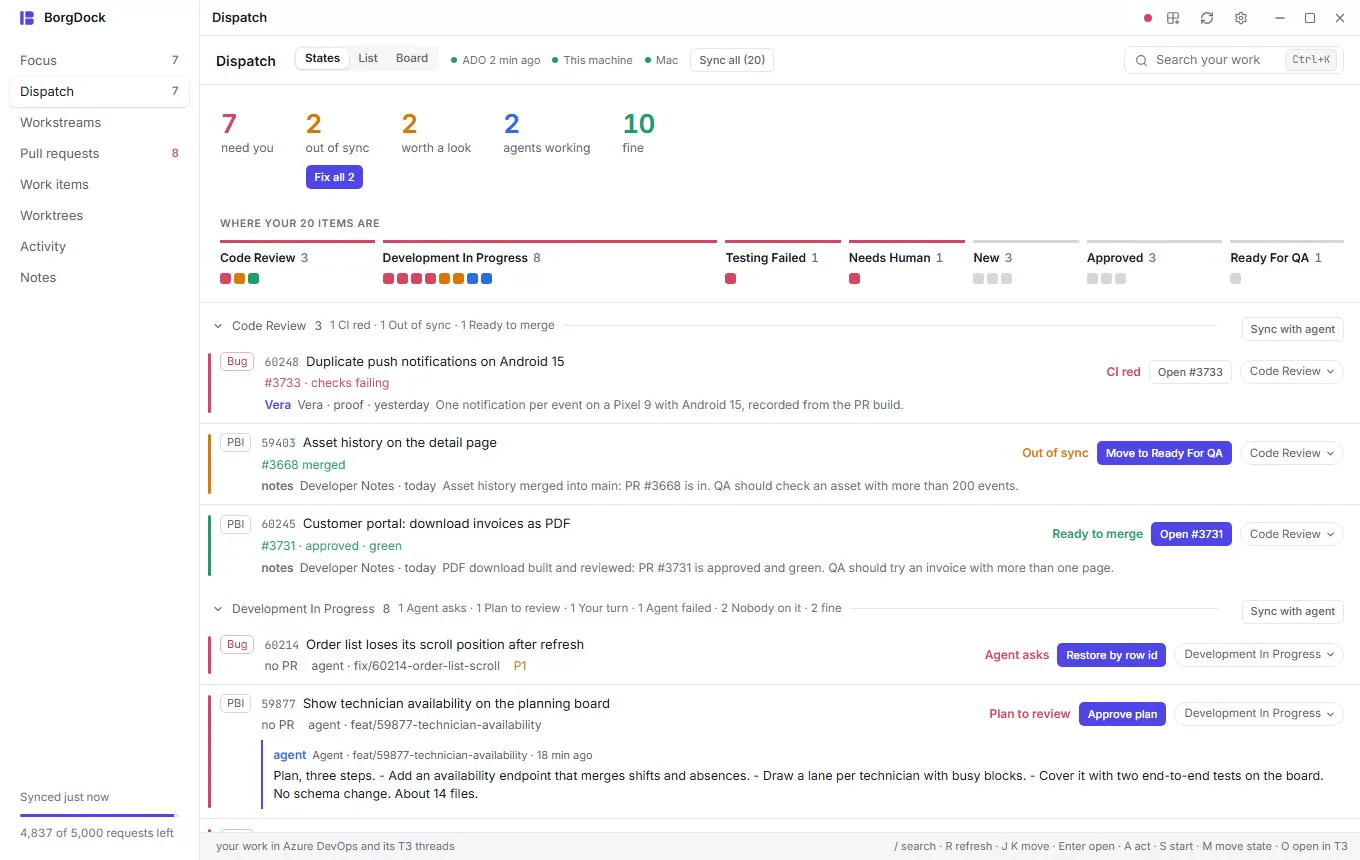
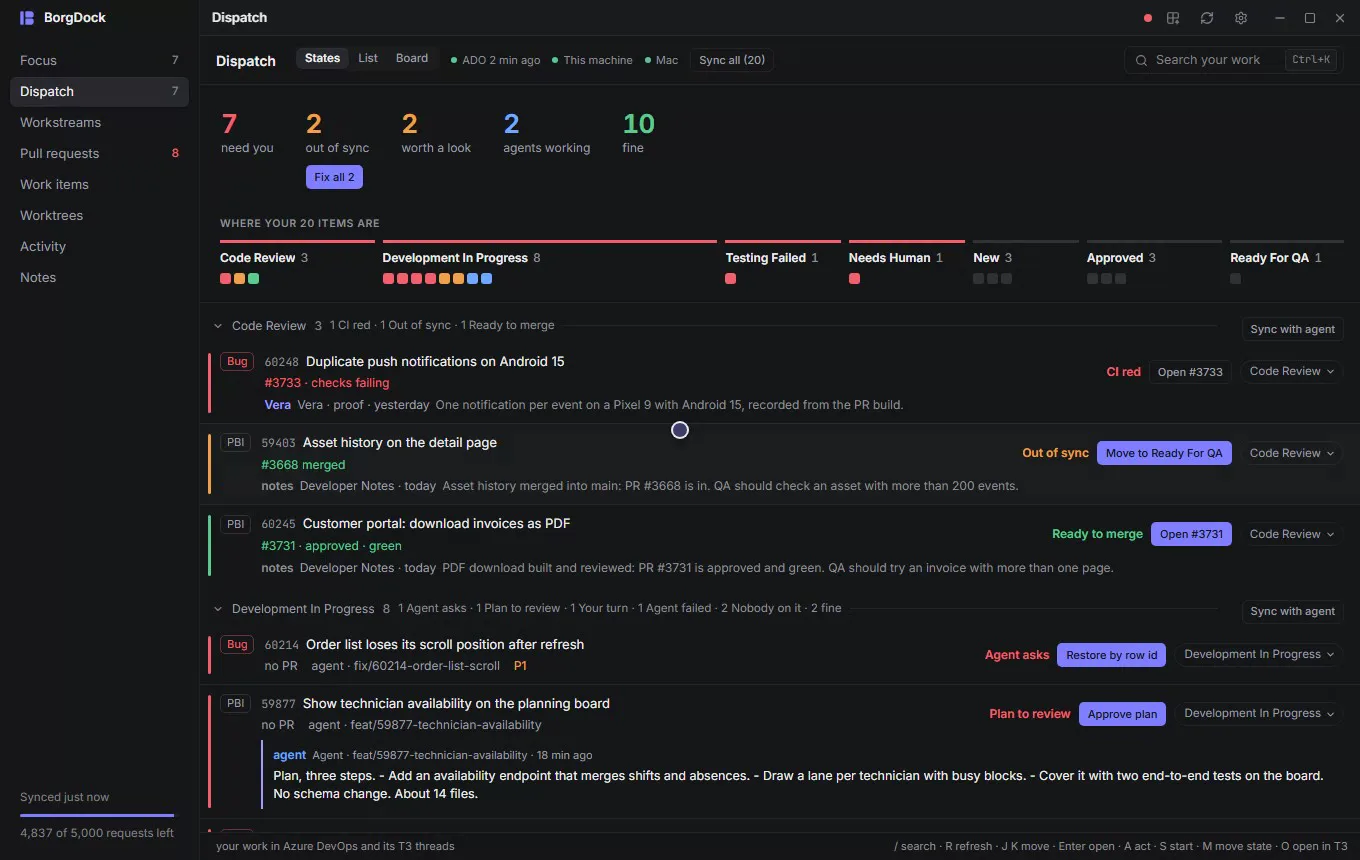
The Dispatch briefing: clicking out of sync narrows the walk to those items, need you shows the ones waiting on you, Clear shows everything and a square opens its item

The walk

Walk the states in the order you check them

Every state gets a section, in the order of a morning walk:

  1. Code Review Did the pull request merge? Then the item goes to Ready For QA.
  2. Development In Progress Is it really in progress, or is there a pull request already?
  3. Testing Failed Pick it up, fix it, open a pull request.
  4. Needs Human Read what is asked and answer.
  5. New Choose what to start next.

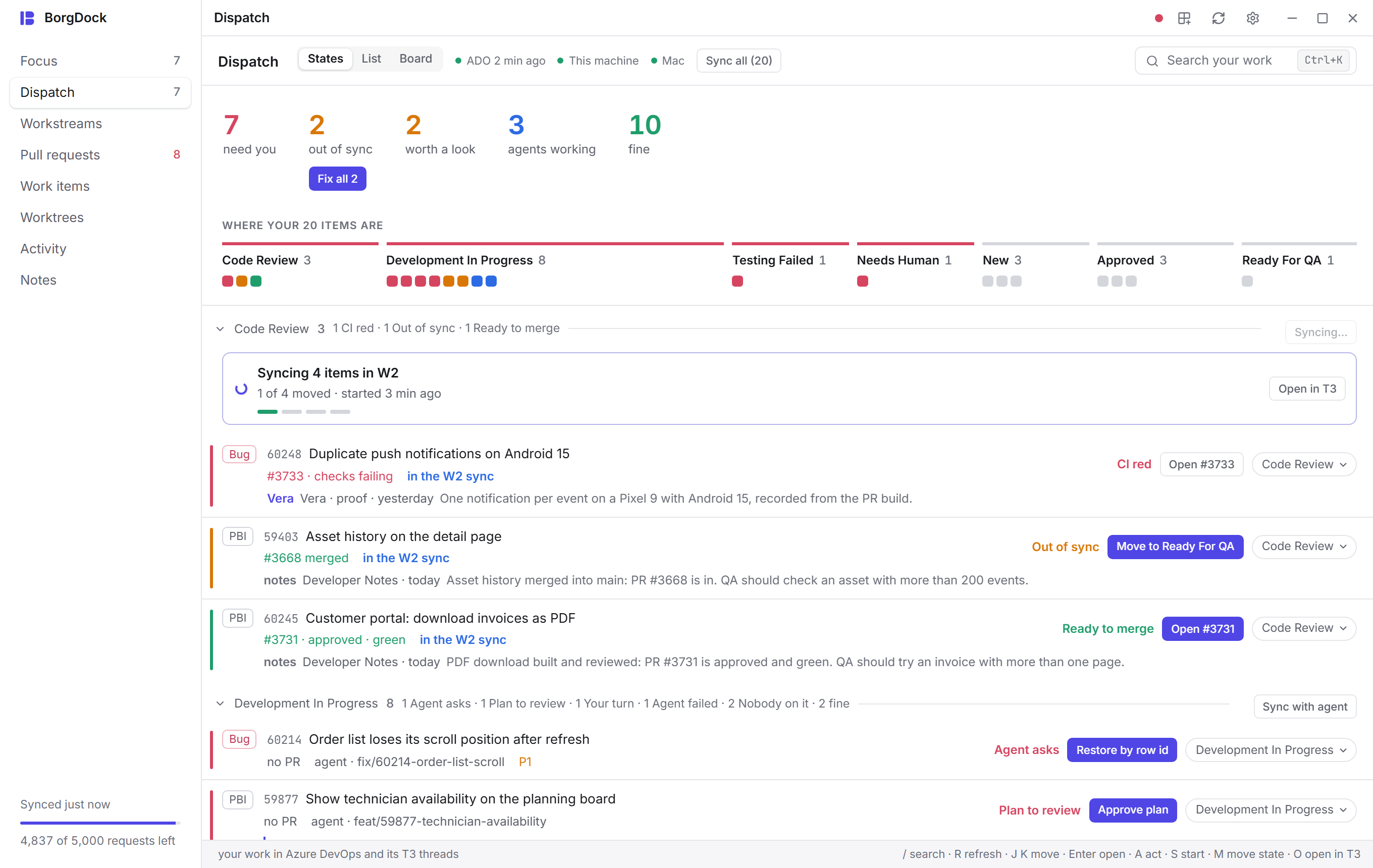
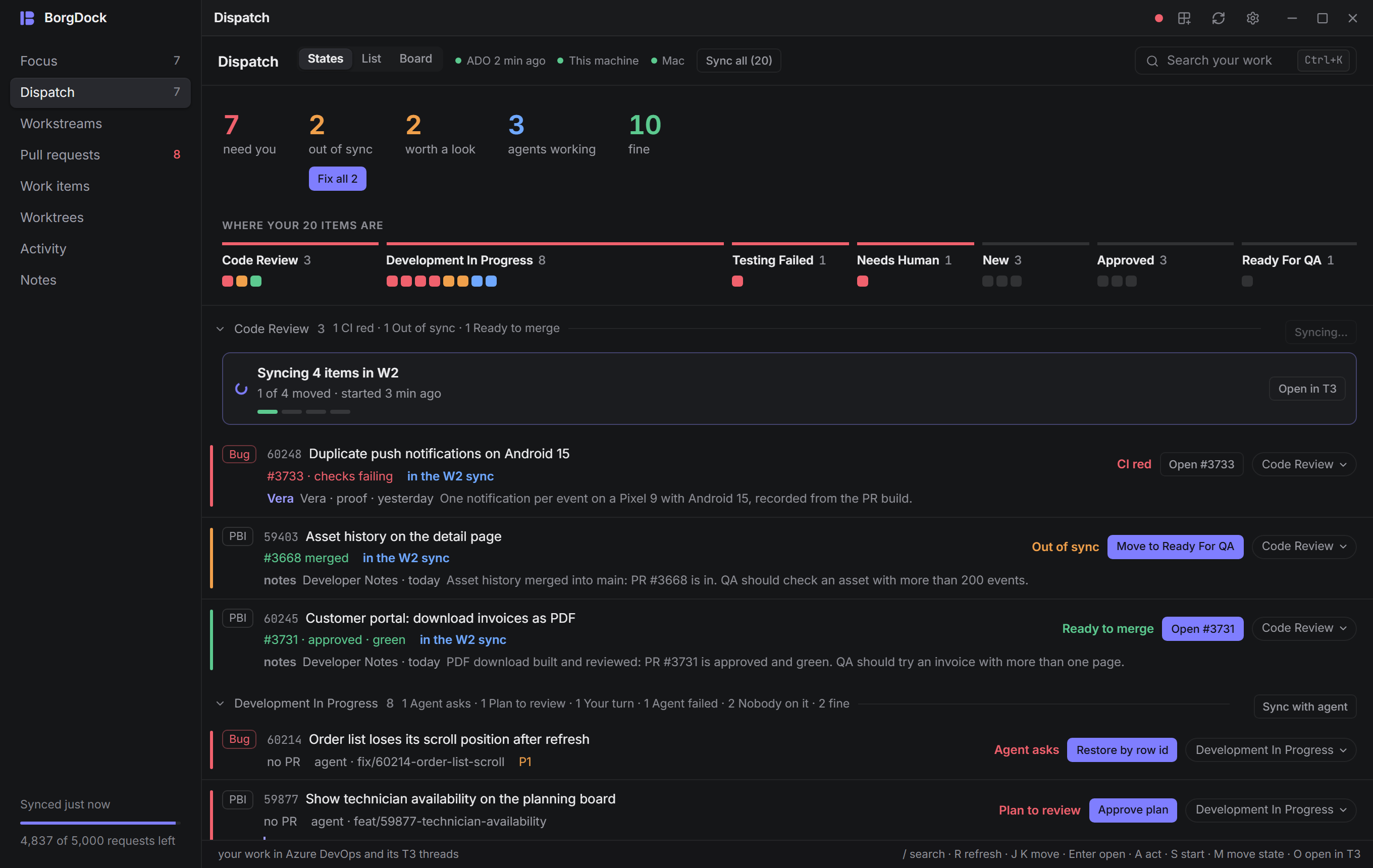
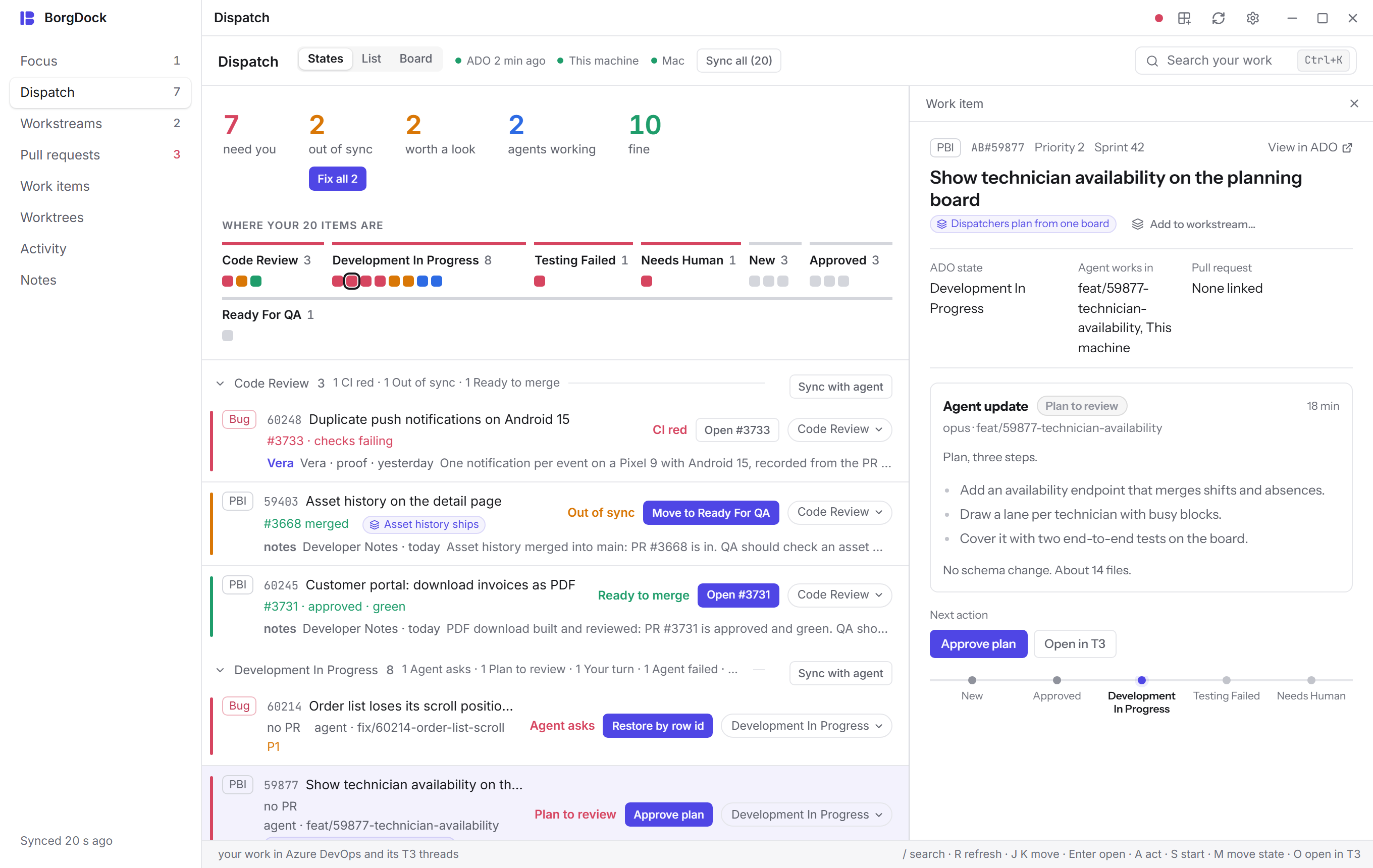
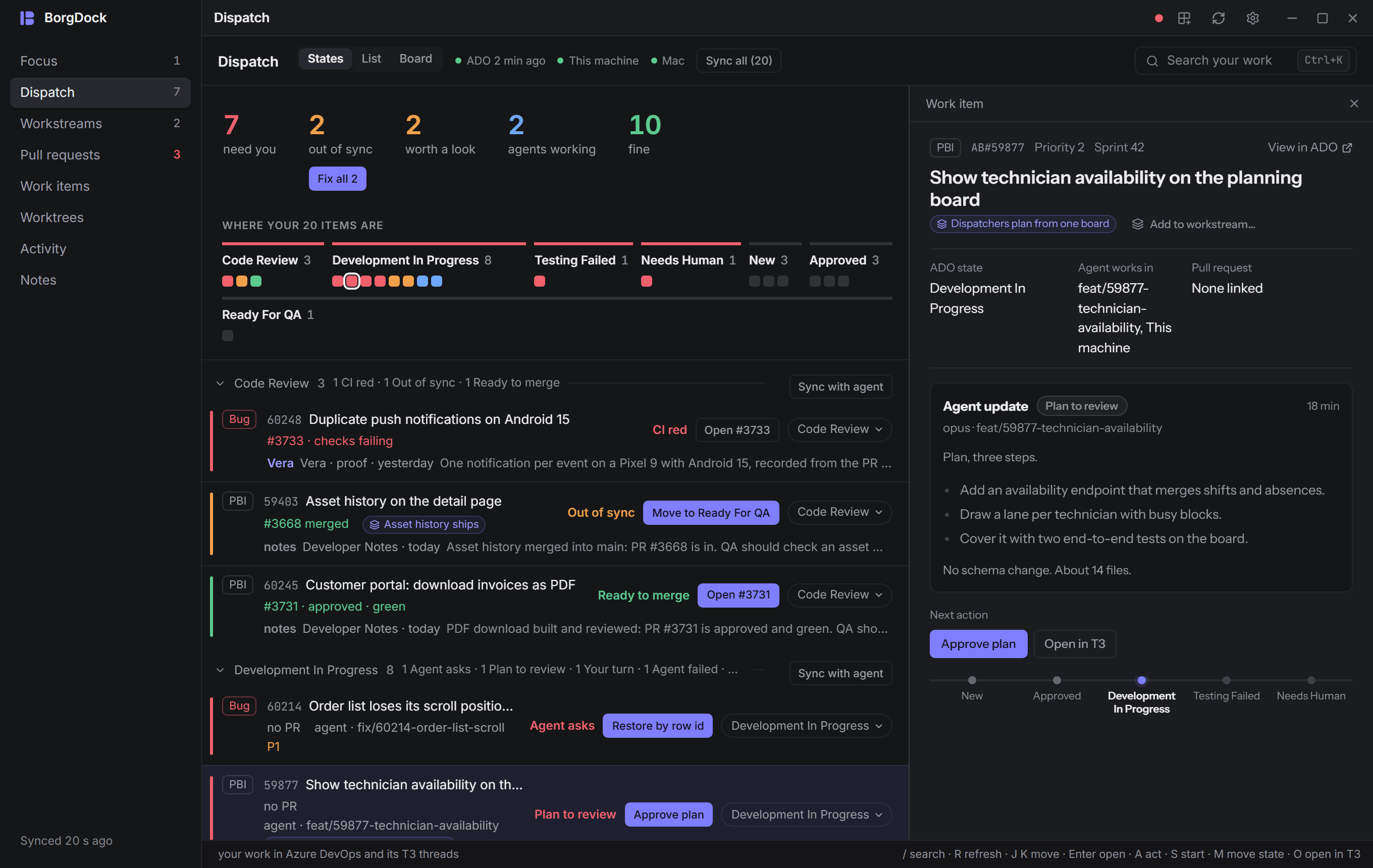
Each item says what it needs and why: CI red, Ready to merge, Agent asks, Nobody on it. Next to it are its pull request, its agent and the latest note about it, from Azure DevOps or the agent itself.
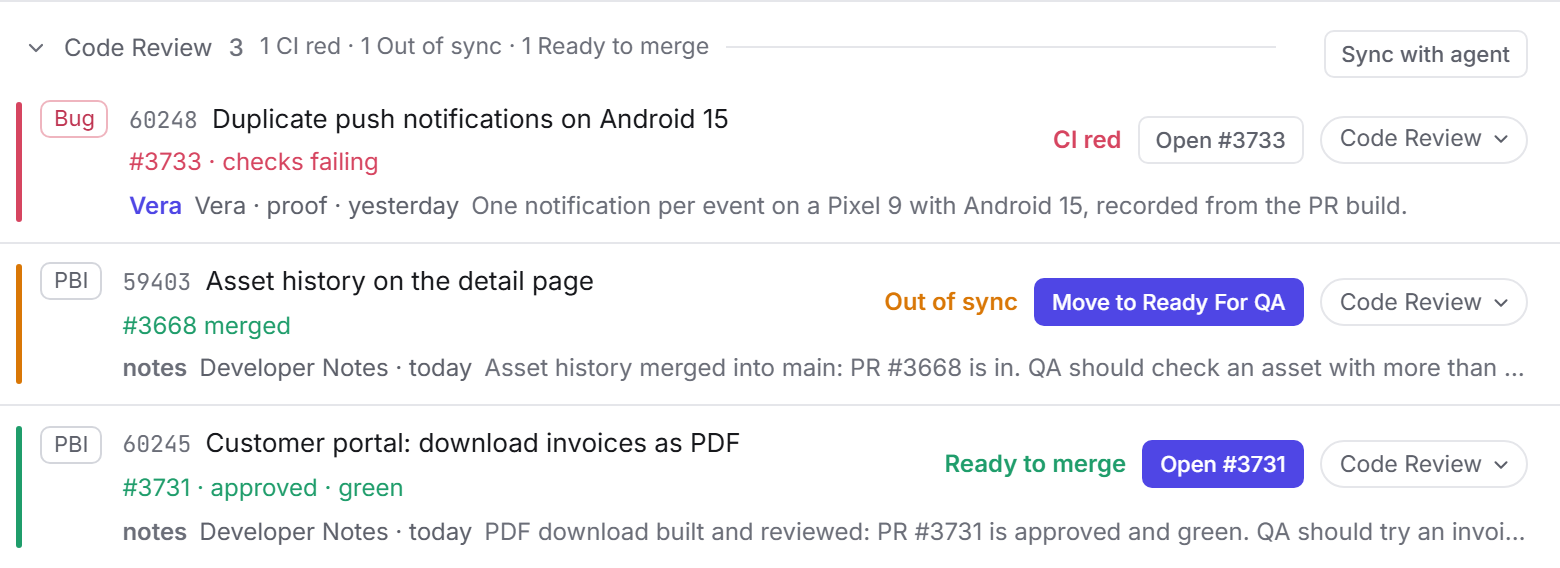
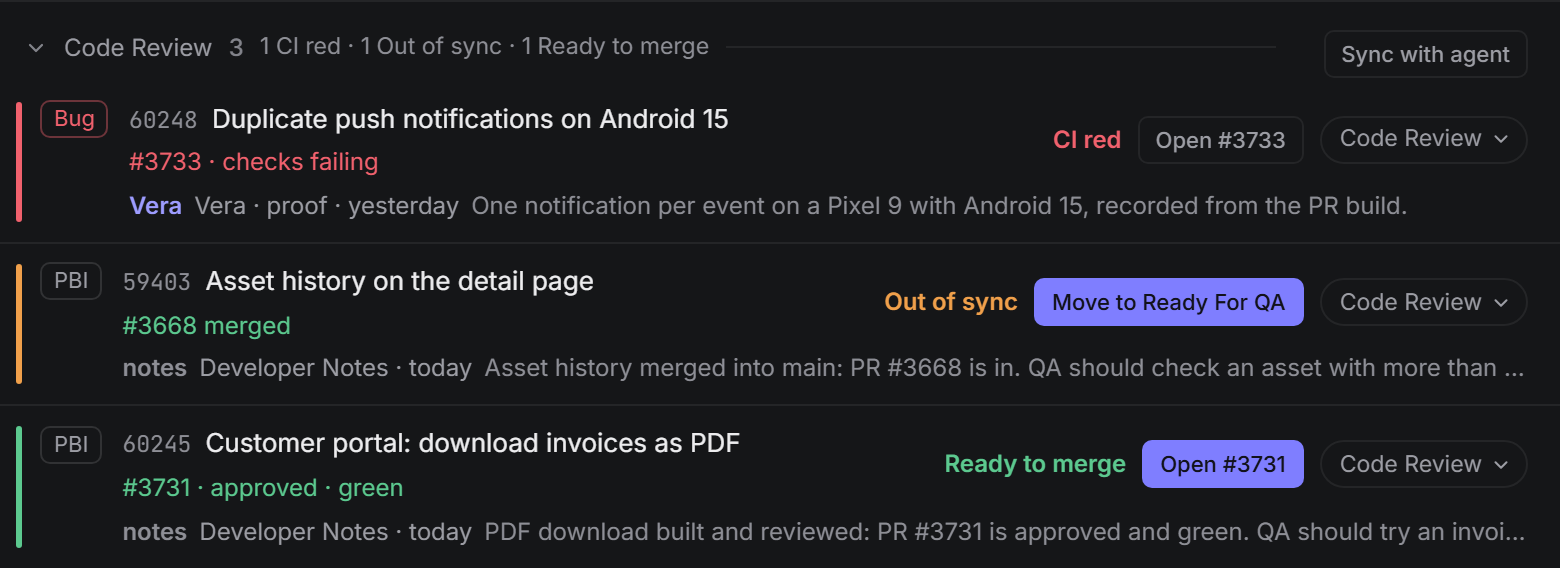
Code Review in the walk: each item with its verdict (CI red, Out of sync, Ready to merge), its pull request and the latest note about itCode Review in the walk: each item with its verdict (CI red, Out of sync, Ready to merge), its pull request and the latest note about it

Out of sync

Catch a status that fell behind

A pull request merged last week while the item still sits in Code Review? An open pull request on an item that says New? Dispatch marks it Out of sync and shows the move it needs.

Pick Move to Ready For QA, or any state from the state menu on the row. An agent makes the move in T3 Code and fills in the notes and fields your repository's ADO skills ask for, so you don't have to.

BorgDock never changes a state on a button. Every move goes through an agent you can watch.
Moving an item with the state menu: every state of its workflow, grouped, and picking Ready For QA opens the sheet for the agent that makes the move

Sync with an agent

Let one agent catch up on everything

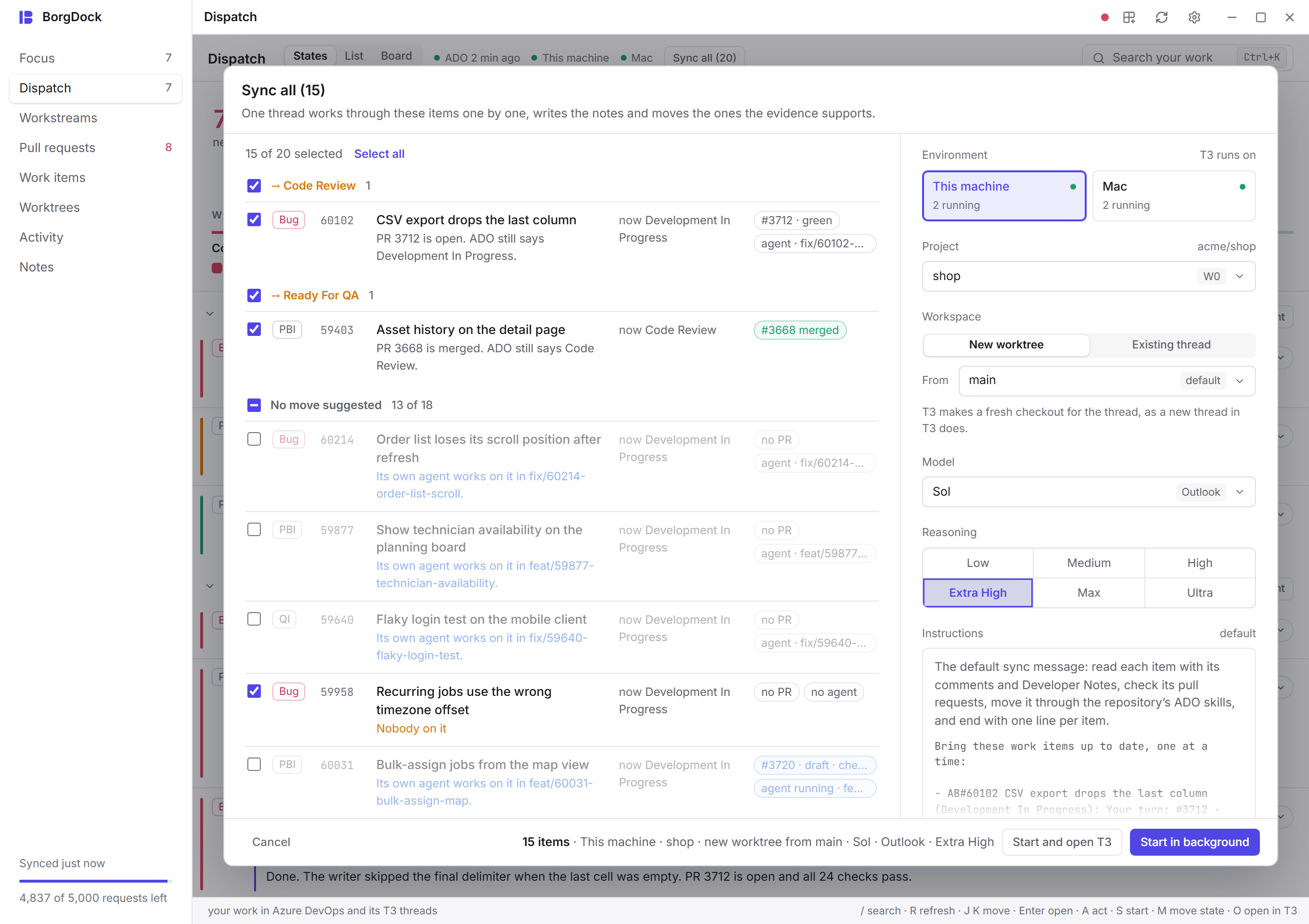
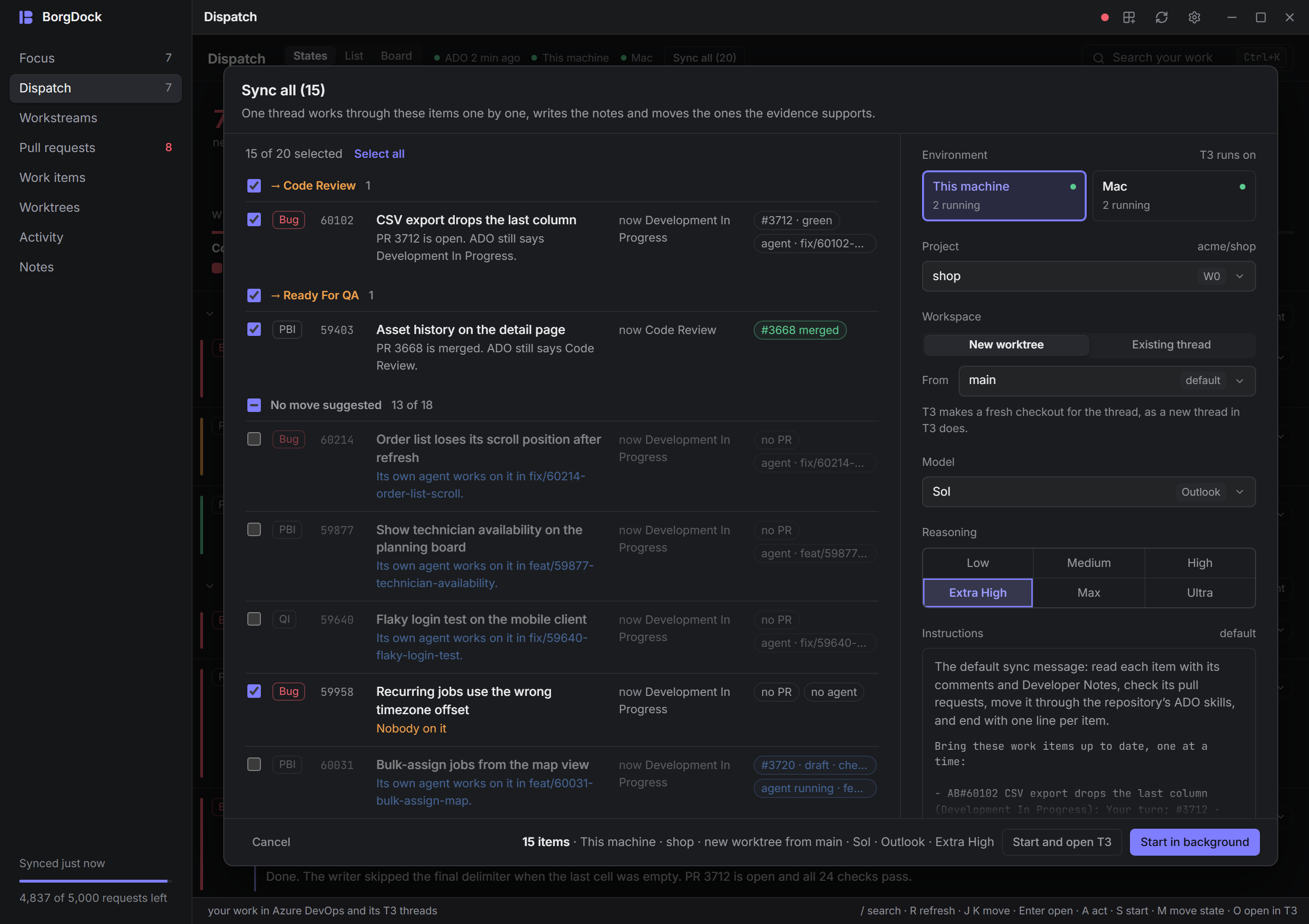
Fix out of sync hands every item that fell behind to one agent. Sync with agent does the same for one state, and Sync all walks every item you own, one at a time.

The sheet groups the items by where they will move, with one checkbox per group. Pick the machine and the repository, type to find a model and choose how hard it should think.

Start it in the background and keep working. The state shows the agent at work and, when it is done, what it did.
Fix out of sync: the sheet groups the items by where they move, and the model picker filters as you type

Start an agent

Put an agent on the next item

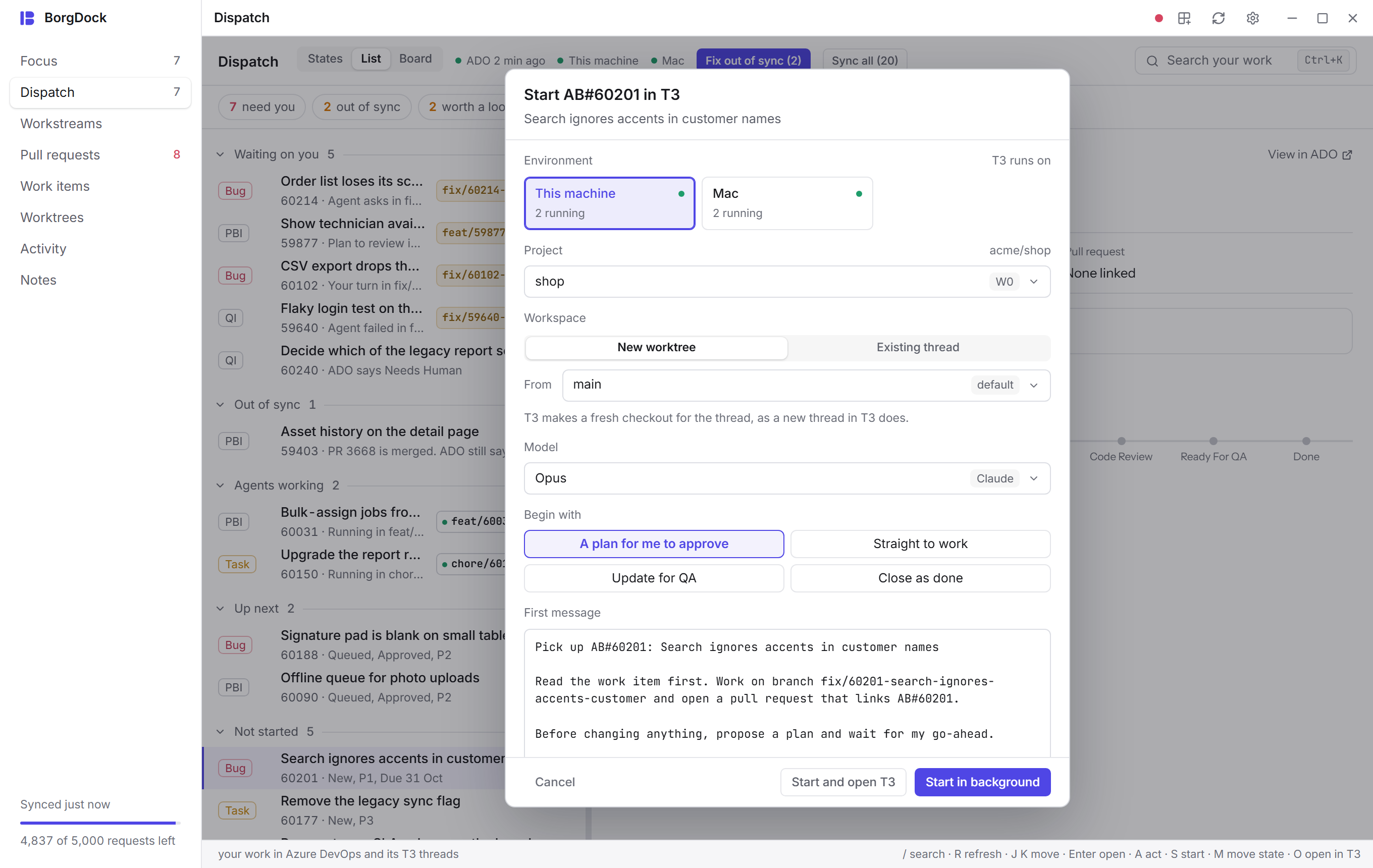
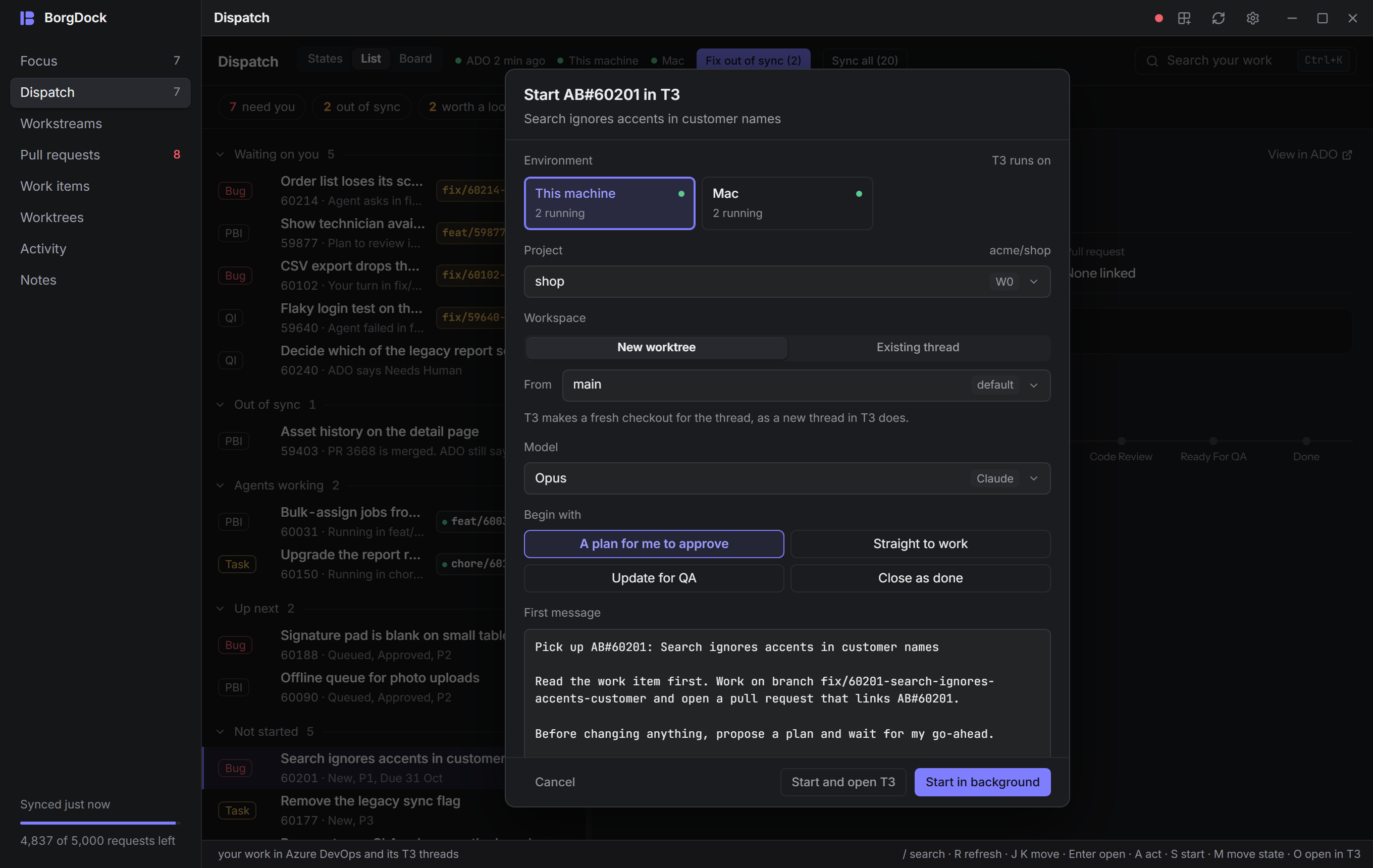
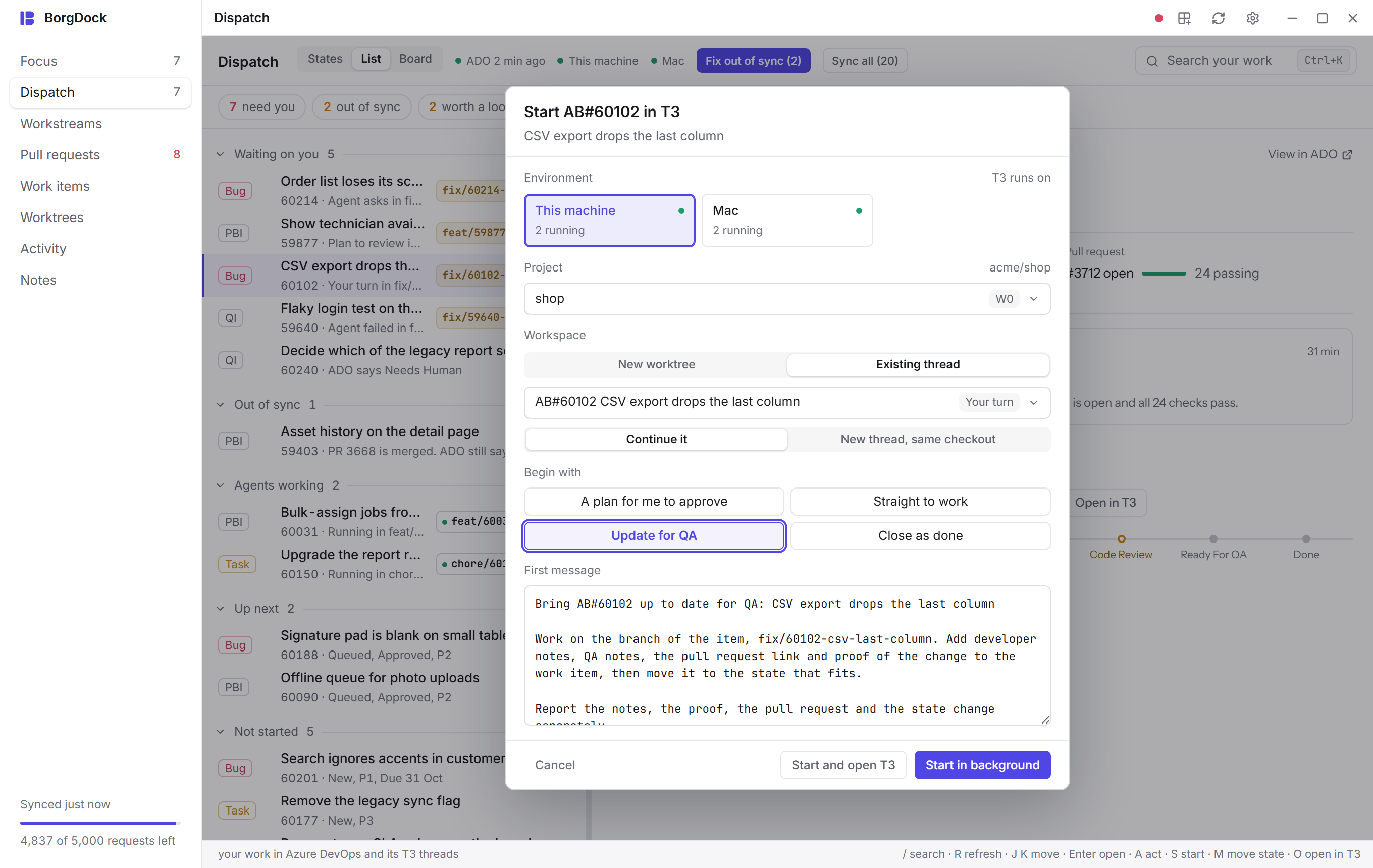
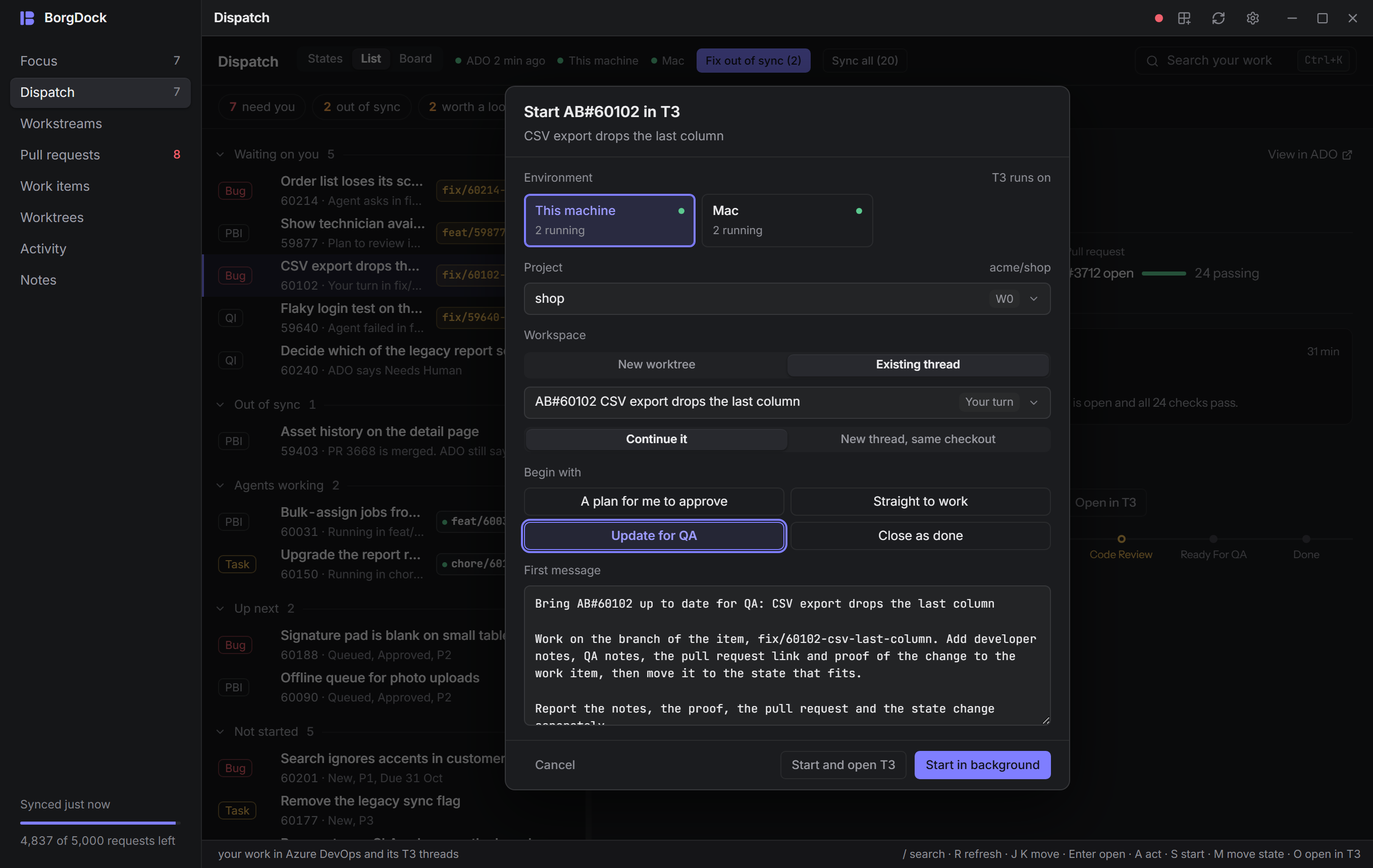
Press S or Start in T3 and pick where the agent works: the machine T3 runs on, the repository (BorgDock picks the one your work lives in) and the branch to start from. T3 makes a fresh worktree for the thread, as it does for a thread you start in T3 itself.

Choose how the agent begins: a plan for you to approve, straight to work, an update for QA or closing as done. The first message is right there to edit before it goes out. Existing thread sends it to a thread that already worked on the item instead.

Starting can move the item to Development In Progress for you, so Azure DevOps matches what is happening.
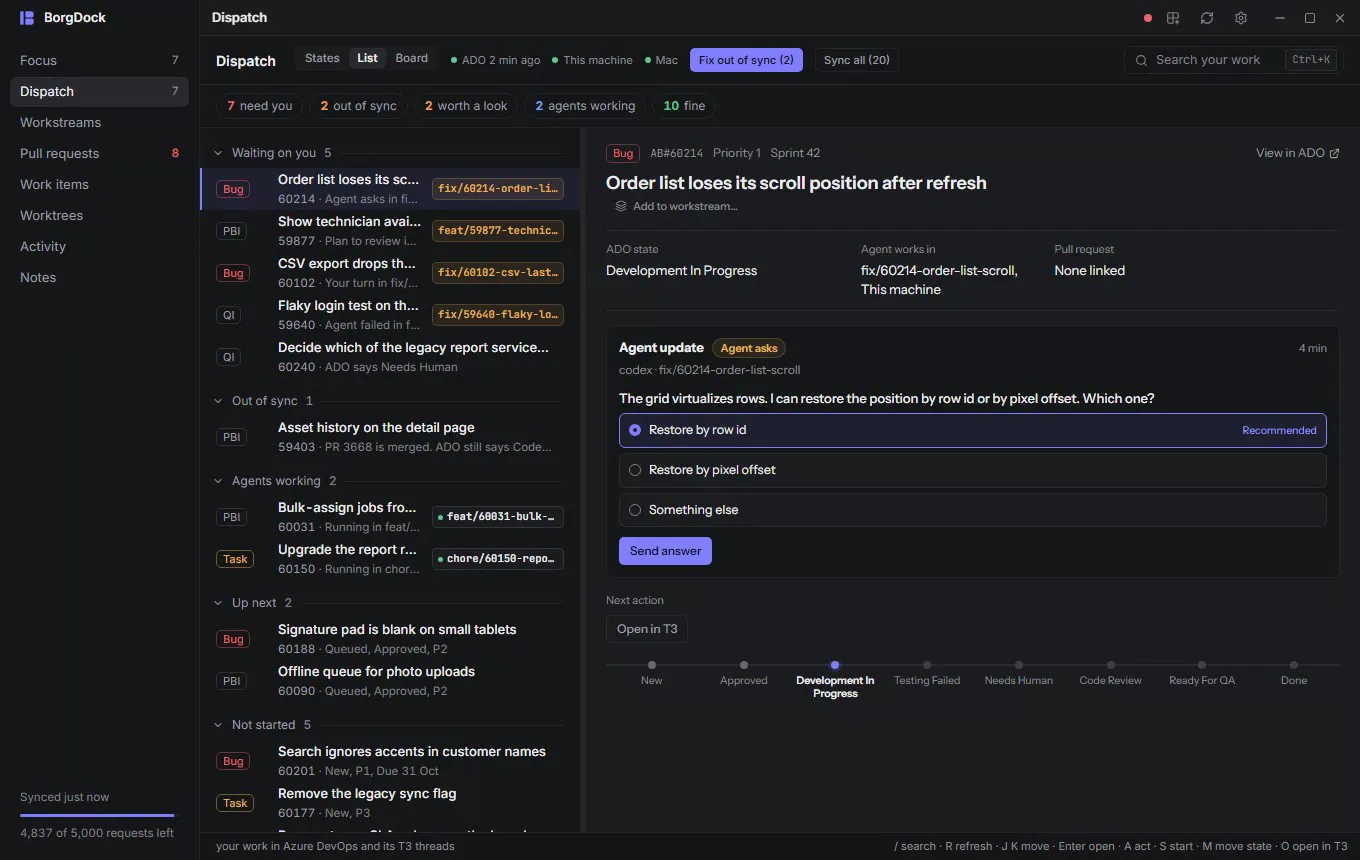
Dispatch as a list; an item with no agent yet gets Start in T3: the launch sheet asks for the machine, the repository, a new worktree, the model, how to begin and the first message

Answer your agents

Answer without switching windows

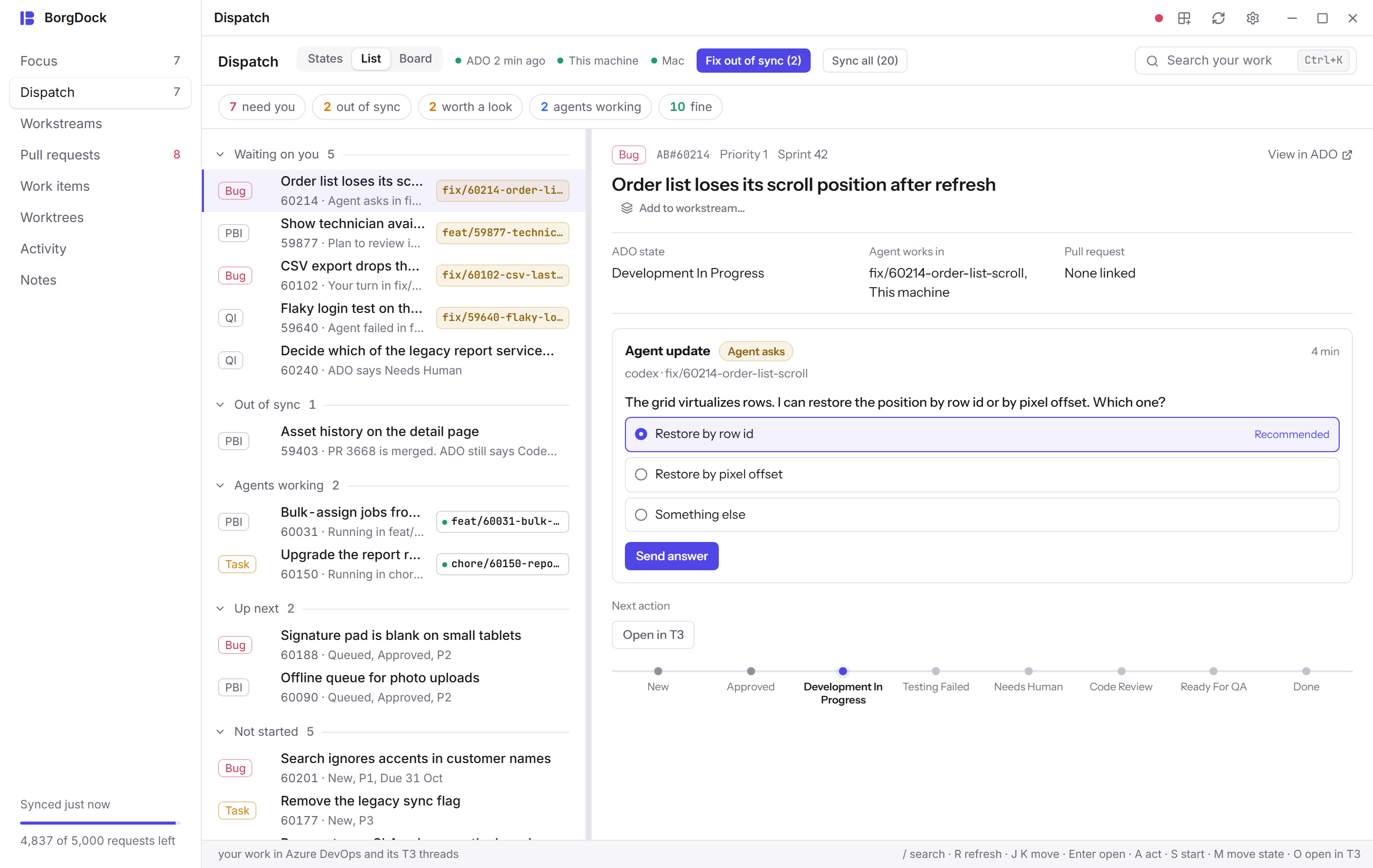
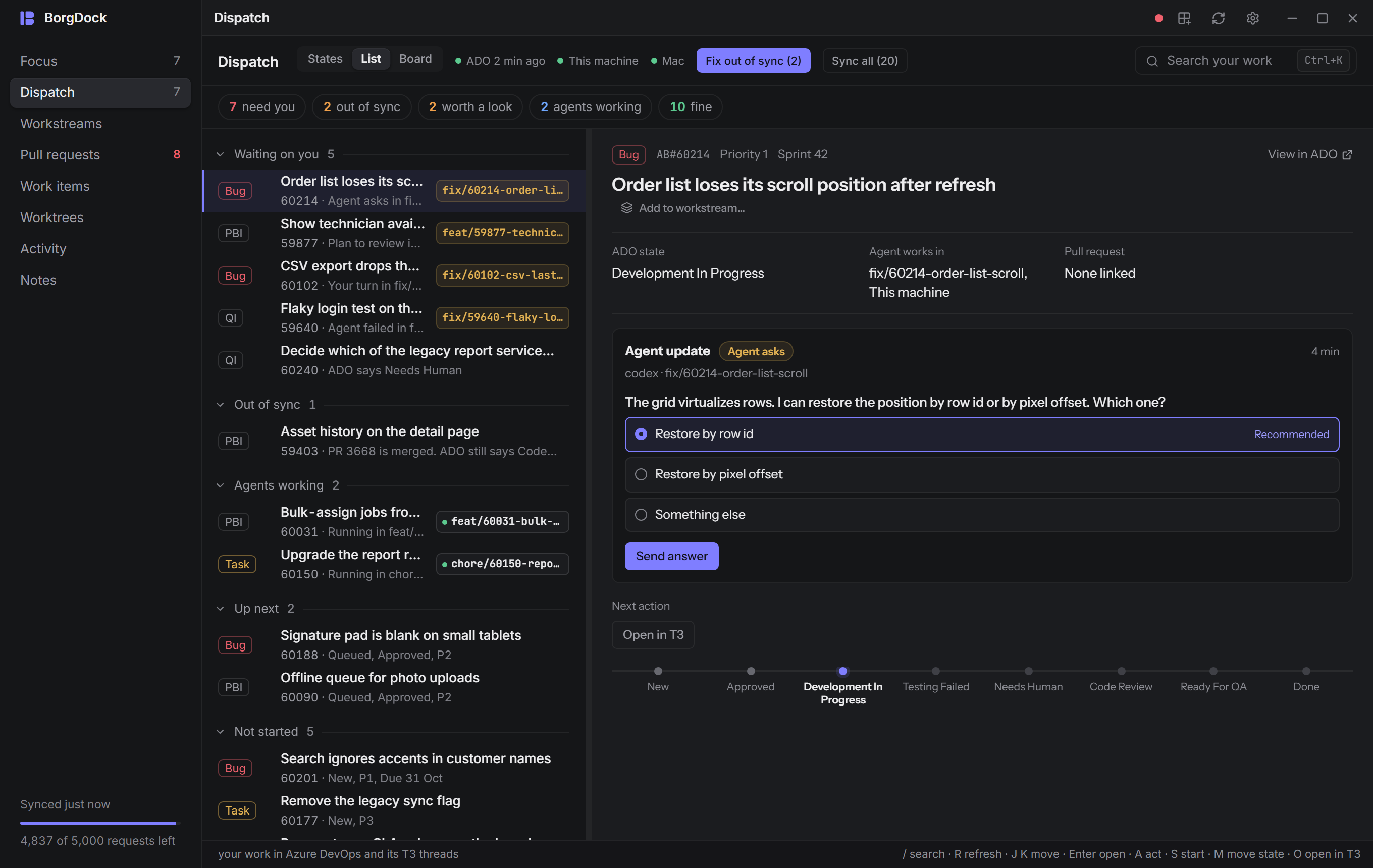
When an agent asks a question you see its options next to the item. Pick one, or type your own answer.

A plan gets Approve plan, a finished thread gets Settle thread, and Open in T3 is one key away when you want the whole conversation.

An agent that works through subagents, or on the item's epic, still shows as that item's agent.
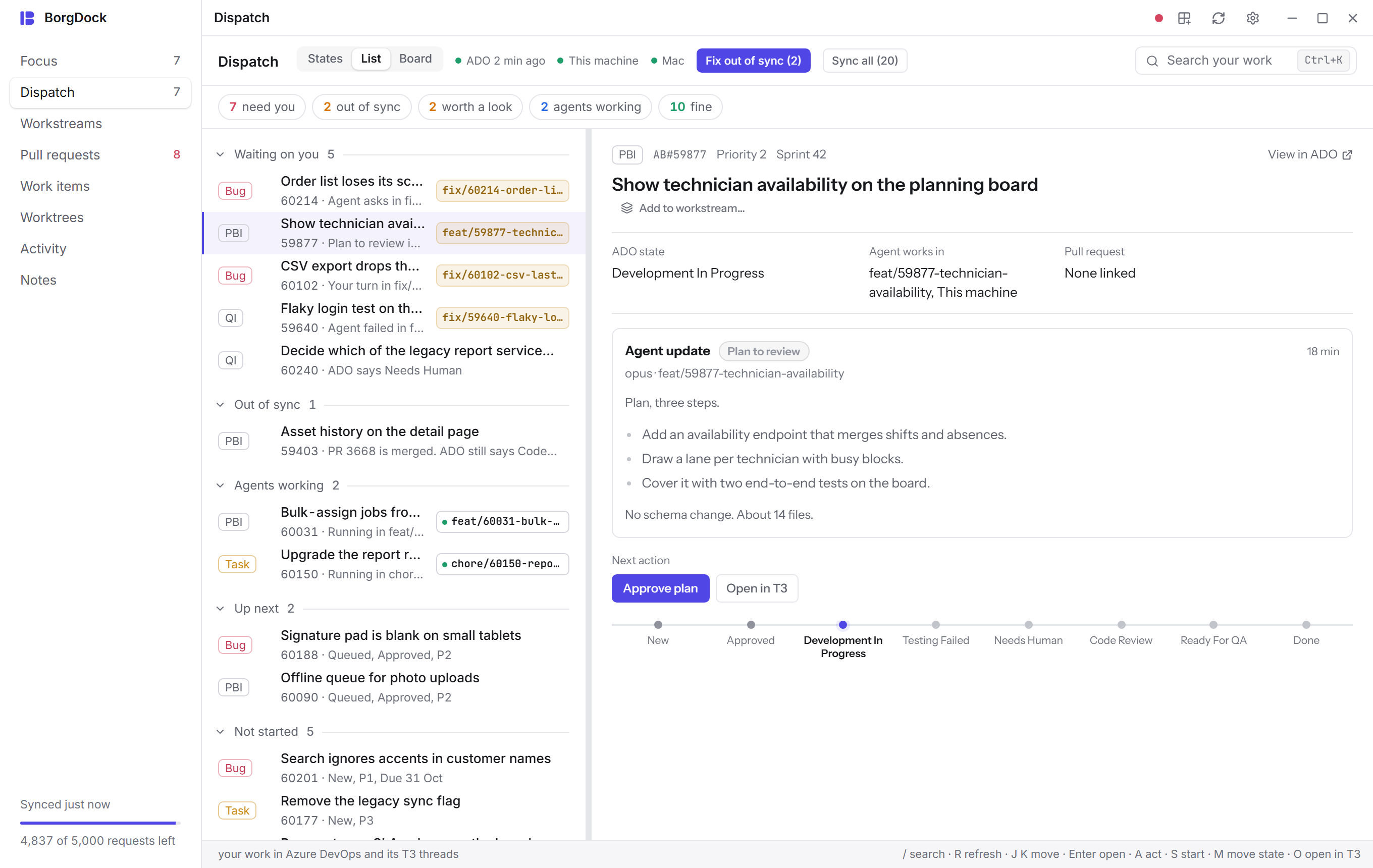
An agent's plan in Dispatch, with Approve plan beside itAn agent's plan in Dispatch, with Approve plan beside it

States, List, Board

Look at your work the way you think

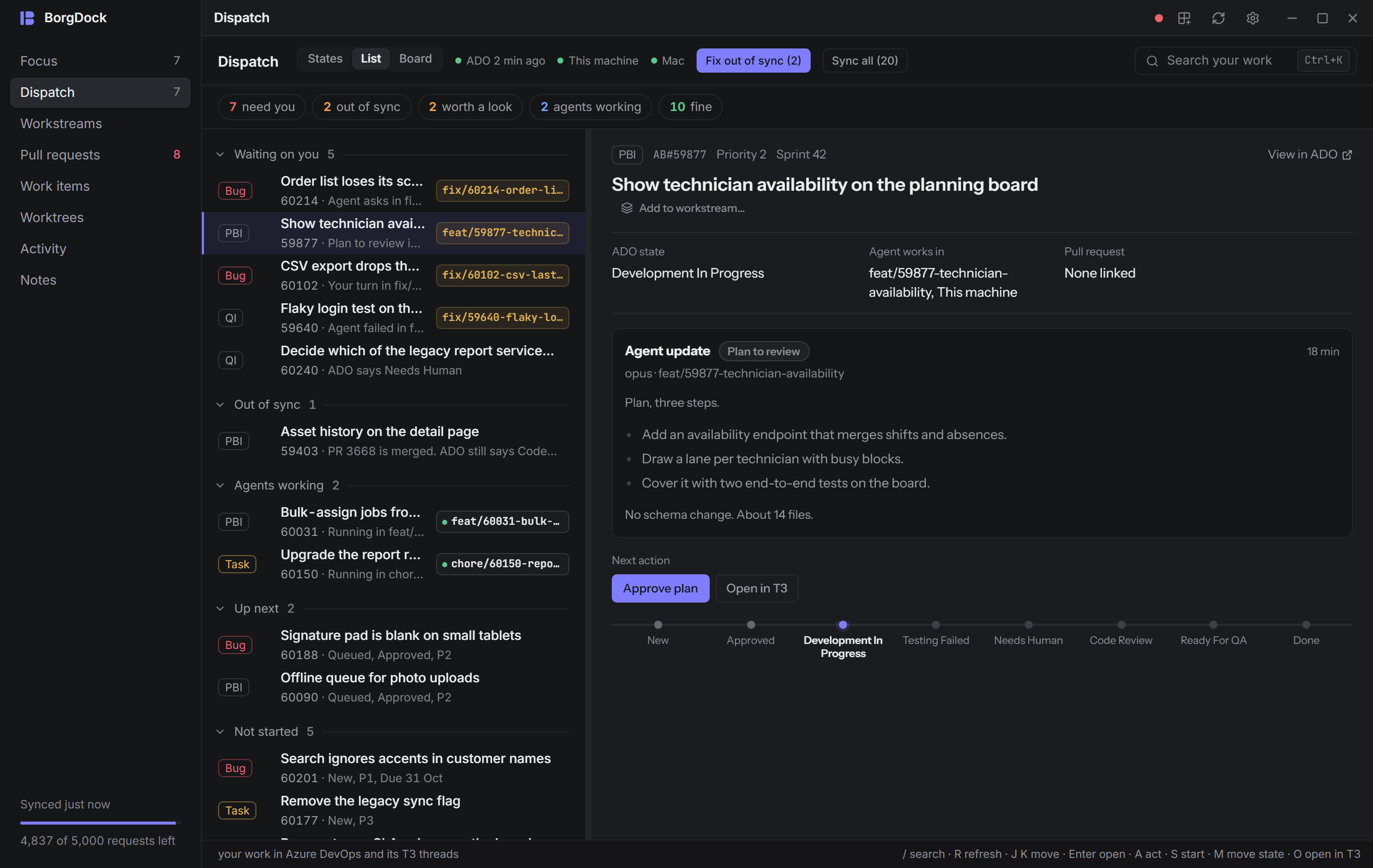
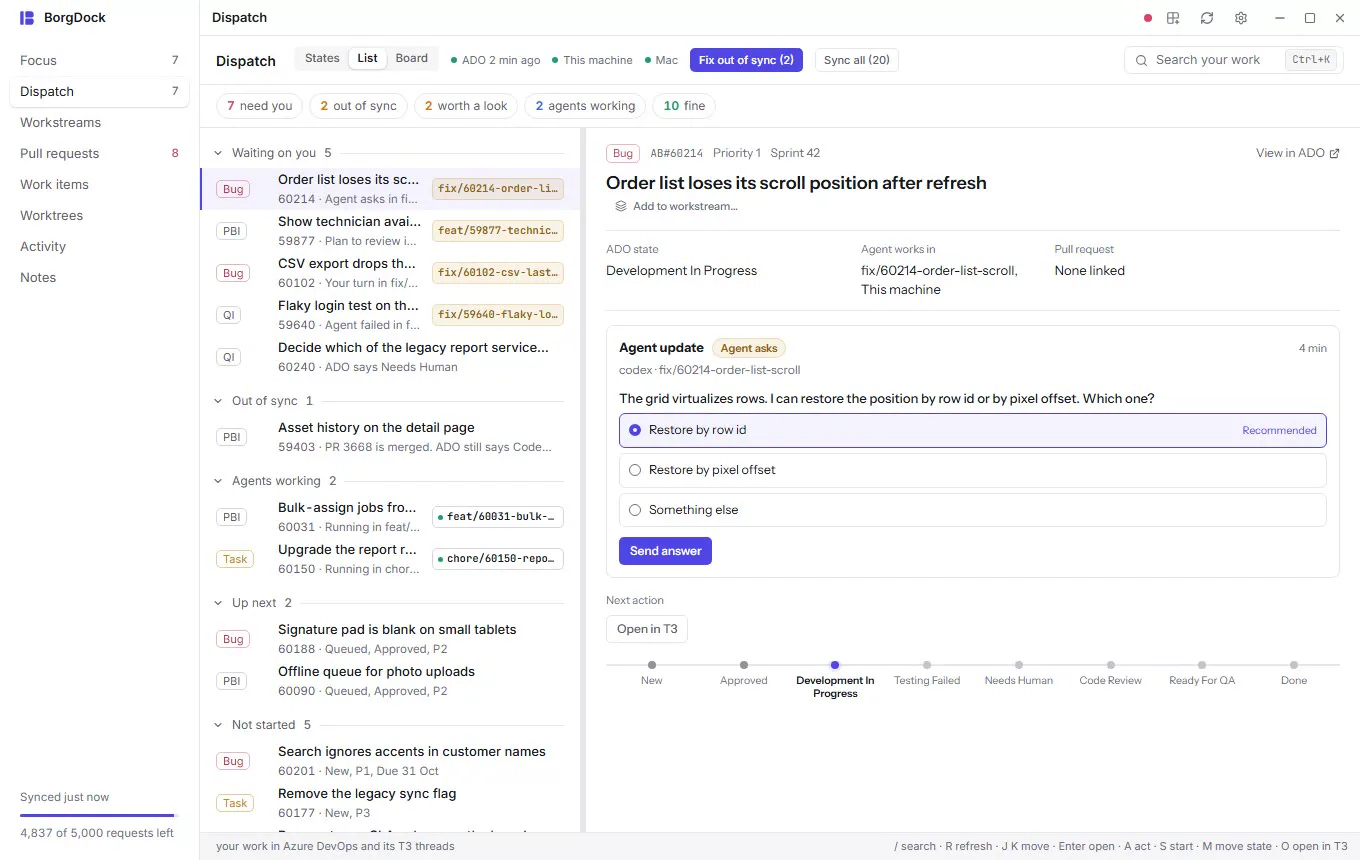
States walks your Azure DevOps states. List groups the items by what they need, with the selected one beside it. Board puts Needs you, Agents working, Up next and Not started side by side.

Click a card to open its detail in a drawer, and start an agent on it from there. The counts sit above every layout, so filtering works the same in each.
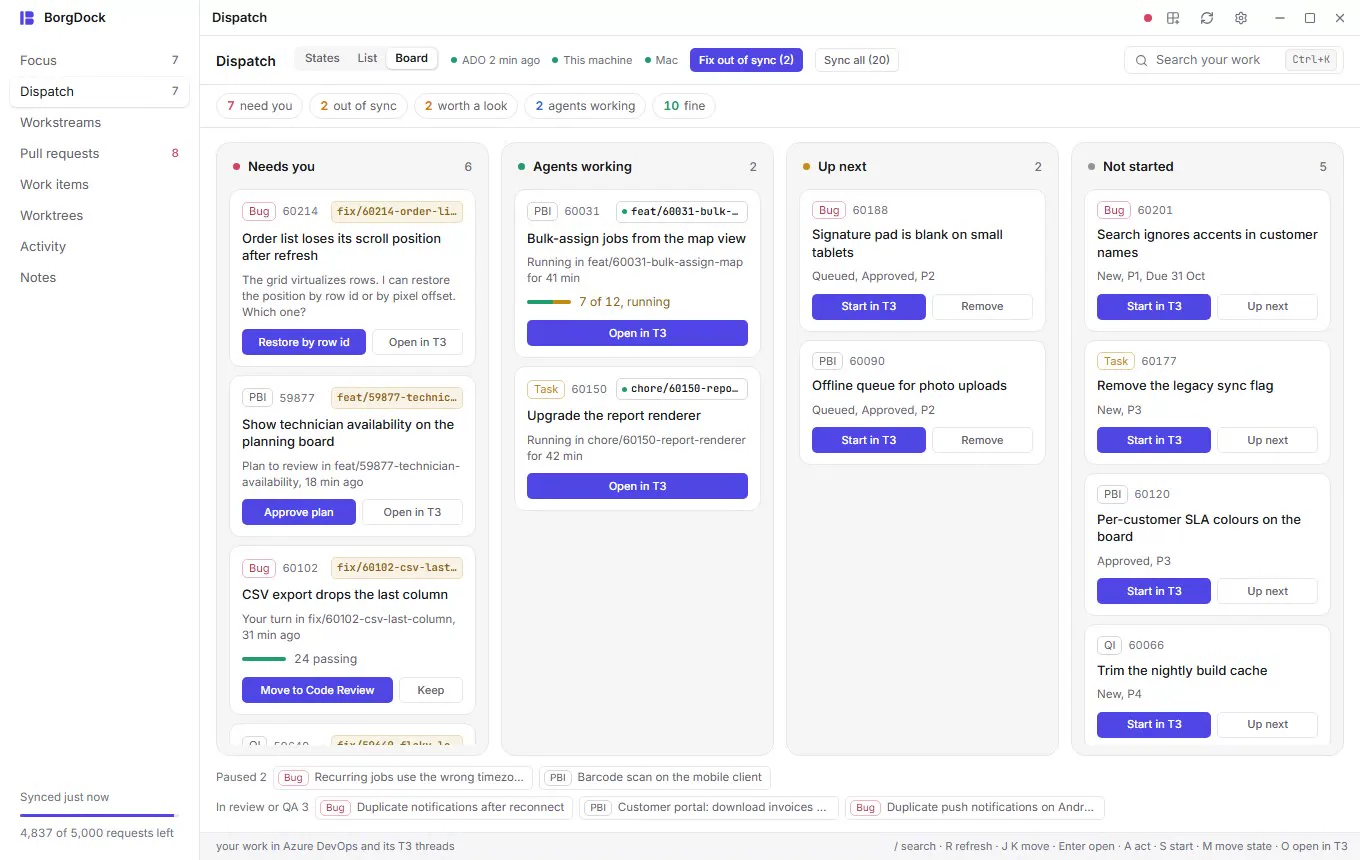
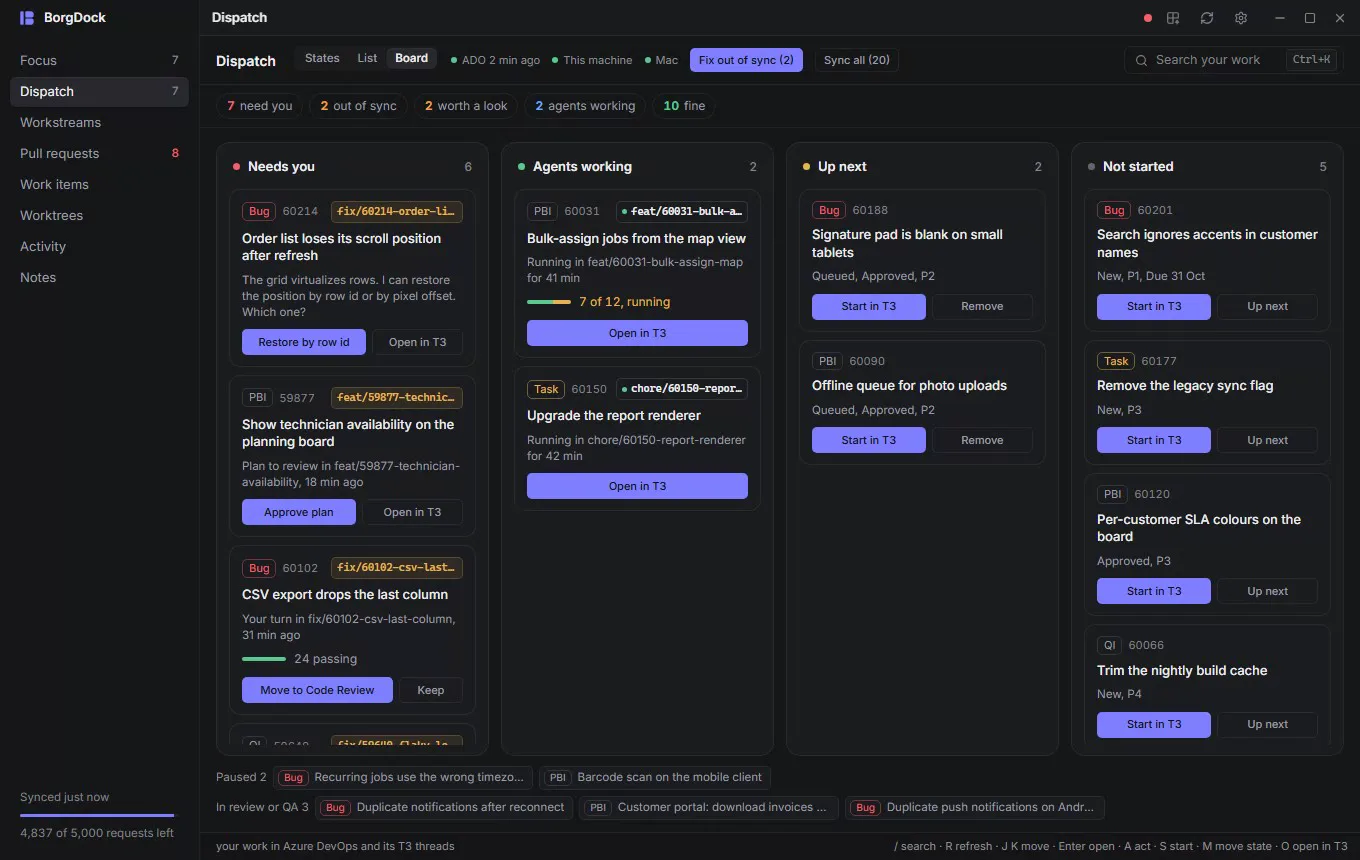
Dispatch as a board: clicking a card opens its detail in a drawer beside the columns

Focus and notifications

Agents that need you find you

A question, a plan or a failed agent sends a notification with the obvious action on it.

Focus shows a row of squares per state and the items that wait on you with their latest message, so you know where to start before you open Dispatch. The tray flyout lists them above your pull requests.
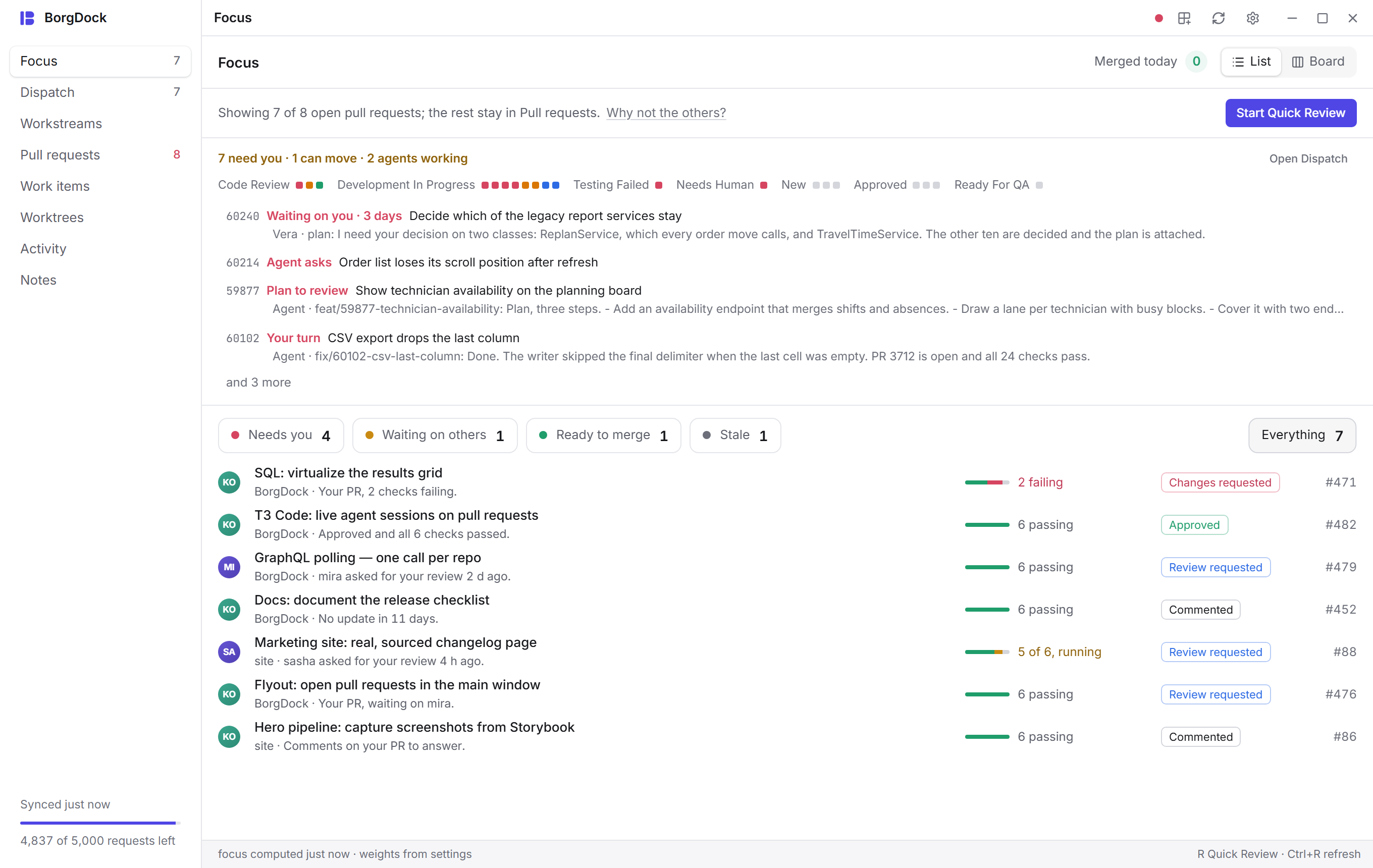
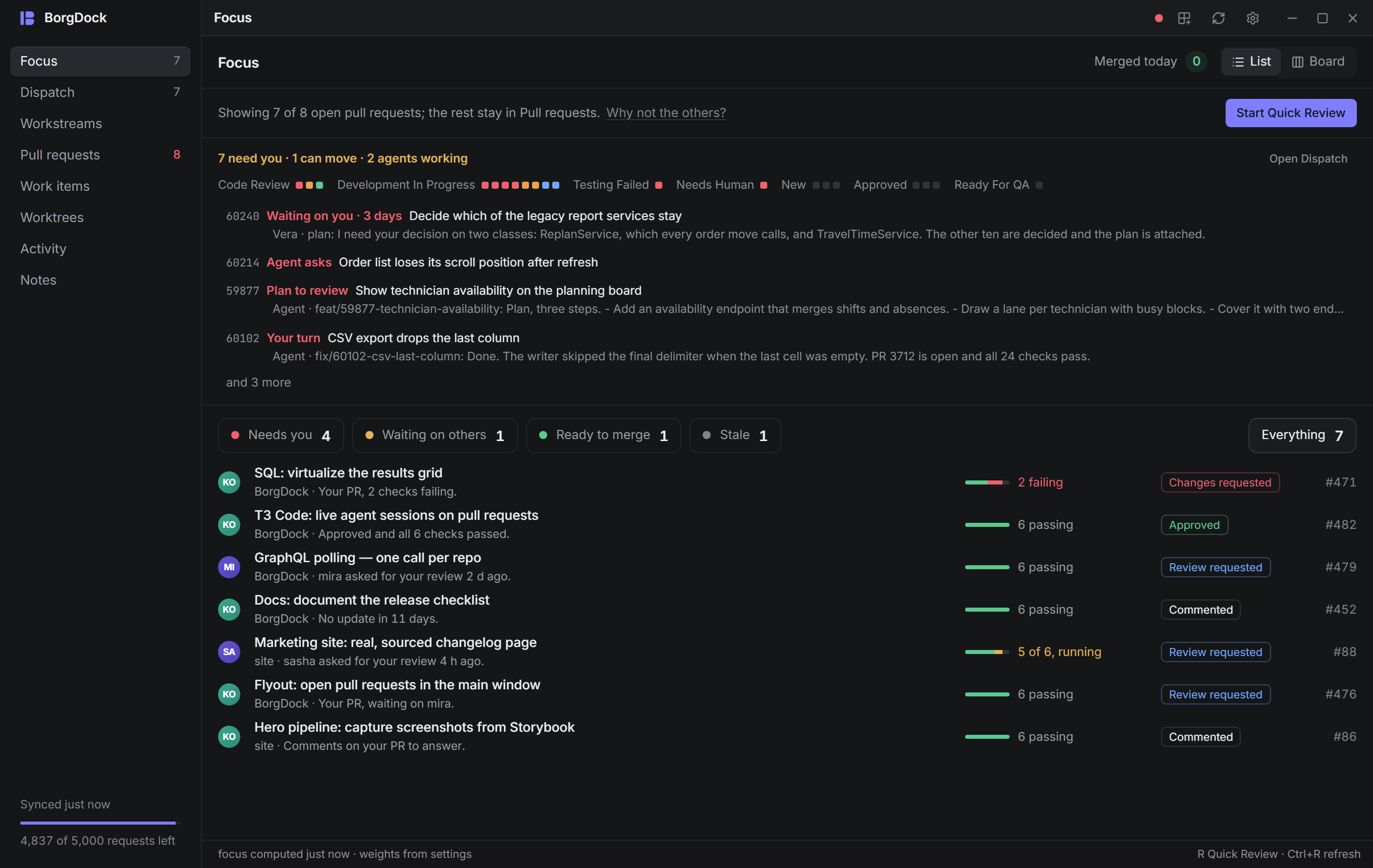
Focus with the agents that need you at the top, and a row of squares per state for your work itemsFocus with the agents that need you at the top, and a row of squares per state for your work items

Other machines

Every machine you run agents on

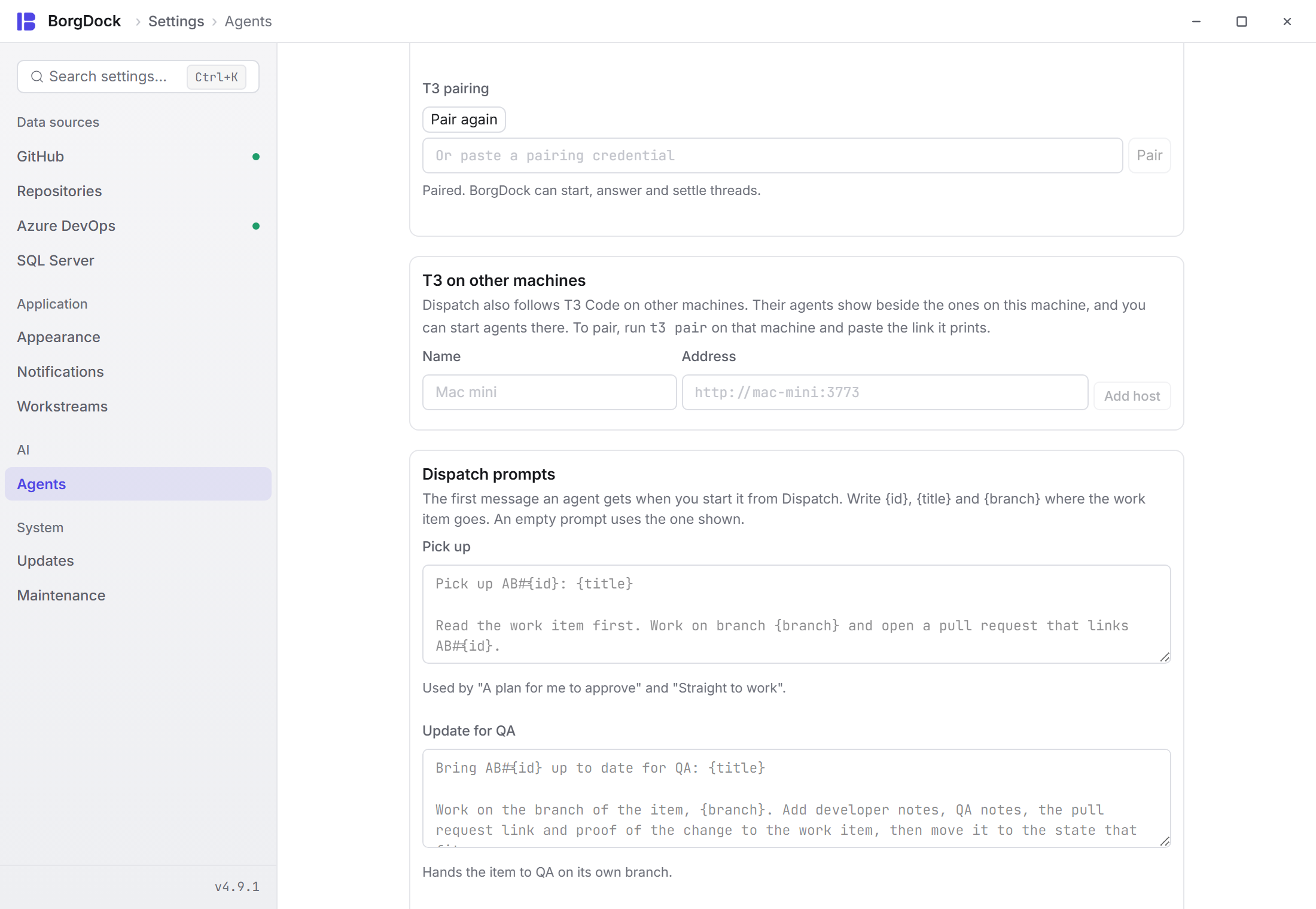
Run T3 Code on a Mac mini or a build machine too? Add it under Settings → Agents, and its agents show beside the ones on this machine. Every launch lets you pick which machine runs it.

A machine that goes offline keeps its last known work on screen, so you don't start a second agent on an item that already has one.
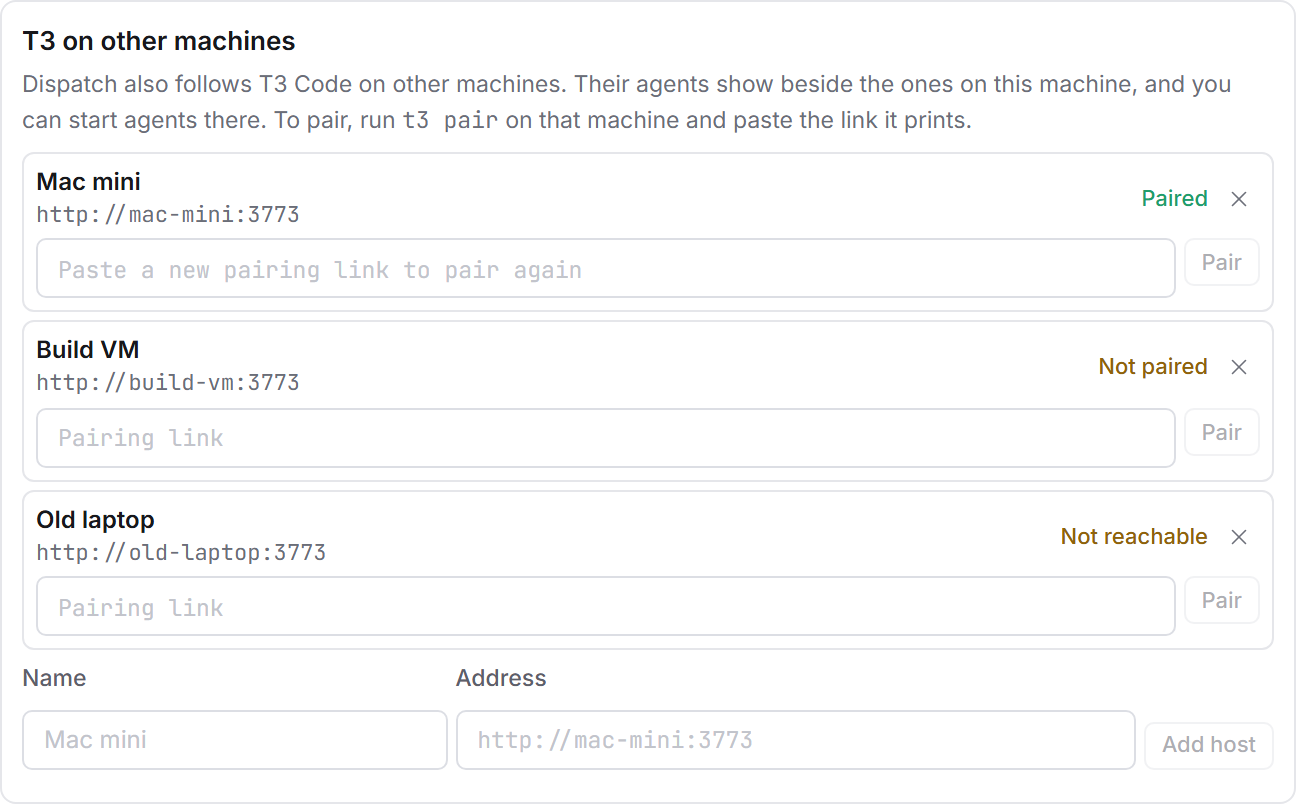
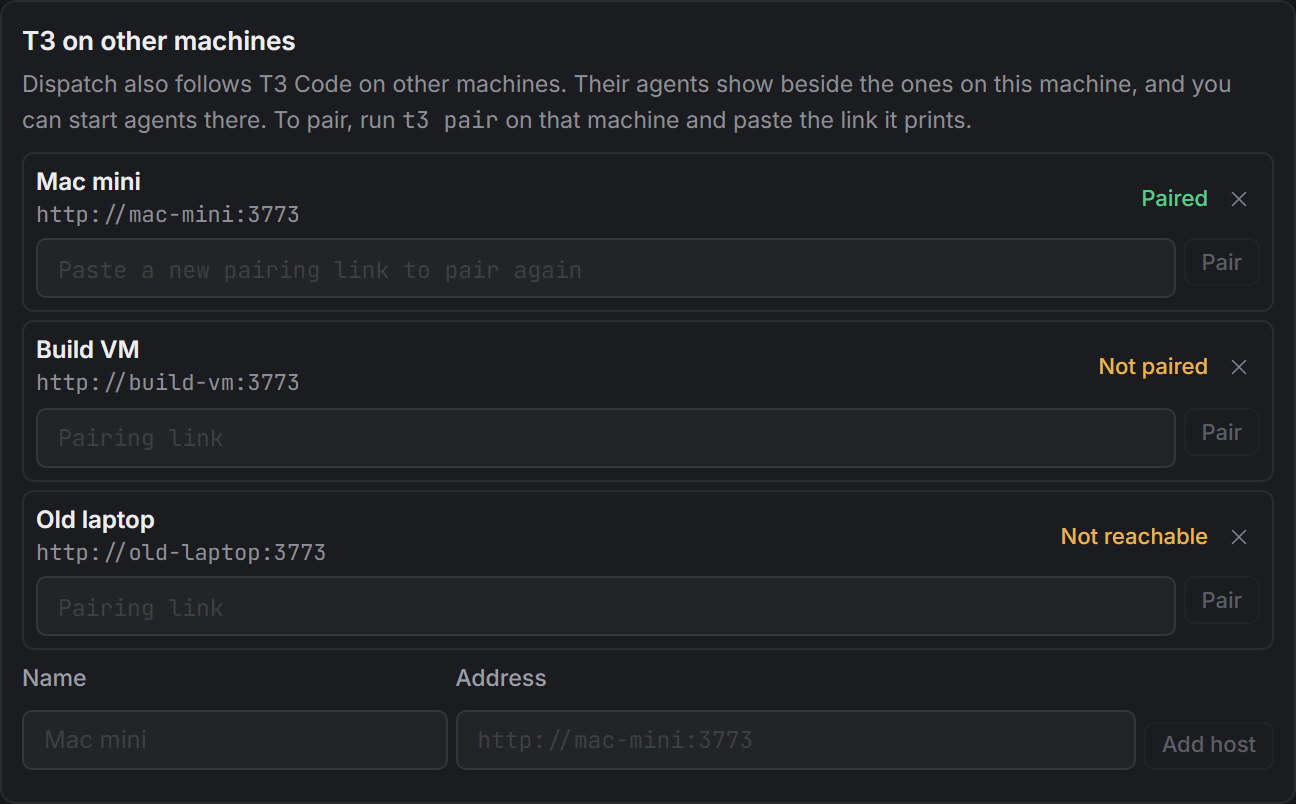
T3 Code on three machines in Settings → Agents: this machine, a Mac mini and a build machineT3 Code on three machines in Settings → Agents: this machine, a Mac mini and a build machine

Also in Dispatch

A sync at work in Code Review: the agent, how many items it has moved and a bar per itemA sync at work in Code Review: the agent, how many items it has moved and a bar per item
Watch a sync at work A card in the state shows the agent, how many items it moved and a bar per item. The items it covers are marked, so you leave them alone.
The walk after a sync: the agent's report on each item it moved or kept, with Open in T3 and SettleThe walk after a sync: the agent's report on each item it moved or kept, with Open in T3 and Settle
Read what it did When the agent finishes, the card lists every item it moved or kept and why, with Open in T3 one click away.
Sync all: every item you own for one agent, with a schedule to repeat it on the days and at the time you pickSync all: every item you own for one agent, with a schedule to repeat it on the days and at the time you pick
Sync all on a schedule Pick the weekdays and a time, and Sync all runs by itself while BorgDock is open, in a fresh worktree of the repository and with the model you used last.
The launch sheet: the machine T3 runs on, the repository, a new worktree from a branch or an existing thread, the model, how the agent begins and its first messageThe launch sheet: the machine T3 runs on, the repository, a new worktree from a branch or an existing thread, the model, how the agent begins and its first message
Edit the first message Every launch shows the message the agent gets. Change it before it goes out, or edit the templates in Settings → Agents.
Dispatch as a list: your work items with the T3 threads on them, and an agent's question open beside the listDispatch as a list: your work items with the T3 threads on them, and an agent's question open beside the list
The List layout Your work grouped by what it needs, with the selected item, its agent and its next step beside the list.
Update for QA goes back to the thread that did the work: Existing thread, with that agent's checkoutUpdate for QA goes back to the thread that did the work: Existing thread, with that agent's checkout
Back to the thread that did the work Update for QA picks the thread that worked on the item, so the agent already knows what it changed. Existing thread works for any launch.
Dispatch rows with the workstream each item belongs toDispatch rows with the workstream each item belongs to
Workstreams on every row An item that belongs to a workstream says which one, and the workstream keeps its pull requests and threads together.
Settings → Agents: pair with T3 Code on this machine, add other machines and edit the prompts Dispatch starts agents withSettings → Agents: pair with T3 Code on this machine, add other machines and edit the prompts Dispatch starts agents with
Settings → Agents Pair with T3, add your other machines, turn on notifications and edit the prompts Dispatch starts agents with.

What you need

  1. BorgDock 4 or later Dispatch is the second section in the rail. Press 2 to open it.
  2. Azure DevOps Sign in with the Azure CLI or a personal access token under Settings → Azure DevOps. Dispatch shows the items assigned to you.
  3. T3 Code Pair it in one click: Settings → Agents → Pair with T3 on this machine. Add your other machines in the same place.

Keep it one hotkey away.

Version 4.9.4, released October 29, 2026. Install it once and it keeps itself up to date.