Review file by file, decide on the last one.
Quick review keeps the pull request above the diff and its proof beside it. Mark the last file reviewed and the footer asks for your verdict. Approve, and the next pull request is already open.
Start
Open everything that waits on you
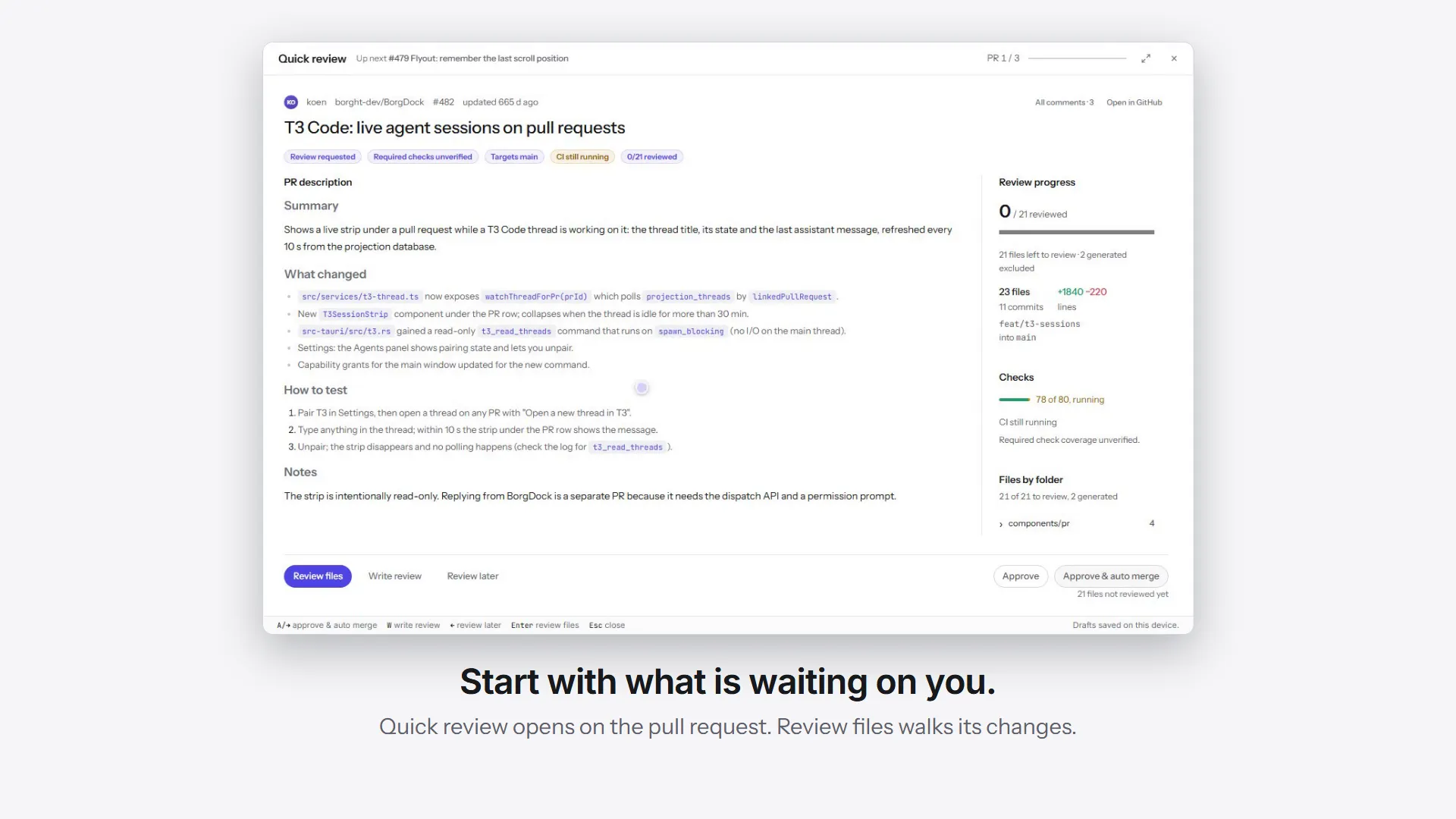
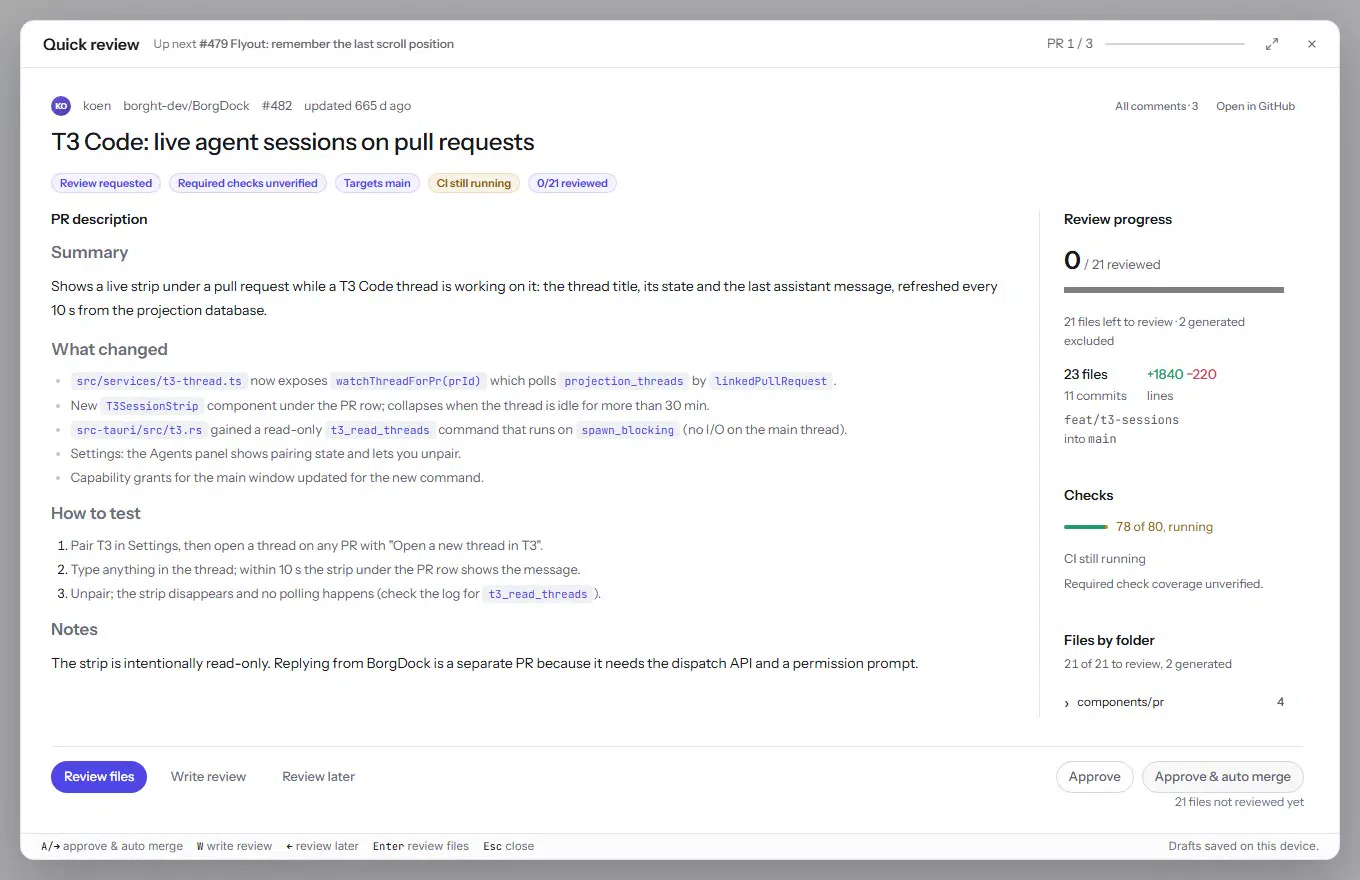
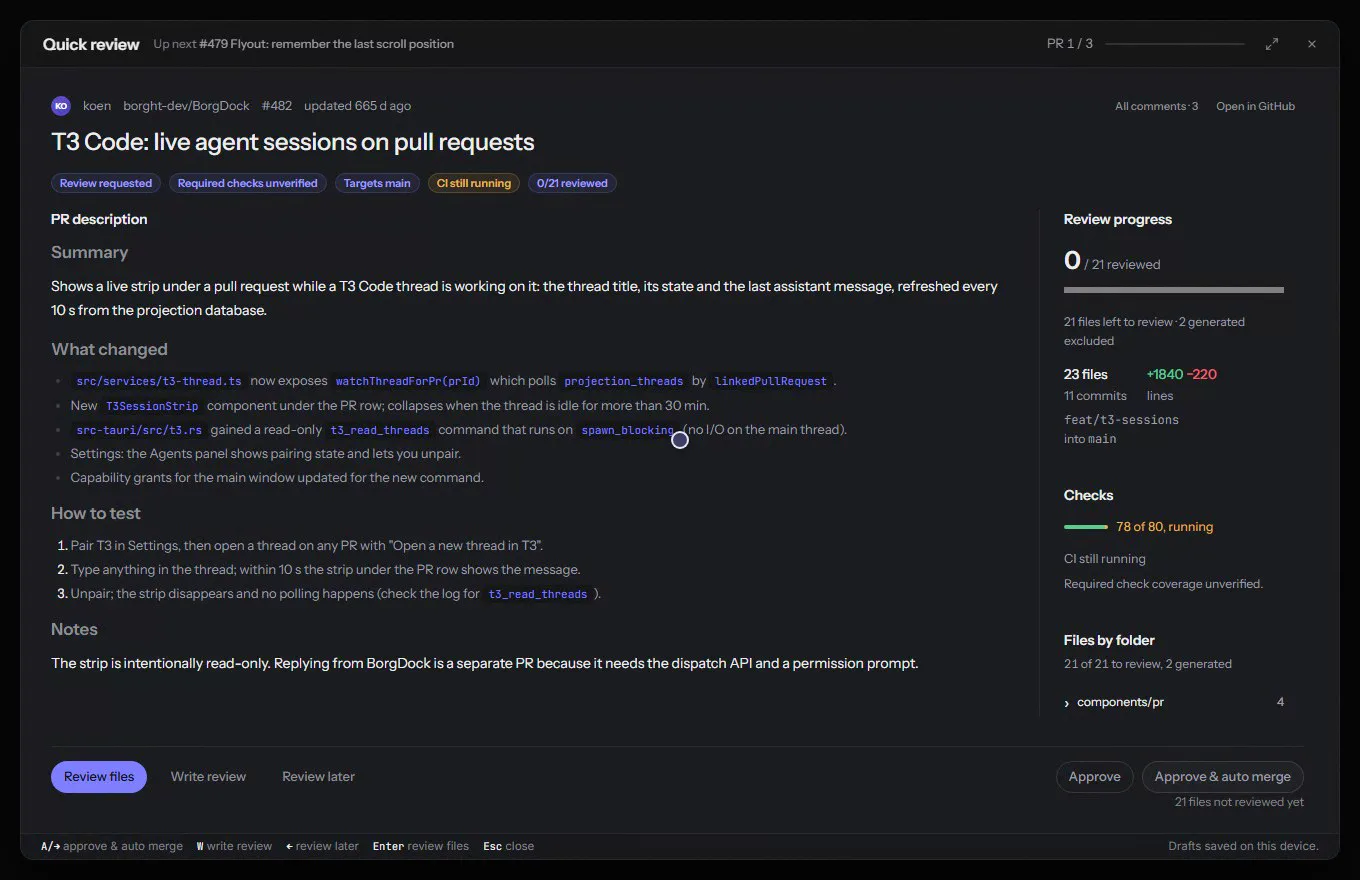
Press Start Quick Review in Focus, or Shift+R in the main window, and every pull request that waits for your review lines up. Review on a single pull request opens just that one.
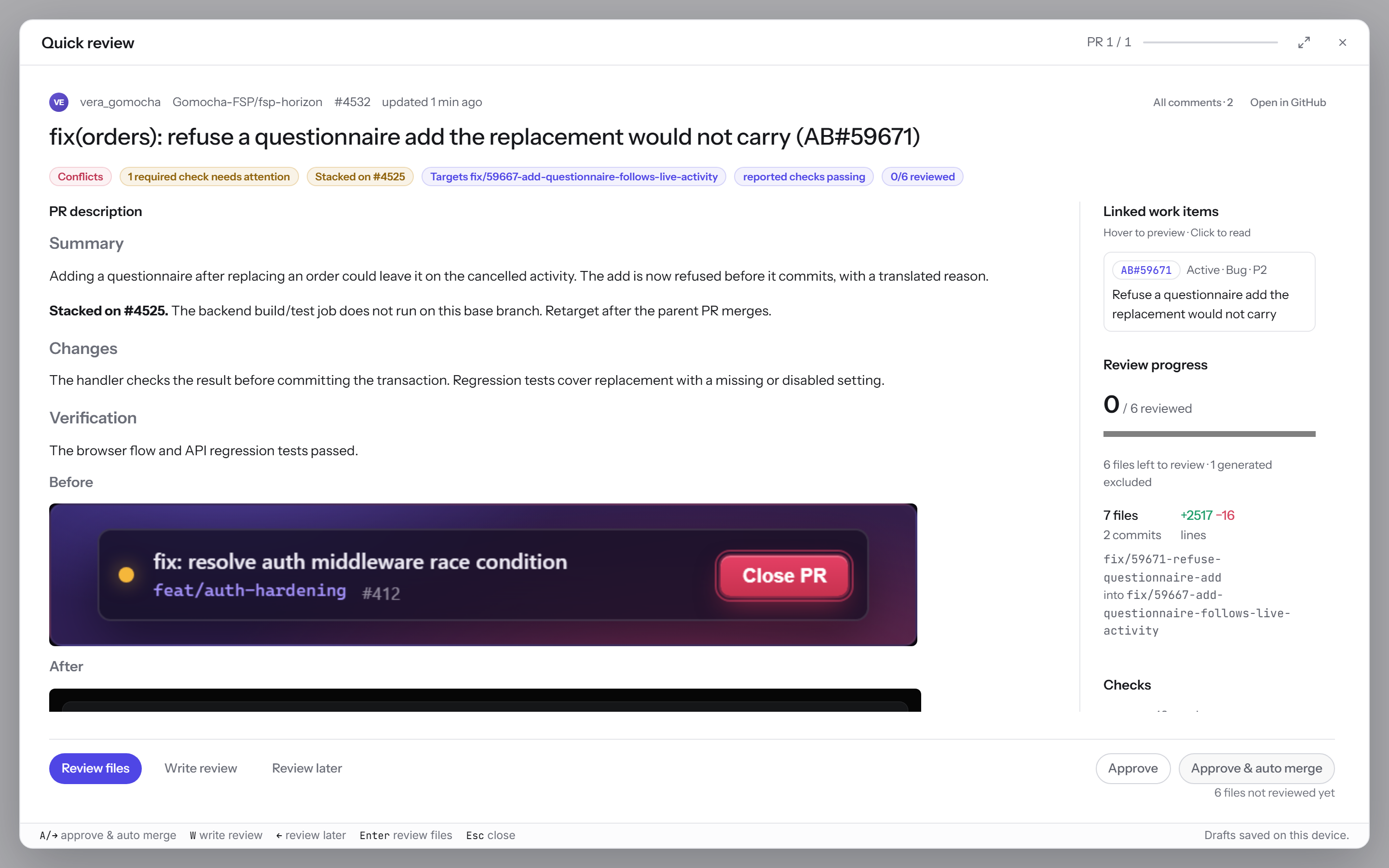
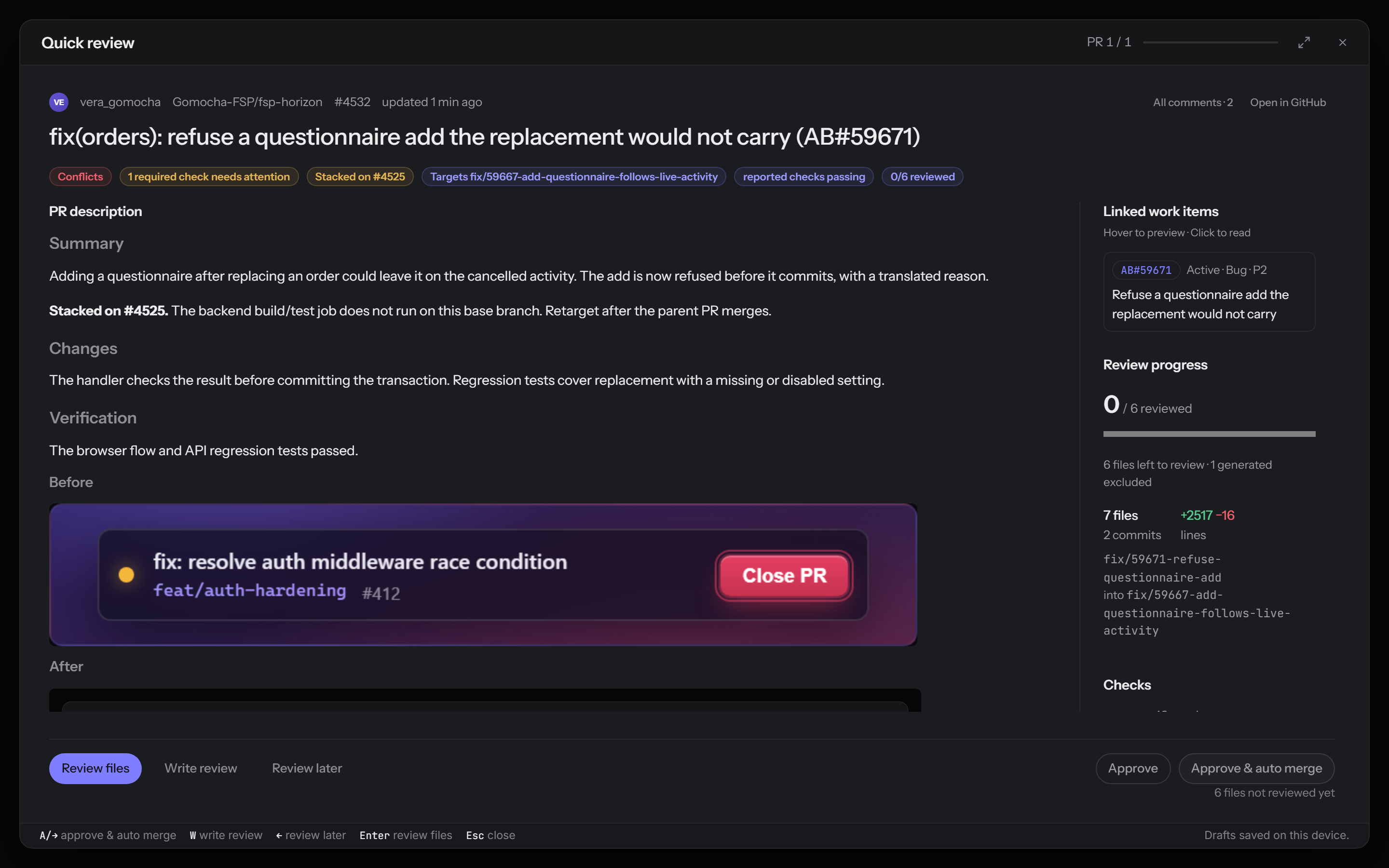
Each one opens on its description, screenshots included, next to the linked work item, its checks and how many files are left. Review files starts the walk. Review later sends it to the back of the line.
The pull request in view
Keep the pull request above the code
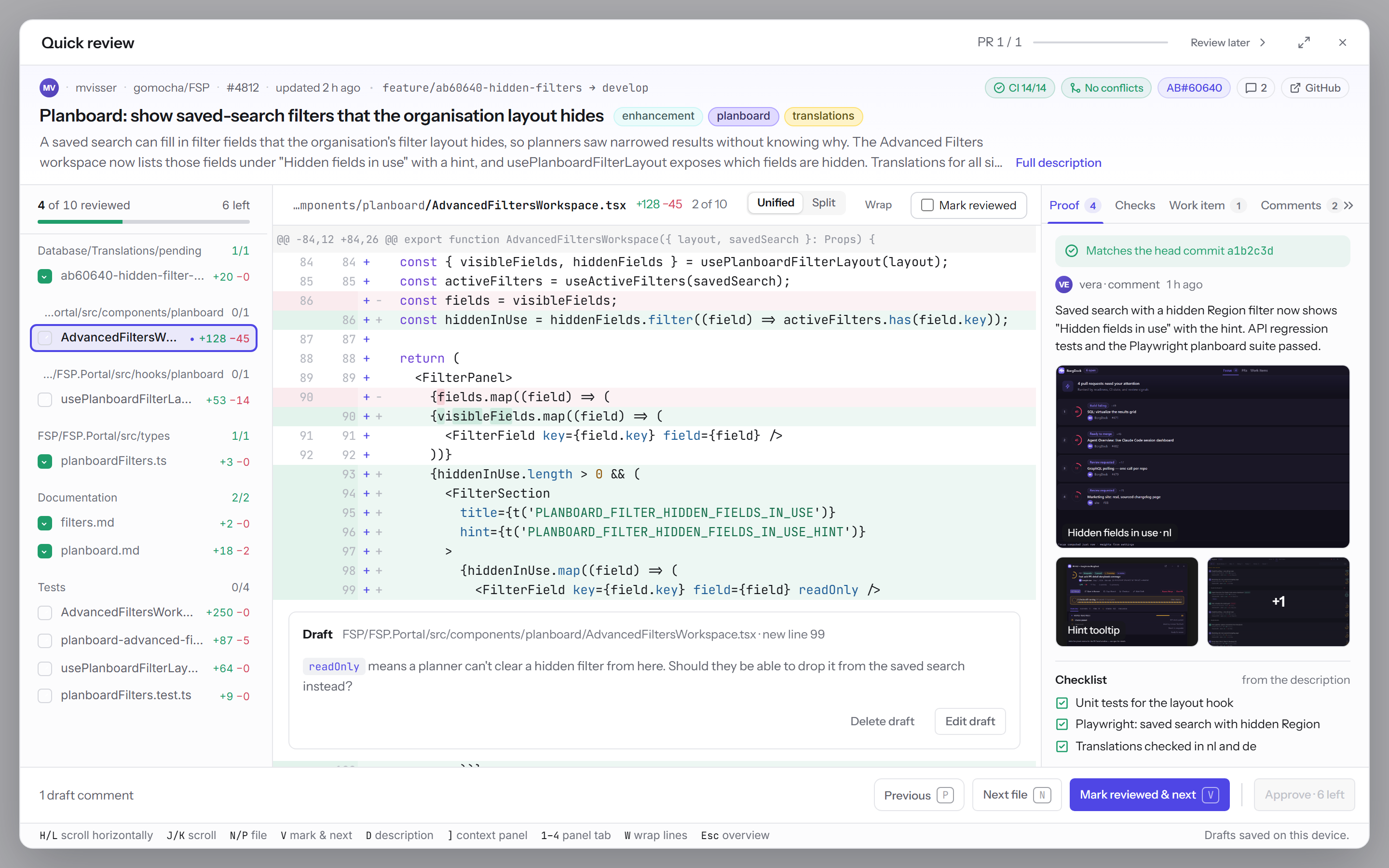
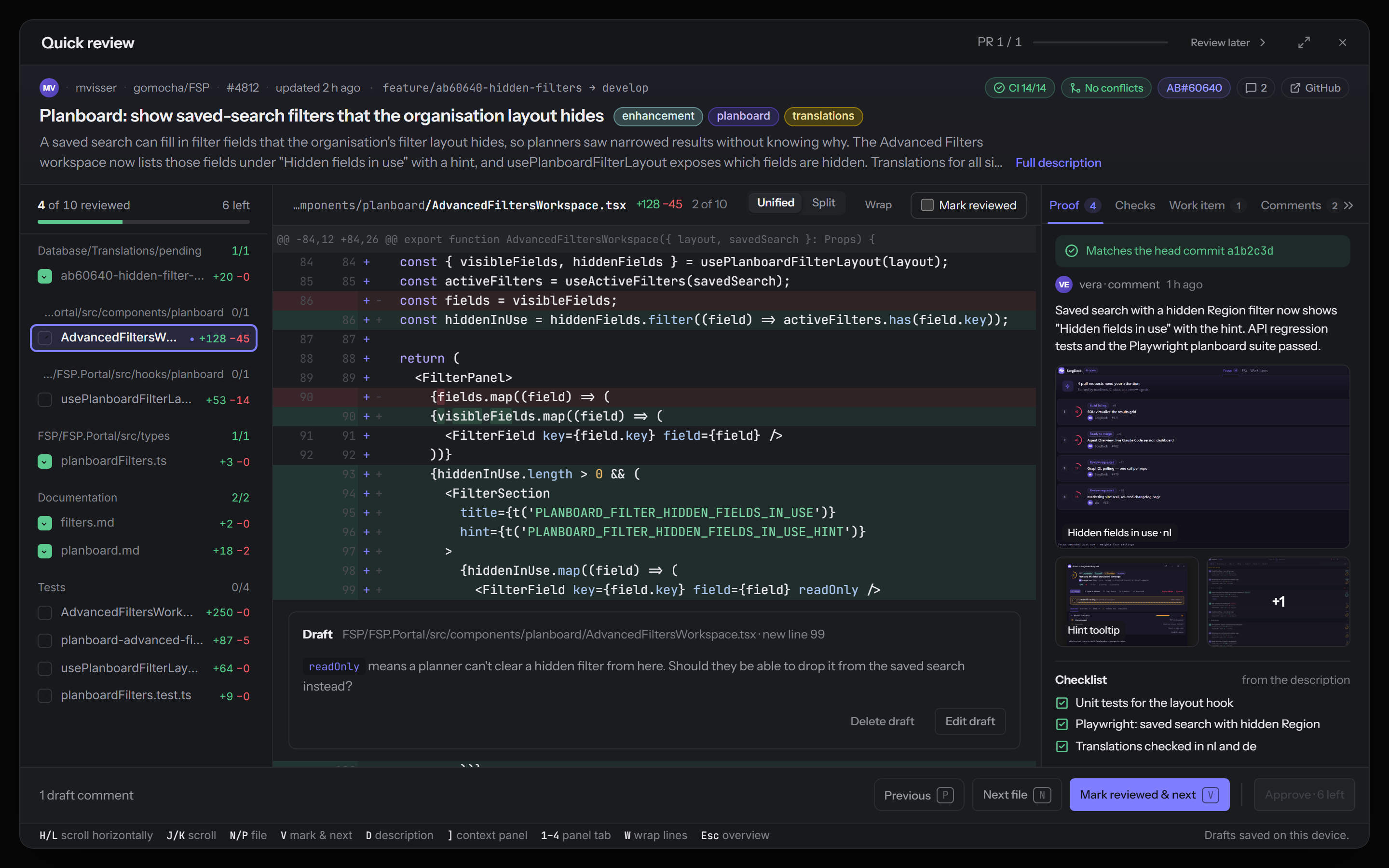
The pull request stays at the top while you read its files: who opened it, the branch, CI, conflicts, the linked work item and its labels in their GitHub colours.
Two lines of the description sit under the title. Press D to read all of it in place and D again to get back to the code.
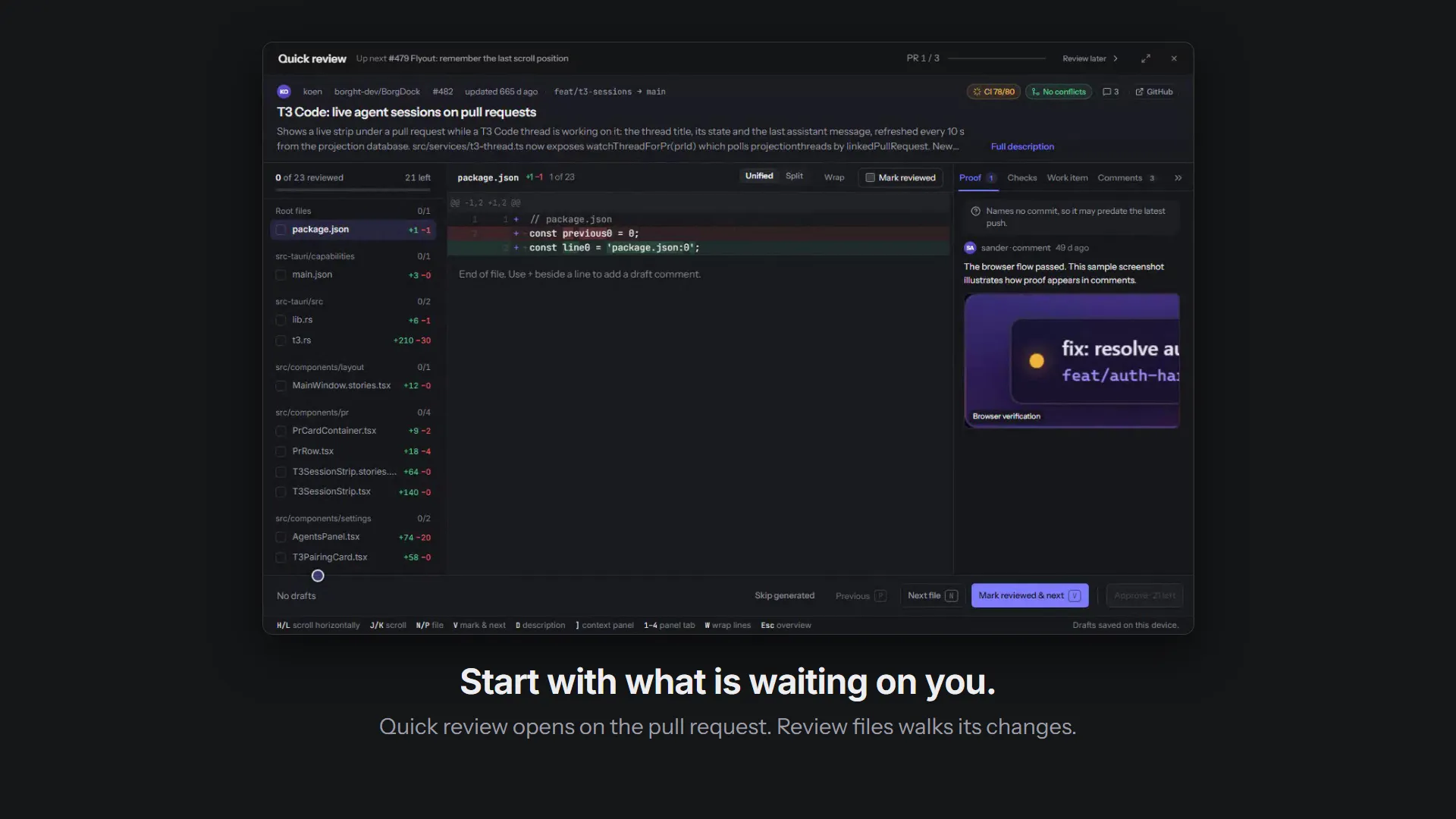
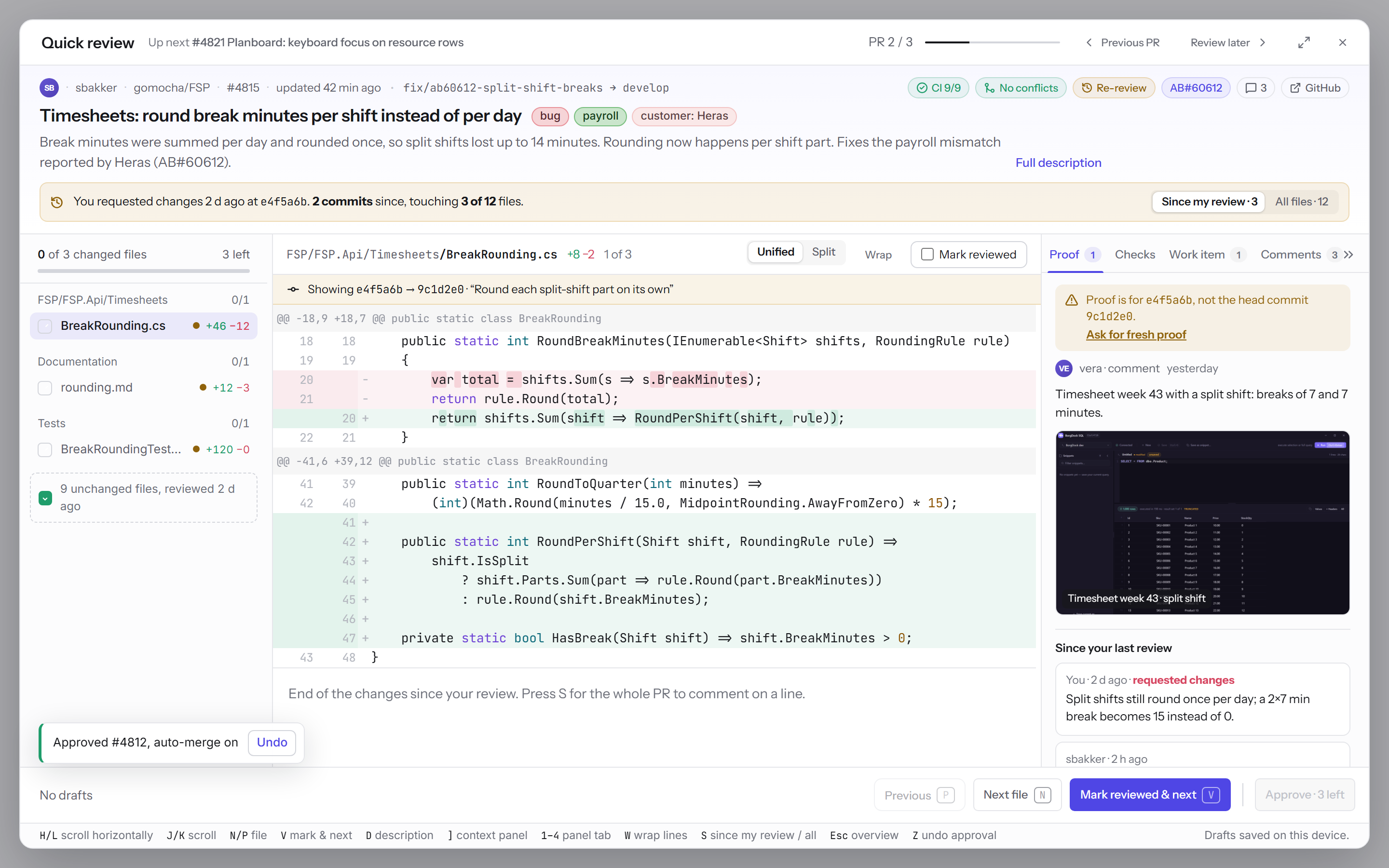
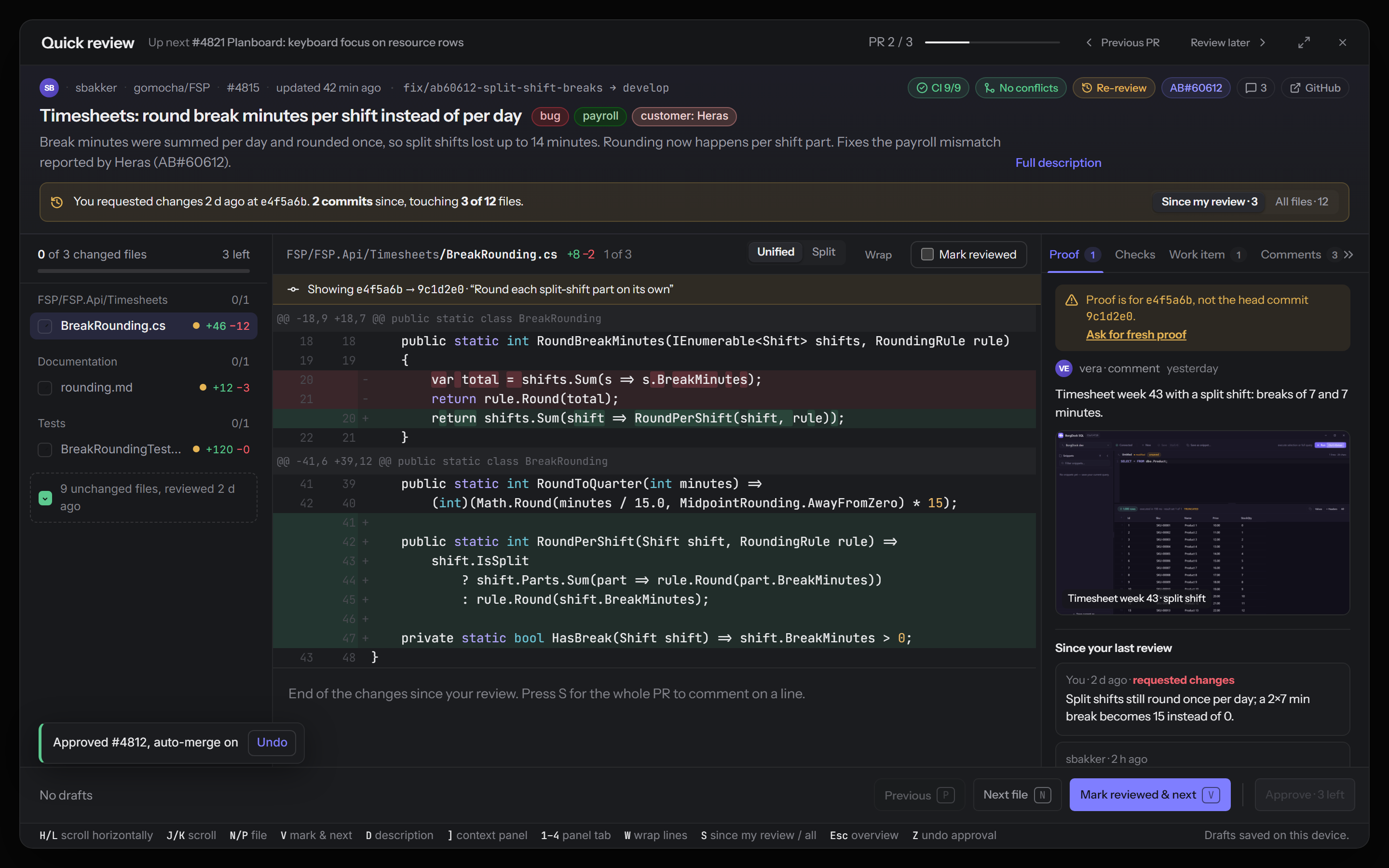
The panel beside the diff holds the proof, the checks, the work item and the comments. Keys 1 to 4 switch between them, and ] folds the panel into a rail when the code needs the room.
![The file walk: V marks a file and opens the next, D opens the whole description in place, 2 shows the checks and ] folds the panel into a rail](/recordings/quick-review-walk-light.webp)
![The file walk: V marks a file and opens the next, D opens the whole description in place, 2 shows the checks and ] folds the panel into a rail](/recordings/quick-review-walk-dark.webp)
File by file
Walk the changes one file at a time
Files are grouped by folder, with generated files left out. Press V to mark one reviewed and open the next, or N and P to move without marking.
Click + beside a line to leave a comment there. Your drafts are kept on this device until you send the review, so closing BorgDock loses nothing.
Switch between Unified and Split, press W to wrap long lines, or give a large pull request the whole window.
Proof
See that it works before you read how
The Proof tab collects the screenshots from the PR description that show the change working, with the description's checklist below them.
Every proof says whether it was made on the latest commit. When the author pushed after it, Ask for fresh proof posts a comment asking them for a new one.
Images
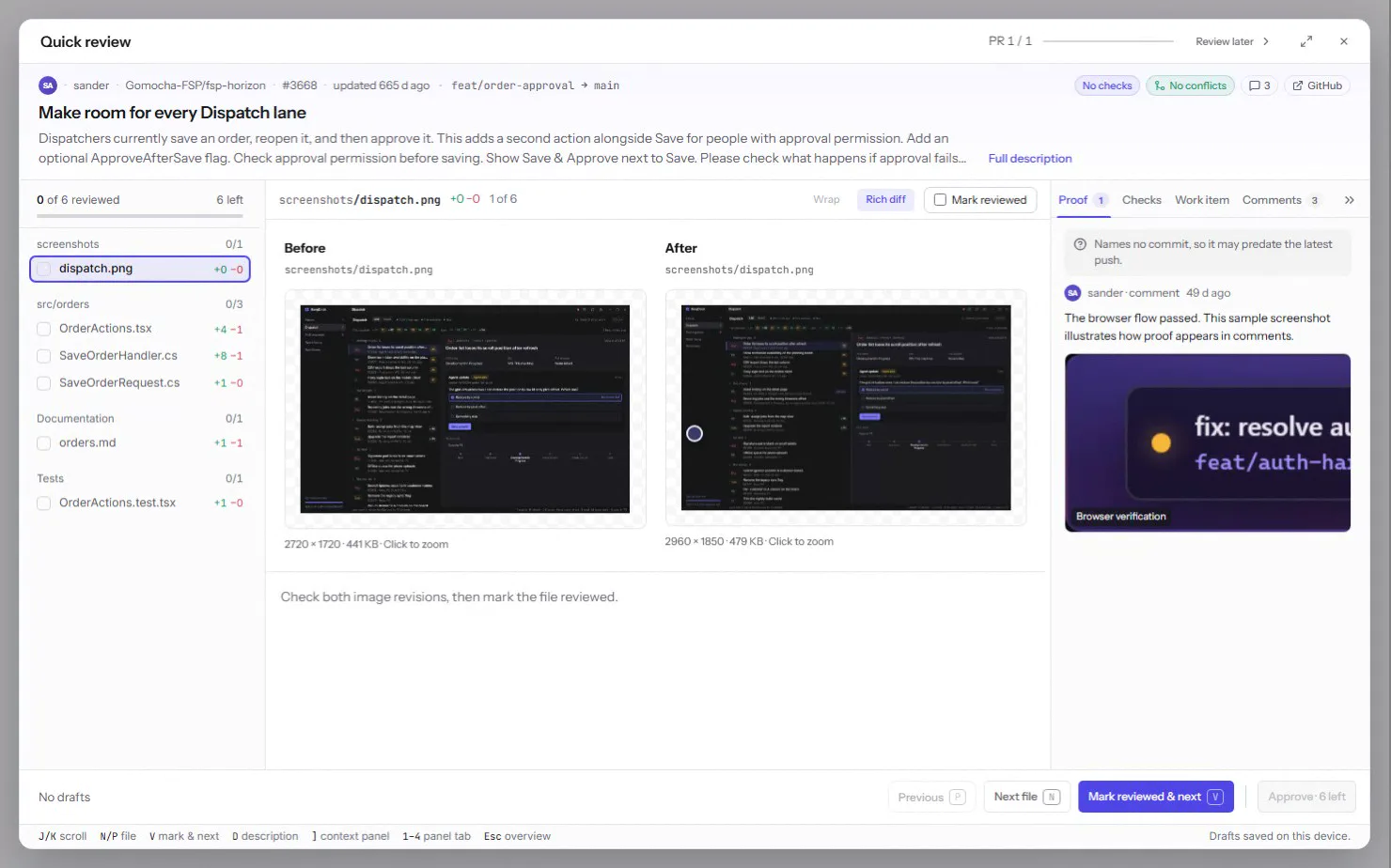
Before and After for every changed image
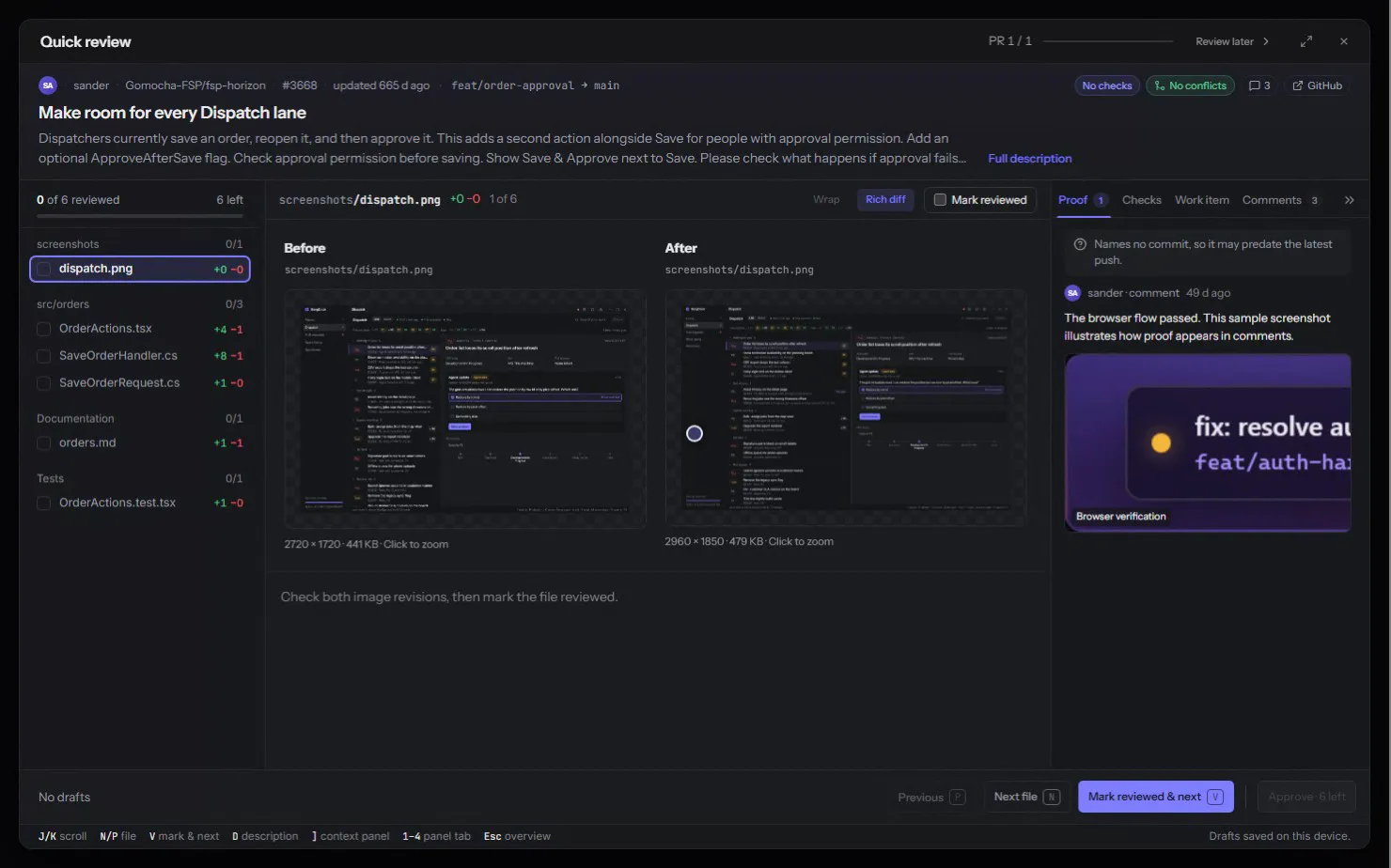
A changed screenshot or icon shows its old and new version side by side, with their sizes. Click one to look at it full size.
Decide
Decide the moment you're done
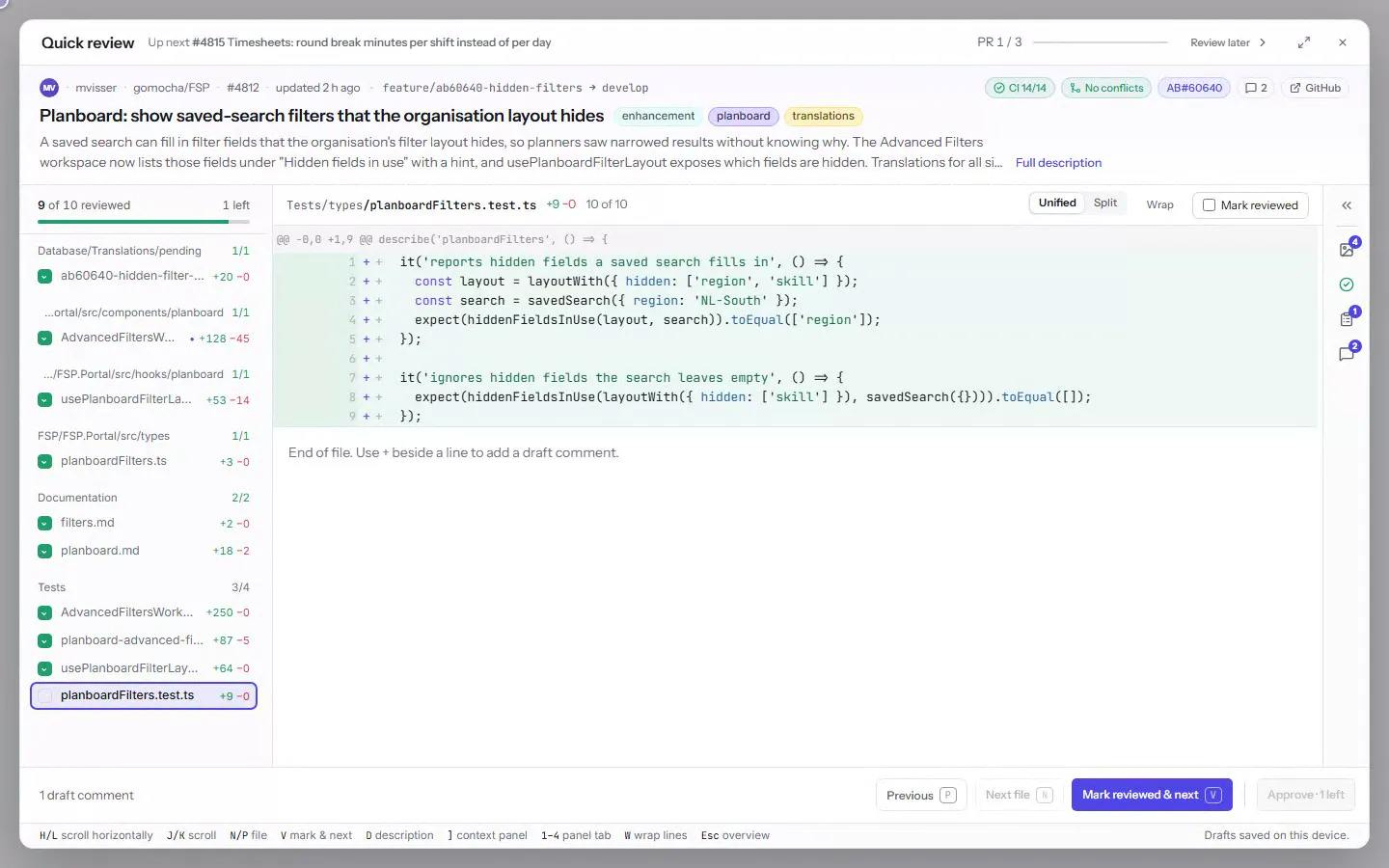
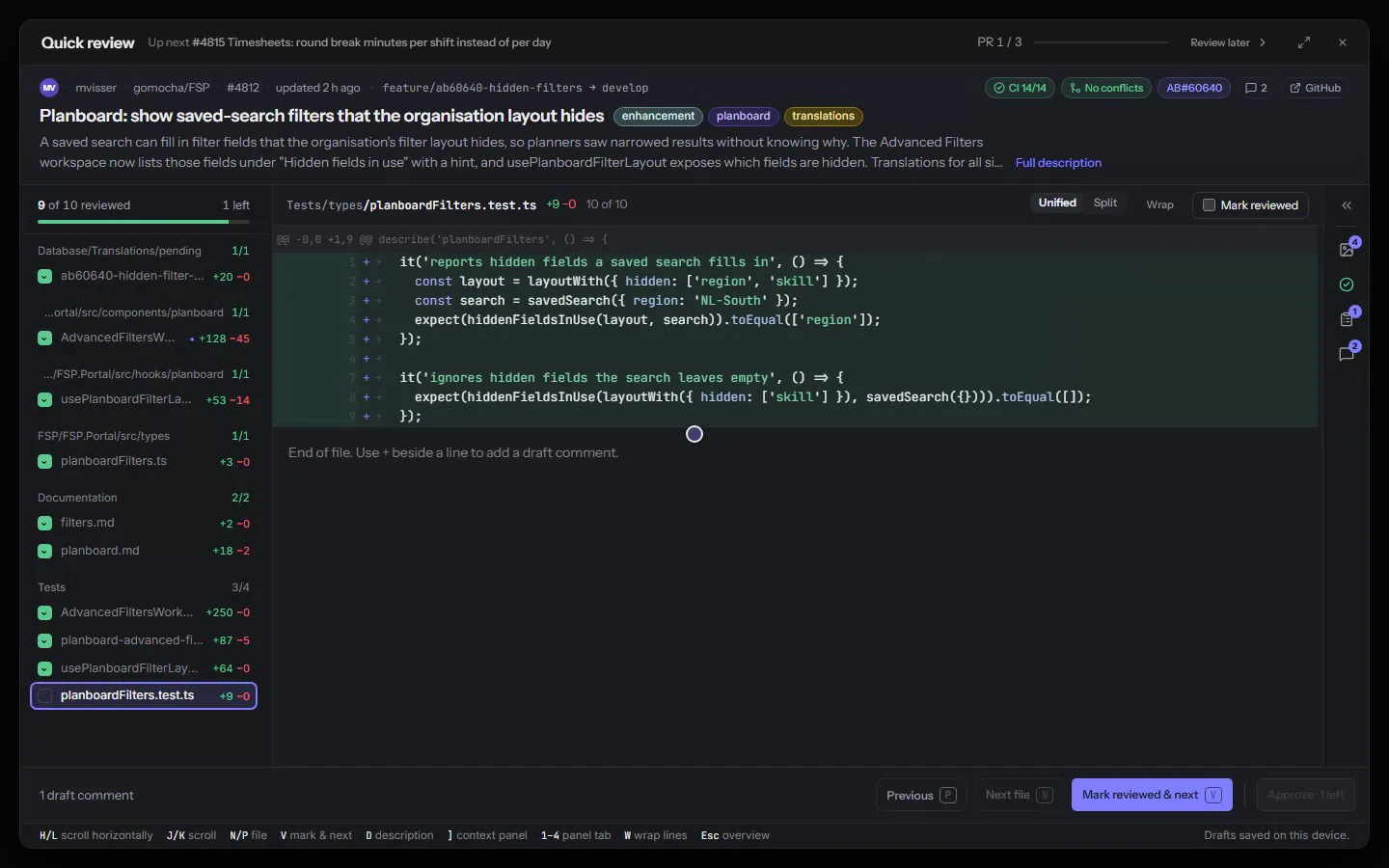
Mark the last file reviewed and the footer turns into your decision: Request changes, Comment, Approve, or Approve & auto-merge. Your overall comment and every draft go with it.
The next pull request opens straight away. Approvals wait five seconds before BorgDock posts them, so an Undo is one key away. GitHub cannot take a review back once it's in.
Approve & auto-merge lets GitHub merge as soon as the required checks pass. The merge carries on in the background, and BorgDock tells you if it doesn't go through.
Re-review
Read only what changed since your last review
Back at a pull request you reviewed before? Quick review shows only the files that changed since then, with the commits in between and what you said last time.
The files you already read are folded away. Press S to see the whole pull request again.
Keys
While you walk the files
- V
- Mark the file reviewed and open the next one
- N / P
- Next or previous file
- J / K
- Scroll the diff
- D
- Open or close the whole description
- ]
- Fold the panel beside the diff into a rail
- 1–4
- Proof, Checks, Work item, Comments
- W
- Wrap long lines
- S
- Switch between the changes since your review and all files
- Esc
- Back to the overview
Once every file is reviewed
- Enter
- Approve & auto-merge
- A
- Approve
- R
- Request changes
- C
- Comment
- Z
- Undo the approval you just gave
In the main window
- Shift+R
- Start Quick review on every pull request waiting for your review
Keep it one hotkey away.
Version 4.9.4, released October 29, 2026. Install it once and it keeps itself up to date.